Why Your Browser Is the Real Command Center (And Why NSUT Students Know It)
If you're a computer science engineering student at a university like NSUT, you know well that using the browser is not just an activity. The browser is your platform. I have had to keep 47 tabs open for writing one OS lab report: three Wikipedia pages, a GeeksforGeeks guide, two articles from arXiv, college ERP portal, a YouTube video, and roughly 38 other tabs "that I will definitely read later".
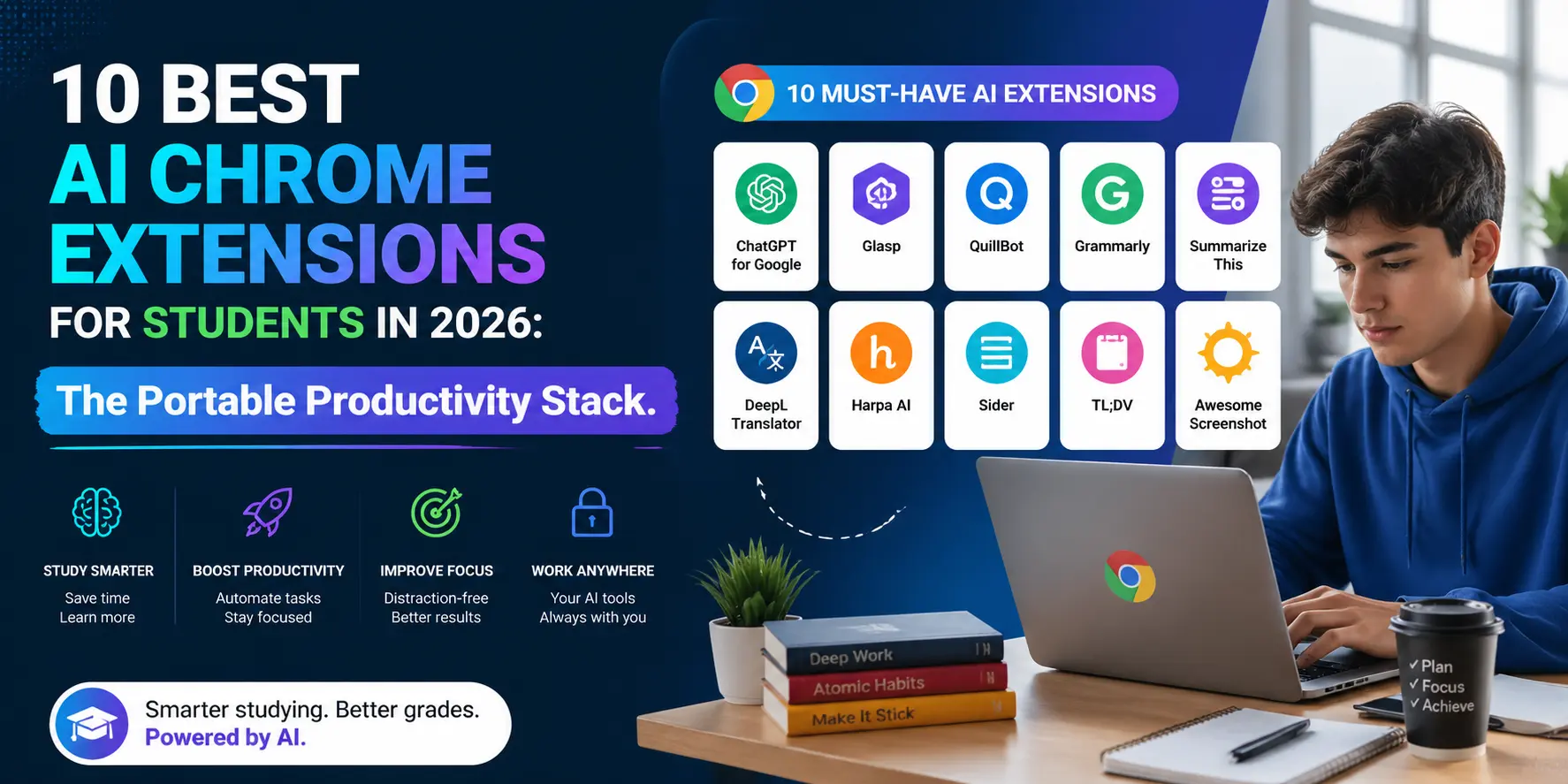
And that is the real-life student experience. That is exactly why the best AI Chrome extensions for students in 2026 will mean so much to you — because they can add their intelligence right there on those pages and do everything in your browser, without any need for you to switch contexts or open a separate chatbot tab. No need to go anywhere else because these are not websites, they are agents that run inside your browser and help you by reading along with you, summarizing your videos, and writing alongside you in the same DOM environment. They are exactly what you would expect from the best AI tools for computer science students discussed in our previous blog post — but specifically for your browser.
As we look at the list, a message to the engineers out there: Extensions for Chrome are apps written in JavaScript that modify pages by adding scripts, talking to the browser's runtime APIs, and using background service workers. All these extensions have a performance penalty. The list takes this into account.
| Extension | Primary Use | AI Model | Price |
|---|---|---|---|
| Harpa AI | Web automation & summarization | GPT-4 / Claude / Own | Free + Pro ($15/mo) |
| SciSpace Copilot | Research paper explanation | SciSpace proprietary | Free + Pro ($12/mo) |
| Monica / Sider | All-in-one sidebar assistant | GPT-4o / Claude 3.5 | Free + Pro ($9/mo) |
| Perplexity | Instant AI-powered search | Perplexity / GPT-4 | Free + Pro ($20/mo) |
| Grammarly | Writing & grammar assistance | Grammarly AI (GrammarlyGO) | Free + Premium ($12/mo) |
| Otter.ai | Lecture transcription & notes | Otter proprietary ASR | Free + Pro ($17/mo) |
| Wiseone | Cross-referencing & fact check | GPT-4 / Own | Free |
| Compose AI | Email & writing autocomplete | Compose proprietary | Free + Pro ($9.99/mo) |
| ChatGPT Sidebar | Quick GPT-4o in-browser access | GPT-4o (OpenAI) | Free (OpenAI account) |
| WebChatGPT | Web-augmented ChatGPT queries | GPT-4 + web retrieval | Free |
Top Pick 1: Harpa AI — The Automation Specialist
How Harpa AI Automates Your Browser
The only browser extension out there that can truly do things for you in addition to explaining how they work is Harpa AI. This works by sitting as a sidebar overlay and doing everything from reading the DOM of the currently open webpage, performing multiple web automation steps, price tracking on eCommerce sites, automatically creating a YouTube video summary without leaving the tab, and answering queries related to specific webpages based on context-awareness inherent in its algorithm.
The feature that will be most beneficial to students is the YouTube video summarizer. Watching a 2-hour Dynamic Programming lecture at 1.5x speed but don't have the time? No worries. Harpa extracts the transcript, runs it through the model and provides a summarized output with timestamps. No need to switch tabs.
This is where things get really cool from an engineering standpoint. You can tell Harpa "Go to this documentation website, find all the HTTP endpoints, and list them out," and it will navigate to that website and automatically traverse its DOM. This isn’t witchcraft; this is something more like what you'd see in Playwright's browser automation, except that it’s been wrapped into an LLM interface. This saves you hours of coding for a web-dev lab.
The RAM Factor
The Harpa extension works in the background at all times. If your computer has only 8 GB of RAM (minimum requirement for a Computer Science student to be able to run Visual Studio Code and Chrome simultaneously), having Harpa running with 3 other extensions would make Chrome's process tab very full. Switch off Harpa when not needed.
Pros
- Reads & engages with the live page DOM – real in-page power
- Summarizes YouTube videos & articles without changing tabs
- Automation of multi-step tasks for data scraping purposes
- Supports more than one AI backend (GPT-4, Claude, Gemini)
- The free version actually offers something valuable to students
Cons
- Service worker adds latency for first-time page loading
- Advanced functions (automation scripts) only available with premium subscription
- Wide permissions: accesses all site data by default – change this
- Less reliable automation when pages use lots of JavaScript (SPAs)
Top Pick 2: SciSpace Copilot — The Research Powerhouse
Reading Papers Without Losing Your Mind
NSUT end-of-semester project time normally translates to 15 tabs opened on arXiv, three partially read papers, and mounting terror about whether you really know what’s being talked about in the methodology section. And this is what SciSpace Copilot was made for.
Install the Chrome extension, select any research paper – from arXiv, Semantic Scholar, IEEE Xplore or even one you host locally as a PDF file – and the SciSpace Copilot adds an inline widget that will allow you to select any equation, any sentence, or any paragraph and click on "What does this mean?" You get your answer right there in the context, next to your selection. No copying and pasting. No need for a new tab.
It’s an entirely different kind of interaction compared to asking ChatGPT for a mathematical formula. The SciSpace bot has full information about the article, its references, and even the graphics. It is aware of the fact that ∇²u = f(x) has a different meaning in a Finite Element Methods article compared to a quantum mechanics article. No other browser extension is capable of handling mathematical symbols like this.
Developer Perspective: How It Parses PDFs
On viewing any PDF file through Google Chrome, the rendering occurs using the PDF viewer that comes pre-installed in the browser. SciSpace adds a content script that works with its rendering layer to identify the text coordinates and create an overlay. It takes some effort to parse the document object model (DOM), explaining why the extension struggles at times with scanned PDFs whose OCR isn’t up to scratch. However, it works perfectly on normal PDF files.
Pros
- In-line explanation rendering without tab context loss
- Mathematical formulas, tables, and graphs supported
- Works with arXiv, IEEE, ACM, Semantic Scholar papers, and PDF documents
- Citation understanding ability — summarize literature reviews smartly
- A clean user interface that does not clash with paper design
Cons
- Difficulties with scanning PDFs and custom PDF encoding
- Lacks versatility beyond scholarly and research material
- Needs the Pro subscription for advanced paper to paper comparison
- Latency issues during peak API usage by SciSpace
Top Pick 3: Monica / Sider — The All-in-One Sidebar
GPT-4 and Claude, Inside Every Tab
The main selling point of Monica (as well as its competitor, Sider) is that you need GPT-4 or Claude's abilities on the current page, uninterrupted by any workflow. The tool is presented in the form of a sidebar overlay that stays active through all tabs. Select any text on the page, press the hotkey, and Monica will generate a sidebar with that selection as context. The sidebar will present the answers to your prompts about translation, rewriting, expanding, or explanation.
It is worth noting the unique feature of Monica useful for students - the ability to switch between different models based on the task's demands. Thus, if you need to receive an explanation for an essay's topic, you should choose Claude. GPT-4o will be suitable for code questions because this model will give you a code snippet in response. For long-context questions, it is better to choose Gemini 1.5.
In the case when a CS student researches some information related to NumPy library documentation, they will have an opportunity to select the desired function description there and get both the translation into human language and the sample of its utilization without going away from the documentation.
Pros
- Multi-model routing: switch from GPT-4o, Claude to Gemini
- Sidebar that remembers the whole conversation history for each session
- Context injection on-page: highlights turn into prompts immediately
- Writing assistance: rewrite, summarize, translate and expand
- Almost any webpage is supported – documentation and forums included
Cons
- Sidebar extension can be incompatible with other add-ons with overlay panels
- Token restrictions are too strict in free versions for intensive research
- Unrestricted access to the Document Object Model may be risky on university sites
- UI looks very cluttered while using sidebar on small screens
Utility Picks: The Supporting Stack
Perplexity — Instant AI Search Without the Tab Sprawl
The Perplexity Chrome plug-in substitutes the default search engine with an advanced AI-driven one, and more importantly, incorporates a sidebar where users can make inquiries regarding the website they have opened with live search results as a source of evidence. In contrast to a generic LLM model, Perplexity provides source citations, which is very important since academic submissions require substantiation of statements. When looking up information in labs for facts such as time complexity, the waiting period is short and the results are credible.
Grammarly — Writing Directly in the DOM
Gramarly gets the right to be here as a writing layer that integrates directly with all your writing spaces, whether it is Google Docs, your email, the submission portal of your college, or PR descriptions on Github. Gramarly understands the context of your writing and provides suggestions according to that. The grammar layer of Gramarly, called Gramarly GO, has the ability to rewrite complete paragraphs right in the text field. It is immensely beneficial for non-English speaking students at NSUT who write technical documents.
WebChatGPT — Retrieval-Augmented Queries for Free Users
Web extensions such as WebChatGPT enhance the regular ChatGPT interface by incorporating live internet data searches into it. Although their relevance is diminished since the emergence of GPT-4o, which has an embedded search function, they can come in handy if you are using a ChatGPT Free account or prefer to have greater control over which sources will be integrated into your chat. Consider them a retrieval-enhanced generation feature that you manually operate.
Utility Picks: The Extended Stack (Tools 7–10)
Otter.ai — The Lecture Transcription Engine
How Otter.ai Transcribes Meetings
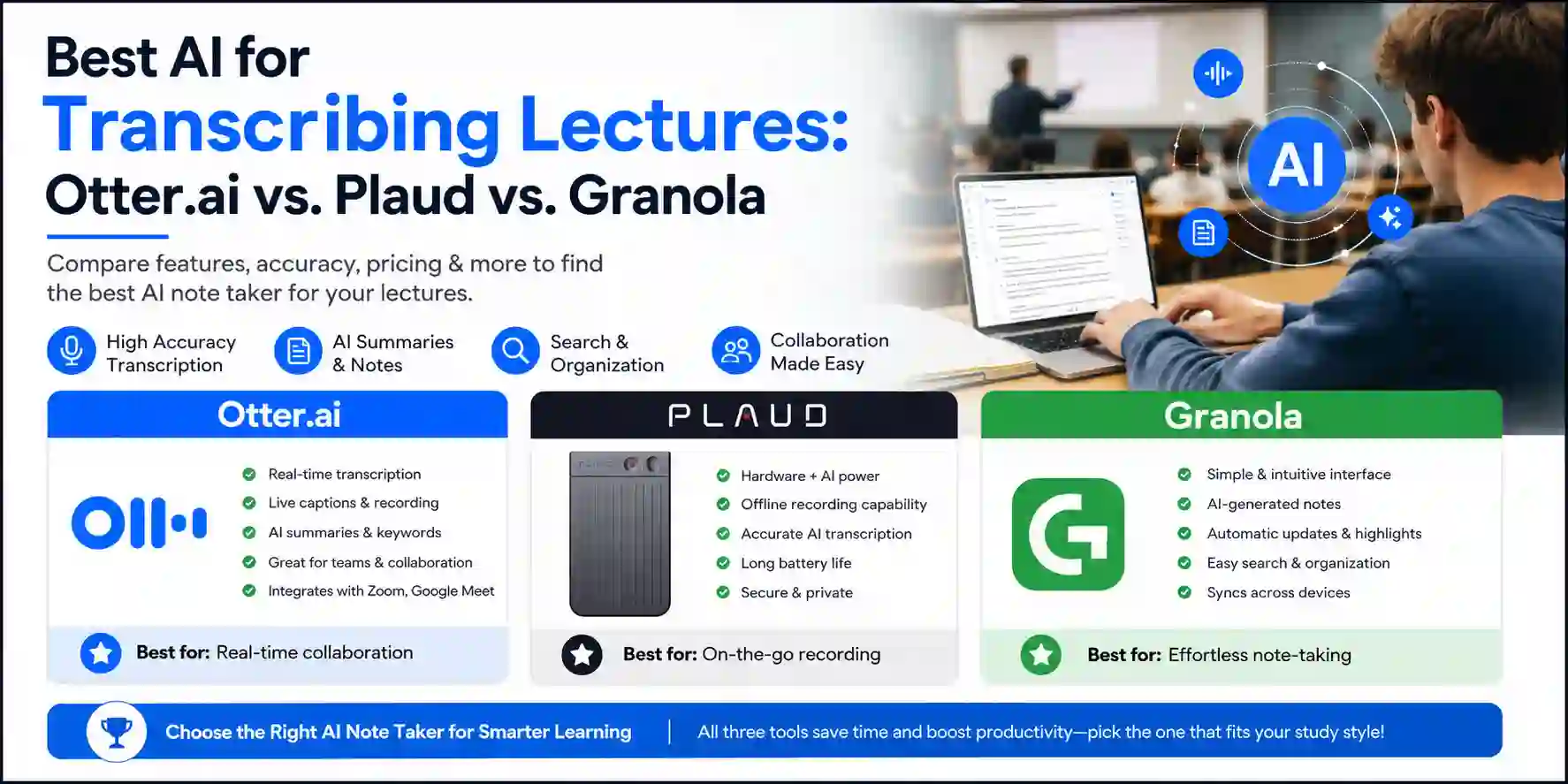
Having had to attend an NSUT lecture on Computer Networks that lasted for 90 minutes and come away with a mere three lines of notes and a splitting headache, I have finally found an extension that will fix both issues without requiring any effort on your part – Otter.ai. This app seamlessly integrates into Google Meet and Zoom browser-based meetings, transcribing live audio using ASR technology while simultaneously creating a timestamped transcript within the meeting itself.
And that's precisely why it works for students: Otter will inject a small window into your Meet/Zoom tab with a live transcript, allowing you to add comments and highlights while staying in the meeting. After it all ends, it will automatically generate a meeting summary with relevant action items. If you're discussing a group project and someone inevitably skips all the essential parts, then this could make all the difference.
It should be noted, however, that in order to operate properly, Otter requires access not just to the website, but also to your microphone – and unlike most other extensions, it won't give up this access.
Pros
- In-browser real-time transcription in Google Meet and Zoom windows
- Automatic summary generation with speaker tagging
- Transcripts with time-stamps allow skipping straight to the highlights
- Full transcripts search history of all recorded meetings
- Basic version offers 300 minutes per month – enough for almost all students
Cons
- Microphone permission required — greater privacy footprint than browser extension
- Accuracy decreases when users have strong accents and talk quickly
- A 30 minute limit applies for the free service
- Transcription latency is up to 2–4 seconds
Wiseone — The Cross-Referencing Intelligence Layer
How Wiseone Cross-References Data
Wiseone addresses a niche problem that not many people talk about: while reading some highly informative piece on the web, it can identify the critical concepts and provide you with related references all within one tab, saving you the effort of opening another tab. This tool provides you with an overlay that highlights unknown terms or concepts. Hover over those concepts or click on them to know more about them, their relevance to the article, and other articles written by credible sources.
Let us consider an example: if a student is working on a literature review as part of the end-of-the-semester project, he or she might be reading some article on the Medium blog about transformers' architecture. As such, the term "attention mechanism" will be highlighted, and you'll see that it was first introduced in the Vaswani et al. paper. Moreover, you will also receive at least three more sources that confirm the reliability of your article.
Pros
- Cross-referencing without opening new tabs within the webpage
- Source verification indicators for judging article validity
- Highlighting technical words with immediate explanation via hovering
- No payment required — all features fully unlocked
- Lightweight as it does not have an entire sidebar extension
Cons
- Strongest index coverage is for English language tech/science content
- Cross-references to tangentially related articles sometimes appear
- Export and note-taking functionality not available
- Overlay styles may clash with dark mode websites
Compose AI — The Writing Autocomplete Layer
How Compose AI Autocompletes Your Writing
Compose AI is the Chrome extension that transforms all your browser text fields into intelligent writing tools. The software injects autocomplete suggestions right into Gmail, Google Docs, Notion, LinkedIn, and most other contenteditable elements on the web page. Pressing the / key when in an eligible text area will open up a command palette with options to create a whole email based on a single sentence input, rewrite a block of text, or auto-complete mid-sentence using AI suggestions.
Here is how the extension would be used by students: you are crafting a message to request an internship position or report a bug to the developers. Compose AI takes into account everything about the task at hand and generates suggestions that fit perfectly. As opposed to Grammarly, which focuses more on correcting than generating, Compose AI works with you, completing the text right where you type without switching tabs.
The only downside worth mentioning is the tendency of the extension to produce generic outputs if you blindly follow its suggestions. If you are drafting anything official for submission or communicating with your professors, Compose AI is better left for a quick draft generation process.
Pros
- Direct autocomplete in Gmail, Docs, Notion, and pretty much all text boxes
- Command palette using '/' key binding — for more than simple corrections
- Contextual: analyzes input before completing suggestions
- Makes routine tasks such as emails and bug reporting faster
- Generous monthly credit allocation even on free plan
Cons
- Will homogenize voice when suggestions are implemented without editing
- Will sometimes suggest ideas in areas where you don’t need them
- Needs an account setup and cloud-based data analysis
- Generates content poorly when used in technical or specialized subjects
ChatGPT Sidebar — Direct GPT-4o Access on Any Page
How ChatGPT Sidebar Enhances Browsing
The official ChatGPT Chrome extension (along with other third-party sidebars) allows you to use the keyboard-shortcut accessible GPT-4o sidebar overlay for any webpage. When you press the default keys Alt+Shift+G, or whatever else you configured, the whole interface of ChatGPT loads right in the sidebar, without even using a new tab. This interface automatically takes into account the URL of the current page and with one click you can feed its content as a prompt.
The use case for a student is very straightforward: You are on some Stack Overflow discussion page trying to figure out the cause of a memory segfault but you have a follow-up question regarding an accepted solution. Without leaving the page you use the sidebar to send your question and get an answer – all while maintaining visibility of your problem on StackOverflow. For students with smaller screens (or even when using WSL and a Chrome browser window would mean alt-tabbing from the console), this usage of the z-axis space can be quite helpful.
For latency concerns: There's little to no latency at startup since no page navigation needs to happen. Just DOM manipulation. The response latency is standard OpenAI API latency (500ms-2s).
Pros
- Quick GPT-4o access through keyboard shortcut — not opening a new tab or navigating
- Sidebar overlay retains visibility and scrolling of source webpage
- No lag in opening the panel — entirely DOM-based injection, no page reloading
- Supports any webpage from documentation, papers to coding environments
- The official plugin has OpenAI account integration
Cons
- Side bar clashes with Monica and Sider when both are activated at once
- OpenAI account is necessary – free version has restrictions on GPT-4o messages
- Conversation history does not persist between browser sessions in free version
- Different third-party versions of side bars differ in quality and privacy measures
The Developer's Perspective: Performance, Privacy, and How These Tools Read You
Here's what most extension review posts won't tell you, but that any CS student should understand before installing five AI tools at once.
Every Chrome extension that operates on web pages is granted permissions that are spelled out in its manifest.json. The critical one is "host_permissions" — specifically "<all_urls>", which means the extension can inject content scripts into every page you visit. These scripts can read the full DOM: visible text, form values, URLs, and in some cases, intercepted network responses. This is not a vulnerability — it's how extensions work. But it means an AI extension you install is, by design, reading the content of every page you grant it access to.
The pro-level mitigation: Go to each extension's settings in chrome://extensions → Details → "Site Access." Change it from "On all sites" to "On click." This means the extension only activates when you explicitly invoke it on a page, dramatically reducing its passive data footprint. It adds one click to your workflow and materially improves your privacy posture.
Performance-wise, there is a background service worker in addition to any active extension. Each of these can be seen by opening Chrome's Task Manager (press Shift + Esc). The Harpa AI service worker itself uses 80-120 MB of memory all by itself. Having four such extensions running together on an 8 GB computer, along with Visual Studio Code, a local server, and 20 browser tabs, is likely to cause overheating and freezing of the browser.
How to Manage Multiple AI Extensions Without Killing Your Browser
- 1
Audit Your Current Extensions: Open chrome://extensions and take stock. Disable everything you haven't used in a week.
- 2
Set All Extensions to 'On Click' Access: Go to Details -> Site Access -> On Click to save RAM.
- 3
Use Chrome's Extension Shortcuts: Assign keyboard shortcuts to toggle extensions on/off quickly.
- 4
Monitor RAM Usage: Use Shift + Esc to open Chrome Task Manager and kill heavy processes.
- 5
Build a Context-Specific Preset: Only enable SciSpace when researching and Grammarly when writing.
What to Avoid: Three Mistakes That Will Cost You
Over-reliance on AI explanations without verification. SciSpace provides you with an explanation of the formula of the research paper – fantastic. However, if your final assignment is going to reproduce that explanation without double-checking the source, then you will have problems with plagiarism and even facts.
Permission bloat. Ten extensions installed and ten permissions granted equal ten different entities that have full access to all your browsing behavior. This is not paranoia; it’s just smart planning. Make sure you understand what each extension is asking for before downloading it. An AI-powered writing tool does not need to access your camera or microphone.
Ignoring the sidebar conflict problem. All these AI tools, namely Harpa AI, Monica, and Sider, work with floating sidebars. It means that using two of them at once on the same page will result in conflicts, such as z-index and UI panel overlap issues, and sometimes even conflicts between scripts that lead to unpredictable behavior in JavaScript code.
The Student Browser Stack: Minimum Viable Configuration
After testing all 10 extensions across a full semester of engineering coursework — research assignments, lab reports, coding projects, and group submissions — here's the honest Minimum Viable Stack for most NSUT students:
Daily Drivers (always installed, enabled on click):
- SciSpace Copilot — non-negotiable for any student reading papers or documentation
- Grammarly — passive writing layer with minimal overhead, always useful
On-Demand (install, keep disabled, enable per session):
- Harpa AI — enable when you have a specific summarization or automation task
- Monica / Sider — enable when you need in-context AI assistance on complex reading material
- Perplexity — enable when you want sourced, fast factual lookup alongside your research
- Otter.ai — enable only during recorded lectures or group meetings
- Compose AI — enable when writing emails or drafting in Notion/Docs
Skip unless you have a specific need:
- Wiseone — great for exploratory reading, low priority for focused coding sessions
- ChatGPT Sidebar — only if you use Monica or Sider; don't run both
- WebChatGPT — redundant if you have a GPT-4o subscription
This stack covers research, writing, summarization, transcription, and automation without overloading your browser. The cardinal rule: never run more than two AI extensions simultaneously. Your browser — and your RAM — will thank you.
Final Verdict: The Browser as Your Productivity Layer
The move from "AI as a tool that you visit" to "AI that's built right into the pages you're already visiting" is the most critical productivity upgrade available to students in 2026. The list above does not feature chatbot shells; rather, it features extensions that can engage with the DOM, present intelligent interfaces based on your context, and save you from endless tab switches.
It might be surprising just how obvious the engineering rationale behind all of this is. Your browser knows everything it needs to know, from what's inside each page to where your reading cursor is at. It's much smarter to use your browser's capabilities rather than ask you to explain everything again in another tab. That's what you should expect from the best AI extensions.
For instance, you can start with SciSpace and Grammarly. If you need more help, try Harpa. Pay attention to your RAM. Make sure you enable "on click" permission requests in the browser. Treat your list of extensions like you would a dependency list in a professional development environment.
What's Next: Keep Building Your Stack
This list is the browser layer of a larger AI-powered student workflow. If you want to go deeper:
- 7 Best AI Math Solvers for Students — From WolframAlpha to Photomath to Mathway: which tools actually explain the steps vs. just giving you the answer, and which ones hold up for GATE-level problems.
- How I Used Claude to Pass My NSUT Capstone Review — A first-person breakdown of using Claude for literature synthesis, presentation prep, and viva Q&A simulation during my final semester.
Written by Anshul Goyal, CS student at NSUT Delhi and contributor at StackExpertise.com. Tested across one full semester of engineering coursework, three end-semester projects, and more arXiv tabs than I care to admit.