Why Your Next Presentation Should Take 10 Minutes, Not 10 Hours
I had a product demo to prepare last month, with just 18 hours' notice. I would have opened up PowerPoint, picked a theme, and braced myself for yet another late night of adjusting text boxes. Instead, I inputted two sentences into Gamma, spent fifteen minutes refining the generated deck, swapped out a couple of images, and ended up presenting something my boss referred to as "our most polished presentation this quarter."
It was a watershed moment in terms of my use of presentation software.
We are now in a point in time when AI can do the dirty work for us by laying out our presentation, writing a catchy headline, providing images suggestions, and making sure that our branding stays consistent throughout our deck within five minutes. The final question will be which tool suits our purposes best.
This review doesn't consist of screenshots and lists copied from websites about various software products. What I did was create real-life presentations using different software in order to compare their features and functionalities. Here is what I learned from that experience.
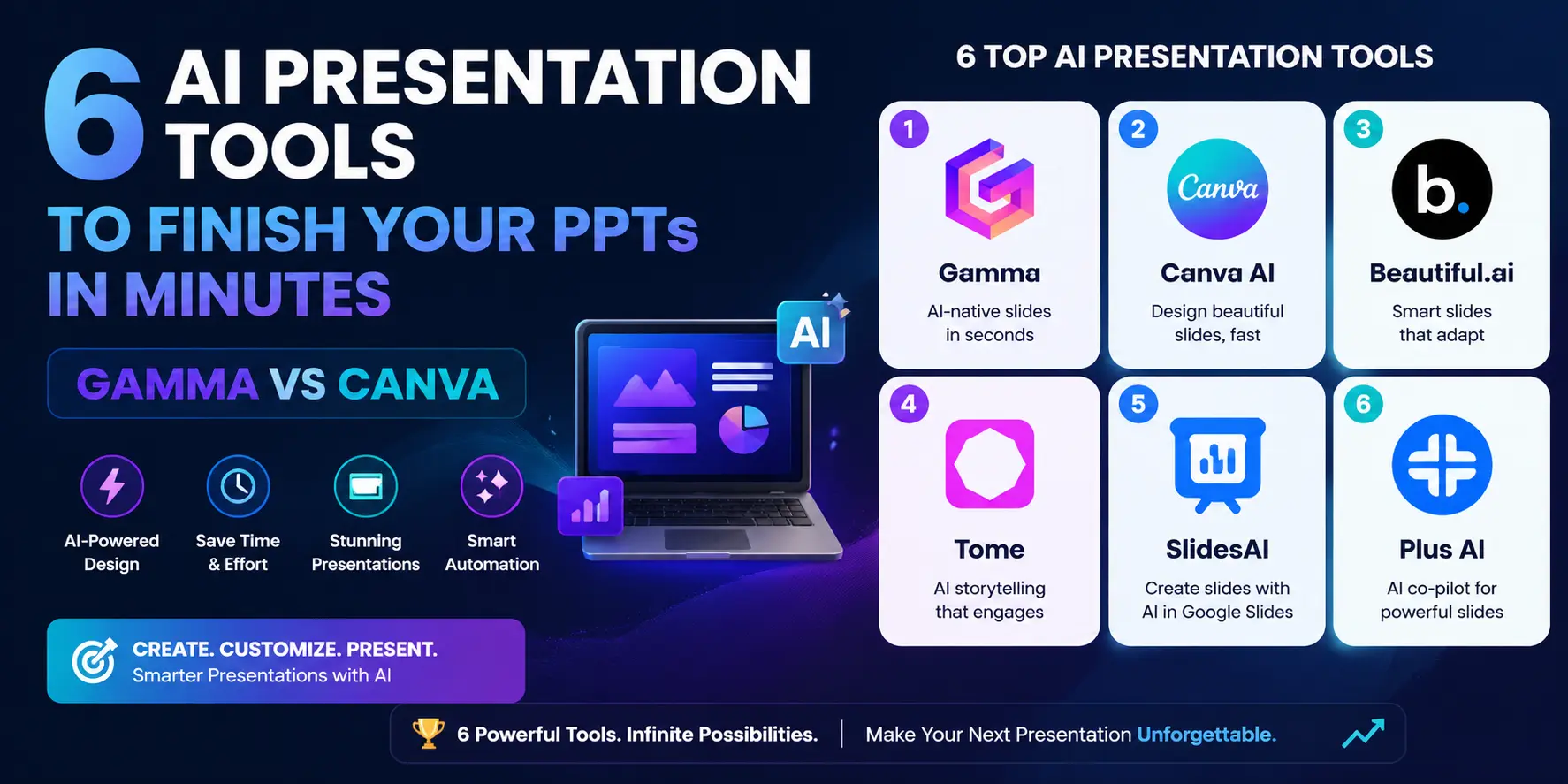
| Tool | Best For | Price | Rating |
|---|---|---|---|
| Gamma | Fast, narrative-driven decks from a prompt | Free / $10 mo | ⭐ 4.8/5 |
| TOP PICKCanva AI | Design-rich decks with full creative control | Free / $15 mo | ⭐ 4.6/5 |
| Beautiful.ai | Business and investor pitch decks | $12/mo | ⭐ 4.5/5 |
| Tome | Storytelling-first long-form presentations | Free / $20 mo | ⭐ 4.3/5 |
| SlidesAI | AI generation inside Google Slides | $10/mo | ⭐ 4.2/5 |
| Plus AI | AI editing layer on top of Google Slides | $15/mo | ⭐ 4.1/5 |
Gamma — The Fastest Deck You Will Ever Build
If you've ever gazed blankly at an unpopulated slide and felt your mind go into panic mode, then Gamma is for you. Take any prompt, outline, or file you've copied and paste it into the system and watch as it magically turns itself into a presentation within thirty seconds. No need to search through templates. No need to search through layouts. No need to agonize over what font works best late at night.
Why it stands out: Gamma doesn't just look at slides, it looks at documents. Each individual card in Gamma isn't even like a normal slide, it's more like one segment of a web page. You don't have to stress over getting text boxes right; Gamma keeps things consistent from slide to slide all on its own.
Best Feature: The “Generate from prompt” workflow. Enter text such as “Make a 12-slide presentation deck for a B2B software-as-a-service application that saves time in hiring for HR departments” and Gamma will generate a template deck complete with appropriate sections, sample content, and suggested images — all in less than one minute. After that, revisions happen through dialogue, where you could request to “make slide 4 shorter” or “add a competitive analysis section after the problem section.”
Real-world use case: Using Gamma, I made an internship project report with 15 slides. The PowerPoint presentation that was expected to take three hours was completed within 25 minutes. The AI nailed the structure, and I needed to do little besides changing some images and tweaking two titles.
Limitations: The language used for building presentations in Gamma is rather opinionated. It’s clear that those are Gamma decks; they’re stunning, but very easily identifiable. If your organization uses brand kits with hex values, custom fonts, and PowerPoint masters for everything, Gamma might seem a bit too opinionated. Moreover, not all layouts get exported perfectly into PowerPoint.
Pros
- Automatically creates a full-fledged deck in less than 60 seconds using plain text input
- Conversational editing — edit your presentation using text commands without navigating through options
- Web-based document makes decks accessible via links without needing any downloads
- The free plan provides access to 10 presentations, thus enabling comprehensive evaluation
Cons
- Striking visual design that is difficult to completely overpower with branded customization
- Exporting to PowerPoint may result in deterioration of complex card designs
- No offline capability – must have internet connection all the time
- Inappropriate for very information-rich slides such as financial or architectural presentations
How to Get Started with Gamma in Five Steps
- 1
Head over to gamma.app and sign up using either your Google or email account. No need for credit card details as you only need to register for the free plan.
- 2
Hit ‘Create New’ and select ‘Generate with AI’. The software will ask you to enter a topic or upload content from a previously written document (Word and PDF supported).
- 3
Review the outline generated by the AI before starting the build process of the deck. At this point you can edit, delete, or add slides in order to maximize leverage.
- 4
Choose your visual theme by browsing through Gamma’s selection. Visual themes determine font style, color, and even background globally. Choose one that resembles your brand and adjust accents.
- 5
Once generated, use the inline editor and simply highlight text to make AI suggestions on how to improve or modify your slide.
Canva AI — The Designer's Choice for Presentation-Making
For many years now, Canva has been the most trusted tool among those people who lack expertise in designing but require high-quality images in their projects. As an added advantage, the tool has been boosted further with the introduction of its new AI capabilities, namely Magic Design and Magic Write.
Why it stands out: As opposed to Gamma, Canva doesn’t impose a rigid structure philosophy on you. Everything in each and every slide can be adjusted to your liking manually. You get the advantage of having some AI-driven starting points while at the same time being able to move your pixels around any which way you like. It’s absolutely refreshing if you've ever wasted four hours building slides from 2009.
Best Feature: Magic Design. Simply insert the material you want — a headline, a couple of bullets, or simply a topic — and let Magic Design create several possible designs for slides for you to select. Since Magic Design uses more than 600,000 designs from Canva's database, the design ceiling is quite high.
Real-world use case: Using Canva AI, I created a marketing strategy presentation for clients, which had to fit into a particular brand guide (specific fonts, color palette, logo positioning guidelines). It was impossible to achieve this using Gamma. With Canva, I uploaded my brand guide, set it as the default theme, and produced slides within my brand guidelines from the get-go.
Limitations: AI-generated designs from Canva can be described as a “smart template filler” rather than a story creator. The tool will put your content into stunning designs, but it won’t change your argumentation, offer additional sections, or dispute the validity of your slides. Gamma is faster for creating texts, but Canva is great for designing presentations when you already know what to say.
Pros
- Design flexibility without equal – every component is customizable after AI creation
- Integration of brand kits enables enforcement of uniform identity throughout all presentations
- Extremely vast assets collection – more than 600,000 templates, millions of photos and icons
- The free plan actually works and won’t put any watermarks on your export
Cons
- AIs are design helpers but not content strategists; they do not organize the story.
- Becomes messy easily if design decisions are not well thought out.
- Some AI capabilities like Magic Write and AI image generation use the Canva Pro subscription.
- Teams that have many people working on projects will need Canva for Teams, which costs more.
Gamma vs Canva — The Real Decision
Select Gamma if you have an idea, lack time, and prefer a presentation which will be ready to go structurally from the get-go. Select Canva AI if you have brand requirements, require creative freedom over your work, or simply require a visually engaging presentation rather than one that can be done swiftly.
Beautiful.ai — Built for Business Decks That Win Rooms
Beautiful.ai, however, is a unique tool compared to the ones mentioned earlier. It is not an application designed to create original content for you; rather, it ensures that any content that you supply will be displayed in the most sensible, coherent, and professional manner. The main feature of this software is its "Smart Slide" functionality, which will automatically adapt its layout based on the content provided.
Why it stands out: Every deck that comes out of Beautiful.ai is made to look like it was designed by an agency. The Smart Slides recognize context – adding the fourth element to the three columns doesn’t force all content together but changes the structure of the slide. It’s extremely important when dealing with investor or board decks.
Best Feature: DesignerBot. Enter your thoughts on what you want the slide to say, and DesignerBot creates it by choosing the best layout, inserting content in the placeholders, and providing the appropriate visual content for you. This works very well with business deck type slides including TAM, SAM, SOM analyses, competitive matrix, team introduction, and timelines.
Limitations: Beautiful.ai is not a free tool, but a paid one; the free version doesn’t really exist — you receive a trial, and then Beautiful.ai will cost you $12/month. Beautiful.ai is less customizable than Canva when designing very unique slides. If you require slides to break out of grid thinking, you will be battling Beautiful.ai’s Smart Slides system.
Pros
- Auto-arrange slides to fit your content without any manual adjustments
- Built specifically for professional presentations: investment pitches, board presentations, and sales presentations
- DesignBot automatically builds appropriate slide layouts based on concise descriptions
- Professional visuals consistent throughout the presentation
Cons
- Not a genuine free plan - subscription needed post-trial period
- Smart Slide technology may limit very unique or non-conventional slide layout designs
- Fewer options for AI-driven content creation than Gamma
- Conversion to PowerPoint format may need tweaking of slide spacing manually
Tome — When Your Presentation Is Also a Story
Tome falls within an intriguing category, that of being an AI native presentation software tool meant purely for storytelling purposes. While PowerPoint and even Canva view slides simply as vessels to hold content, in Tome, every presentation becomes a story. The use of AI in Tome is not merely in filling out of slides but in helping the user formulate what story the content can tell.
Why it stands out: The AI writing component of Tome is truly remarkable. After you provide it with your goal ("I want to pitch a product feature to reluctant engineers"), it prompts you for more information and helps develop a storyline. Then, it produces a piece of text that seems to have been written by humans with a clear intention. If you need to create anything related to a product launch or a case study, this capability can make all the difference.
Best Feature: AI collaborative narrative construction. Tome will recommend any missing context you need, detect any logical flaws in your argument, and propose other ways to make your argument — almost like consulting a communication strategist about your presentation in real-time. I have used Tome for preparing a product review, and it detected three instances where I was rushing through the “Why is this important for the user” and jumping straight to “What did we build?”
Limitations: Tome's boards exist online. Its user interface is visually stunning when viewed via a browser, but the process of converting it into regular PowerPoint presentation for offline usage in a meeting room becomes a bit troublesome. Furthermore, its use is more suited for content creation rather than design work.
Pros
- Best-in-class AI narrative framework—helps to construct an engaging story, not only fill up slides
- AI points out the logical flaws in your arguments and provides additional context to them
- Modern and elegant aesthetics that is more editorial than corporate-looking
- Editing process that allows real-time collaboration among multiple users
Cons
- Offline and PowerPoint exports aren't always accurate because of the web-native format
- Has less design options compared to Canva – you have to design within Tome's template
- Limited page count and number of AI generations can be accessed in free version
- Not very good for data-rich and engineering presentations
SlidesAI — AI Generation Inside Google Slides
Anyone who relies on their work being done using Google Workspace will find SlidesAI to be truly groundbreaking. It is an AI slide generator add-on for Google Slides which allows you to generate slides right from within your familiar workspace without having to change tools, interfaces, or even reimport any slides. All you have to do is open the add-on and enter the required text or topic.
Why it stands out: Workflow Continuity. When your team collaborates, makes comments, and exchanges information via Google Slides, moving to Gamma or Canva introduces resistance. The use of SlidesAI does not introduce any friction at all because it seamlessly integrates within your existing software.
Best Feature: Text to slides feature working as intended. Just paste the text — whether from your meeting notes, research results, or product specs — into SlidesAI, which automatically formats it into an organized slideshow in Google Slides, without the need for transferring the data elsewhere first.
Limitations: In terms of the output generated by SlidesAI, it can be said that there is a clear lack of the sort of structural intelligence demonstrated by Gamma or the narrative quality demonstrated by Tome. This is because it is not a creator of content, but merely a formatter. It will format your ideas into slides but will not generate any new ideas for you.
Pros
- A Google Slides extension that works right out of the box — nothing else to learn or switch to
- Perfect for groups using Google Workspace to work together
- Instantly transforms your copied text into neat slides
- Very reasonable pricing when compared to separate programs
Cons
- Quality of AI generation is inferior to that of special-purpose applications such as Gamma
- Lacks narrative intelligence — just sorts data, does not generate it
- Dependent on Google Slides styling features only
- Google account required; incompatible with Microsoft 365
Plus AI — The AI Layer Over Your Existing Slides
Plus AI is unique compared to all the other tools mentioned above because it does something quite different from the others. It doesn’t create a whole new presentation like the other tools; instead, it improves your current presentation. You can imagine Plus AI as an intelligent editor living in Google Slides that can help you rewrite slides, improve their layout, expand bullets, and summarize long slides.
Why it stands out: Plus AI is the solution when you are 80% of the way through the presentation but require assistance completing the final touches. Plus AI is also highly recommended when someone has been handed a presentation created by another person and would like to take it in a completely new direction such as rewording it, changing the difficulty level, or making it more appropriate for a new audience.
Best Feature: Audience-focused editing. Instruct Plus AI about the attendees ("this is intended for a CFO who lacks technical expertise") and let it adjust your slides accordingly — based on their terminology, their interests, and their concerns — while keeping your original information intact.
Limitations: The Plus AI model cannot be classified as a generation tool in the manner that Gamma can. In case your work begins with a blank file, it would be more efficient to use either Gamma or Canva AI. Plus AI gains its importance during the editing and refinement process.
Pros
- A Master at editing and improving existing presentations instead of creating new ones from scratch
- Tailored to the audience, adjusting style, terminology, and focus depending on the stakeholders
- Operates smoothly within Google Slides without affecting team processes
- Best when rewriting other people’s slides in your own style
Cons
- Not a complete presentation generator since it's much faster to start from scratch than using Gamma
- Only compatible with Google Slides, no Microsoft PowerPoint or Apple Keynote support
- It follows the per-seat pricing model, making it expensive for bigger groups
- Not very helpful for those who like crafting presentations manually
Practical Workflows: Which Tool to Reach For When
You Have 30 Minutes and a Topic
Gamma open. Prompt entered, structure reviewed, generate clicked, small edits made to the content in three or four slides, cover image changed, and exported. In half an hour, it is truly possible to create a presentation that you can proudly present.
You Have Brand Guidelines and a Deadline
AI Canva. Start by uploading your branding kit (colors, fonts, logo), then make it the default, and then create slides using the Magic Design. This way, you will spend less time trying to persuade the tool that what you are asking is in line with your branding.
You Are Building an Investor Pitch or Board Deck
This is where Beautiful.ai excels. First, use DesignerBot to create the structure of an investor deck (Problem-Solution-Market-Traction-Team-Ask). Then, fill in each intelligent slide with actual numbers. The result? It feels as though it was produced by a design agency.
You Are Presenting a Complex Narrative or Case Study
This is where you should be. Allow the AI to assist you in laying out the storyline prior to putting any writing to paper. Make sure that there are no holes in your argument by using its ability to detect gaps in the narrative.
Your Team Lives in Google Workspace
If you install SlidesAI to generate content and Plus AI to edit slides, you can make sure that your AI-enabled presentations never leave Google Slides. It has the lowest ceiling in terms of slide production quality but the highest level of team adoption.
What to Avoid: Common Mistakes When Using AI Presentation Tools
By far, the biggest error is blindly accepting the output of the AI as gospel. Each tool on this list is going to give you a slide once in a while that seems to be confidently saying something that is not quite right or clear. The AI has no clue about your audience, your competitive environment, or the unique circumstances of your particular presentation. You do.
Another frequent mistake is using the AI to dictate the structure of your presentation. Both Gamma and Tome are pretty great at offering framework suggestions, but there is nothing quite like being the person delivering the presentation who understands, in-depth, what the audience needs to walk away believing.
Lastly, do not use this technology as an excuse to skip rehearsing your presentation. No matter how beautiful the slides created by the AI may be, they cannot replace knowing your material inside and out.
The Recommended Stack for Most People in 2026
As an individual contributor/student: begin with Gamma's Free plan for fast collaboration and Canva AI's Free plan for presentation design options. This combination takes care of all your needs when making presentations without you having to spend even one rupee.
If you're in sales/consulting or any profession where presentations make the difference: include Beautiful.ai in your subscription suite. Its price point of $12 per month will be easily covered by just one compliment from a client.
If you use Google Workspace at work: use nothing but SlidesAI & Plus AI instead of all the other software mentioned above.
Final Thoughts
An effective presentation tool for AI should not be measured by the number of bells and whistles it offers; rather, the measure should be whether the tool eliminates as much friction as possible between what you think and a professionally presented presentation to share. For most people living in 2026, Gamma is best for fast creation and Canva AI for creative options.
Mark this page; I will go back and update the ratings as each tool receives significant updates, which happens quickly and frequently as we head into 2026.