The Lecture That Changed My Notes Forever
Second-year Operating Systems. My professor talked fast, wrote on the board faster, and had a habit of saying the most important things — the ones that appeared on exams — in passing asides between the main points. I typed as fast as I could. I still missed things. My notes were a collection of fragments, half-sentences, and arrows pointing to diagrams I had sketched badly while trying to keep up with the verbal explanation.
A batchmate of mine sat in the same lecture with an expression of complete calm. He was not typing particularly fast. He had a small rectangular device — about the size of a credit card — sitting on the desk in front of him. Plaud Note Pro. He glanced at his phone occasionally, made a few brief notes of his own, and at the end of the 90-minute lecture he had a complete, searchable transcript of everything the professor had said, auto-organized into a lecture summary with key concepts highlighted.
He showed me the Plaud app. The transcript was not perfect — some technical terms were phonetically approximated — but the structure of the lecture was completely captured. Every example. Every aside. Every answer to every student question. The exam preparation value of that transcript compared to my fragmented notes was not comparable.
That was my introduction to AI lecture transcription — not as a productivity trend, but as a concrete solution to a specific academic problem that every student who attends fast-paced university lectures faces. This article is the complete, honest comparison of the three tools that matter most for this use case in 2026: Otter.ai, Plaud Note Pro, and Granola.
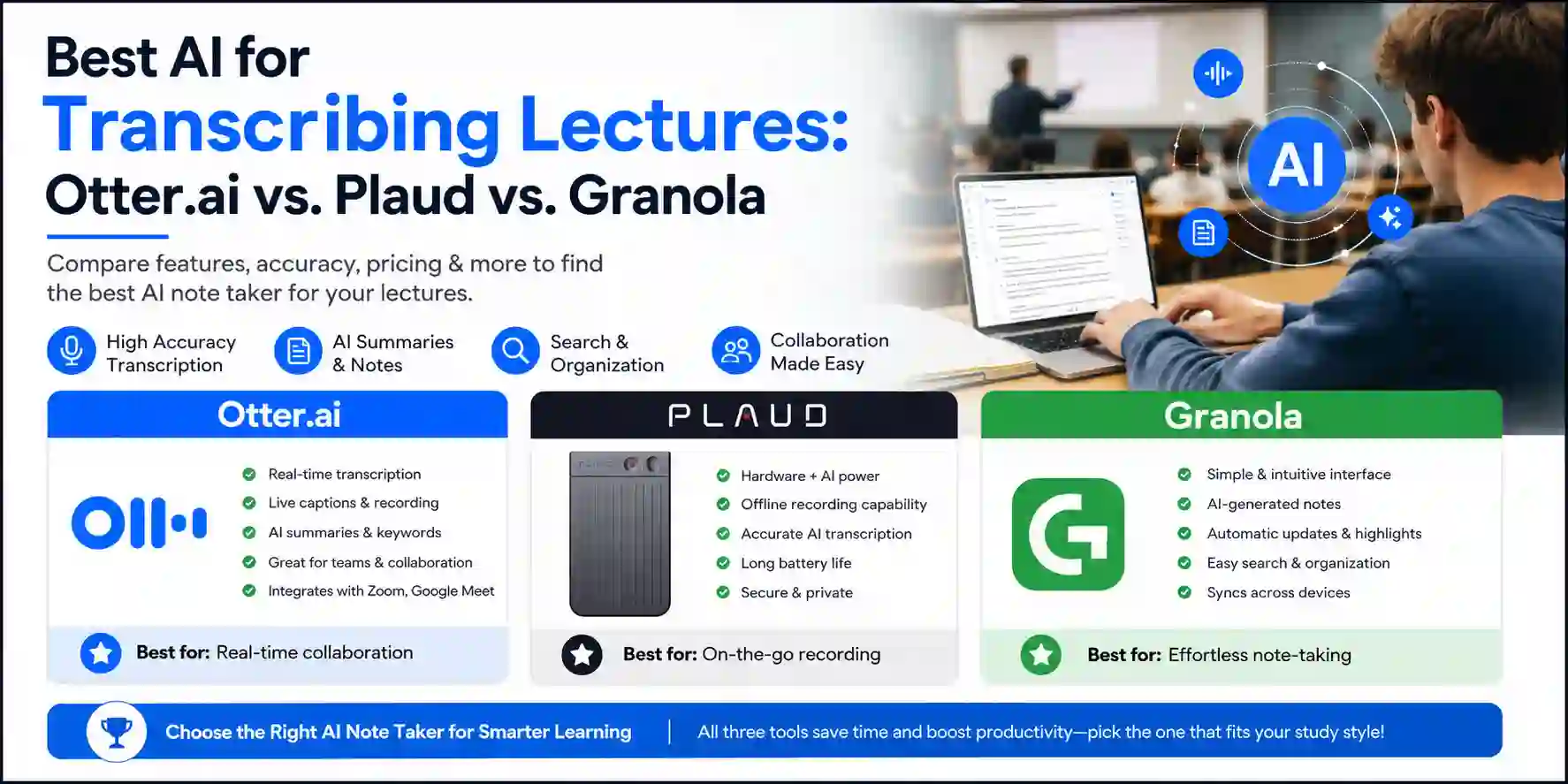
| Feature | Otter.ai | Plaud Note Pro | Granola |
|---|---|---|---|
| Type | Software app | Dedicated hardware + app | Software app (Mac only) |
| In-person lecture capture | ⚠️ Phone mic (limited range) | ✅ 4-MEMS, 5m range | ⚠️ Mac mic only |
| TOP PICKOnline lecture capture | ✅ Excellent (OtterPilot bot) | ⚠️ Phone-based workaround | ✅ Background capture (Mac) |
| Real-time transcription | ✅ Yes | ❌ Post-recording only | ❌ Post-lecture only |
| Speaker identification | ✅ Yes | ⚠️ Limited | ❌ No |
| AI summary | ✅ Yes | ✅ Yes (3,000+ templates) | ✅ Yes (enhances your notes) |
| Languages | English-primary | 112 languages | English-primary |
| Offline recording | ⚠️ Limited | ✅ Full 30h offline | ✅ Yes (Mac background) |
| Free tier | 300 min/month | 300 min/month | 25 meetings lifetime |
| Paid plan | $16.99/mo (Pro) | $8/mo AI Pro + $189 device | $18/mo |
| Platform | iOS, Android, Web | iOS, Android + hardware | Mac + iPhone only |
| Best for | Online lectures, virtual classes | In-person heavy schedules | Mac users who take own notes |
| Rating | ⭐ 4.7/5 | ⭐ 4.8/5 | ⭐ 4.5/5 |
Why Lecture Transcription Is a Different Problem From Meeting Transcription
Most AI transcription tools are built for meetings — structured conversations between a small number of participants in a controlled audio environment. Lectures are harder in almost every way, and understanding why helps explain why the tools differ so significantly in real-world performance.
The audio environment is worse. A corporate meeting happens over Zoom or in a small conference room with people speaking toward microphones. A university lecture happens in a hall with 60–200 students, a professor who may not project clearly, ambient noise from movement and whispers, and a microphone that may or may not be working that day. Software tools using a phone placed on a desk capture a fraction of the audio quality that a dedicated hardware device with directional beamforming captures in the same environment.
The content is more technically dense. Corporate meetings use vocabulary that AI transcription models were trained extensively on. Academic lectures in OS, Algorithms, Biochemistry, Econometrics, or Civil Engineering use highly domain-specific terminology — algorithm names, chemical compounds, economic models, engineering notation — that general transcription models phonetically approximate rather than accurately transcribe. Every tool in this comparison handles technical jargon with varying success, and none handles it perfectly.
The use case after capture is different. A meeting transcript feeds into follow-up actions — tasks, emails, decisions. A lecture transcript feeds into study workflows — revision, exam preparation, concept linking. The AI summary templates and post-processing features each tool offers reflect their primary design target, and students benefit from tools that understand the academic output format rather than the corporate meeting format.
There is a consent and institutional policy dimension. Some universities have explicit policies about recording lectures. Some professors are comfortable with recording, some are not. Always check your institution's policy and ask your professor's permission before recording a lecture with any of these tools. This is not a tool-specific limitation — it is an ethical and institutional obligation that applies equally to all three.
Otter.ai — Best Software-Only Tool for Lecture Transcription
Price: Free (300 min/month, 30-min cap per recording) | Pro: $16.99/month | Business: $30/month
Otter.ai is the most widely used AI transcription tool for students and professionals globally, and for good reason: its free tier is genuinely usable, its real-time transcription is the fastest and most accurate among software-only tools, and its OtterPilot feature — which automatically joins Zoom, Google Meet, and Teams calls as a participant and transcribes the entire session — is the easiest path to automatic lecture capture for any course running on a video conferencing platform.
For online lectures and virtual classes: This is Otter's strongest use case and where it is definitively the best tool in this comparison. OtterPilot joins the call automatically, transcribes every speaker, labels who said what (speaker identification), and delivers a searchable transcript with an AI summary within minutes of the lecture ending. For students doing online or hybrid courses — where lectures happen on Zoom or Meet — Otter requires zero manual effort beyond initial setup. This seamless online lecture workflow is why Otter has become the default tool recommendation for students with virtual-heavy schedules.
For in-person lectures: Otter's mobile app records audio in real time and displays a live transcript on screen as the professor talks. In a small seminar room with a clear speaker and reasonable acoustics, accuracy is strong — typically 85–92% in real classroom conditions for standard English. In a large lecture hall with a professor using a lapel mic, background noise, and technical terminology, accuracy drops and the phone's microphone range limits what is captured from a desk several rows back.
The AI Chat feature is particularly valuable for lecture transcripts: after the lecture, you can ask Otter questions about the transcript — "what did the professor say about deadlock prevention?", "summarize the key differences between the scheduling algorithms covered today" — and Otter searches the transcript to answer. This turns a raw transcript into a queryable lecture database, which is exactly the study tool students need for exam preparation.
Otter also automatically removes filler words from transcripts ("um," "uh," "you know") and applies custom vocabulary — you can add technical terms specific to your course so Otter transcribes "Dijkstra" correctly rather than "Dike Stra." For a CS student, setting up custom vocabulary with algorithm names and technical terms at the start of each semester is a five-minute investment that significantly improves transcript accuracy throughout the term.
The free tier's 300-minute monthly limit covers approximately three to four 90-minute lecture sessions — enough for casual use but insufficient for students attending daily lectures. At 300 minutes, you hit the limit within the first week of a heavy semester. The 30-minute cap per recording means a 90-minute lecture requires splitting across three separate recordings, which interrupts the session flow. Pro at $16.99/month removes both limits, which is the practical tier for daily student use.
This integrates naturally with the broader AI study toolkit — the live transcript from Otter feeds into the NotebookLM study workflow perfectly. Export the Otter transcript as a text file, upload it as a source in NotebookLM, and the lecture becomes queryable alongside your notes, slides, and textbook chapters.
Pros
- OtterPilot joins video calls automatically — zero manual setup for online lecture transcription
- Real-time live transcript on screen during lectures — follow the professor and the transcript simultaneously
- Speaker identification labels who said what — valuable for lectures with Q&A and class discussion
- AI Chat lets you query the transcript by question after the lecture — turns raw transcript into a study tool
Cons
- Free tier's 300-minute monthly limit and 30-minute per-recording cap are inadequate for daily lecture use
- In-person accuracy limited by phone microphone range — large lecture halls with distant professors are challenging
- OtterPilot bot appears as a visible participant in video calls — some professors or institutions may object
- Technical domain-specific terminology requires custom vocabulary setup for reasonable accuracy
Setting Up Otter.ai for Lecture Season
- 1
Download the Otter.ai app on iOS or Android, or go to otter.ai on web. Sign up with your university email — Otter offers an education discount; check the education page for current offers.
- 2
For online lectures: go to Settings → OtterPilot and connect your Google Calendar. Otter will automatically join any Zoom or Google Meet lecture on your calendar and begin transcribing. You do not need to open the app during the lecture.
- 3
For in-person lectures: open the Otter app and tap the record button before the lecture starts. Position your phone on the desk facing the front of the room for best microphone pickup. The live transcript appears on screen as the professor speaks.
- 4
Set up custom vocabulary before the semester: go to Settings → Custom Vocabulary and add technical terms, professor names, course-specific jargon, and algorithm or concept names relevant to each course. Spend 10 minutes per course doing this — it significantly improves transcript accuracy on technical content.
- 5
After each lecture, review the transcript in the Otter app. Use the highlight feature to mark the most important statements — these highlights are grouped separately and become your condensed revision notes.
- 6
Use Otter AI Chat to study from the transcript: tap the Chat icon on any transcript and ask questions like 'what are the three conditions for deadlock?' or 'summarize the key points from today's lecture in bullet points'. These answers draw from the transcript content, not generic AI knowledge.
Plaud Note Pro — Best Hardware Device for In-Person Lecture Capture
Price: $189 (approximately ₹15,700–₹16,500) device + free 300 min/month Starter Plan | AI Pro Plan: $8/month unlimited
The Plaud Note Pro is the answer to a specific and real problem: software transcription tools use the microphone of a phone sitting on a desk, and phones are not built to capture clear audio from a professor at the front of a 200-seat lecture hall. The Plaud Note Pro is. Its 4-MEMS microphone array with AI beamforming captures voices clearly up to 5 metres (16.4 feet) with active background noise filtering — meaningfully better than any phone microphone in a noisy room.
The hardware is a credit-card-sized device, 30g in weight, with a MagSafe-compatible magnetic back that snaps to your iPhone case for phone calls, or sits flat on a desk for room recording. The design is deliberately inconspicuous — it does not look like a recording device in the way a phone placed obviously on a desk does, which reduces the social friction of recording in a lecture setting (with the professor's permission, of course).
The recording experience: Press one button and Plaud starts recording. No app to open, no settings to configure, no battery check — the 30-hour battery means you never run out during a day of lectures. 64GB of onboard storage holds approximately 3,000 hours of compressed audio. When you return to your room, sync via the Plaud app and the AI processes the recording into a transcript and summary within a few minutes.
The AI output quality is where Plaud has invested significantly. The Plaud Intelligence engine uses GPT-5, Claude Sonnet 4, and Gemini 2.5 Pro for processing, with over 3,000 specialized templates including a dedicated Lecture Summary template that formats the transcript output for academic study use — key concepts, main arguments, important examples, and open questions. The template system is meaningfully more sophisticated than Otter's generic summarization for students who want structured, exam-ready outputs rather than a raw text dump.
Language support is a significant differentiator for international and Indian students: Plaud supports transcription in 112 languages, making it the right choice for students attending lectures delivered in Hindi, Tamil, regional languages, or mixed-language instruction. Otter and Granola are primarily English-language tools.
The honest trade-offs: The Plaud Note Pro is not for everyone. The $189 device cost is a substantial upfront investment — roughly equal to the cost of two months of a mid-range software subscription, but required before you have tested whether the device fits your workflow. The AI processes recordings post-lecture rather than in real time, which means you cannot follow a live transcript during the class. And the device operates entirely through the Plaud app ecosystem — you are dependent on Plaud's cloud infrastructure for AI processing, which means offline processing is not available after recording. The transcription subscription, while generous at 300 free minutes per month, runs out within the first week of a heavy lecture schedule, pushing daily users toward the $8/month AI Pro plan.
For students who attend four to six in-person lectures daily, commute without reliable power access, and want the best possible audio capture regardless of room acoustics, the Plaud Note Pro is the tool no software alternative can match. For students with primarily online courses or occasional lecture recording needs, the hardware investment is difficult to justify over Otter.ai's free tier.
Pros
- 4-MEMS microphone array captures clearly up to 5 metres — significantly better than phone mics in large lecture halls
- 30-hour battery and 64GB storage means zero management overhead across a full day of back-to-back lectures
- 112-language transcription support — the only tool in this comparison suitable for non-English lecture content
- 3,000+ AI templates including a dedicated Lecture Summary format produce structured, exam-ready study outputs
Cons
- $189 device cost is a significant upfront commitment before you know if the workflow fits your schedule
- No real-time transcription — audio is processed post-lecture; you cannot follow a live transcript during class
- 300 free minutes/month is quickly consumed by daily lecture use; $8/month AI Pro plan required for heavy users
- Entirely cloud-dependent for AI processing — no offline summarization after the recording is captured
Granola — Best for Mac Users Who Take Their Own Notes
Price: Free (25 meetings lifetime) | Pro: $18/month | Business: $35/month
Granola's philosophy is the most distinctive of the three tools in this comparison — and understanding it correctly determines whether it is the right tool for you or completely wrong for your workflow.
Granola is not a passive transcription tool. It does not sit in the background and produce a complete transcript of everything said. It is an AI-enhanced note-taking tool: you take your own brief notes during the lecture (on your Mac), Granola records the audio silently in the background, and after the lecture it combines your notes with the audio content to produce a polished, structured set of notes that have your context and intent woven into the AI's output. The notes Granola produces feel like yours — because they are partly yours — rather than a cold, neutral transcript.
The privacy advantage that matters for students: Granola works entirely without a bot. No OtterPilot participant showing up in the Zoom call list. No obvious recording device on the desk. Granola runs silently on your Mac in the background during any call or in-person lecture, capturing audio through your Mac's microphone without any visible indication to other participants that recording is happening. For students whose professors object to visible AI recorders or meeting bots, Granola's invisible operation is its most practically important feature.
The Mac-only constraint is real and significant: Granola runs on macOS and iPhone only. There is no Android app, no Windows version, no web interface. For the majority of students in India who use Windows laptops — as covered in our best laptops for CS students guide — Granola is simply not available. For MacBook users, it is worth serious consideration.
The hybrid human-AI note quality: Reviews from developers, consultants, and students consistently describe Granola's note output as "feeling like notes you would have taken yourself, but better." The AI fills in details around the brief points you typed, structures the content logically, and produces a document that reflects your priorities — the things you found important enough to note — rather than a verbatim record of everything said. For students who already take notes and want AI to enhance them, this is a fundamentally better output than a raw transcript that requires significant post-processing work.
The pricing reality: Granola's 25-meeting free tier sounds generous but runs out fast for daily lecture use — a student attending five lectures a week exhausts the free tier in five weeks. At $18/month for the paid plan, Granola is the most expensive of the three tools for ongoing use, and the Mac-only constraint makes that price defensible only for students already on MacBook setups who find the hybrid note-taking approach genuinely preferable to passive transcription.
Pros
- Bot-free, invisible operation — no visible AI participant in calls, no obvious recorder on desk
- Hybrid human-AI notes combine your context with AI structure — outputs feel personal rather than generic
- No speaker identification needed — you provide the context; Granola provides the structure
- iPhone app extends the workflow beyond the Mac for quick note review and editing on the go
Cons
- Mac and iPhone only — completely unavailable to Windows users, which is the majority of Indian students
- Requires active note-taking participation — pure passive capture is not Granola's design; it works best when you engage
- 25-meeting free tier exhausted in five weeks for daily lecture users — $18/month is steep for student budgets
- No real-time transcript display — you cannot follow a live AI transcript during the lecture on screen
Head-to-Head: The Scenarios That Decide the Right Tool
You Attend Mostly Online Lectures on Zoom or Google Meet
Winner: Otter.ai — clearly.
OtterPilot is the most frictionless solution for this exact scenario. It joins your scheduled calls automatically, transcribes every speaker with identification, and delivers a summary without you doing anything beyond initial calendar connection. No other tool matches this level of automation for video-call-based learning. Granola's background capture works for online calls too, but requires your active note-taking participation and is Mac-only. Plaud handles online calls only through an awkward phone-proximity workaround. Otter wins this scenario completely.
You Attend Large In-Person Lecture Halls With 100+ Students
Winner: Plaud Note Pro — significantly.
The microphone quality gap is decisive in large rooms. A phone sitting on a desk three rows back from a professor captures ambient noise, partial audio, and significant degradation in accuracy. The Plaud Note Pro's 4-MEMS array with 5-metre clear capture range and AI beamforming produces materially better audio in this environment. The accuracy difference between a phone-based Otter transcript and a Plaud transcript from the same lecture is significant enough to affect the usability of the transcript for study purposes.
You Are a Mac User Who Takes Your Own Notes and Values Privacy
Winner: Granola — specifically.
The invisible operation, the hybrid human-AI note quality, and the absence of any visible recording indication make Granola the right tool for this specific combination of preferences. If you already take notes during lectures and want AI to make those notes better rather than replace them entirely, Granola's approach produces outputs that are more useful for study than a raw Otter transcript that requires significant post-processing.
You Are an Indian Student on a Windows Laptop With a Limited Budget
Winner: Otter.ai — by necessity.
Granola is unavailable on Windows. Plaud Note Pro at $189 hardware cost is a significant commitment on a student budget. Otter.ai's free tier — 300 minutes per month — covers three to four 90-minute lecture sessions, which is adequate for selective recording of the most important lectures. Setting up custom vocabulary at the start of the semester improves accuracy meaningfully for technical courses. This is the practical starting point for most Indian CS students.
Your Lectures Are Delivered in Hindi or a Mix of Hindi and English
Winner: Plaud Note Pro — uniquely.
Otter.ai and Granola are primarily English-language tools. Plaud's 112-language transcription support makes it the only tool in this comparison that handles Hindi, Tamil, or other Indian language lectures reliably. For students whose professors mix languages or teach primarily in Hindi, Plaud is the only viable option.
The Accuracy Reality: What to Actually Expect
Every marketing claim for AI transcription tools uses accuracy numbers measured in ideal conditions — clear audio, standard English, controlled environments. Lecture conditions are not ideal. Here is what to actually expect:
Otter.ai in a small seminar room, clear professor, standard English: 88–94% accuracy. Highly usable transcript requiring minor corrections. Technical terms benefit from custom vocabulary setup.
Otter.ai in a large lecture hall with phone on desk: 75–85% accuracy. Usable but requires more post-processing correction. Technical jargon and fast speech cause significant drops.
Plaud Note Pro in a large lecture hall at 5-metre range: 88–93% accuracy on clear speech, significantly better than phone-based tools in the same environment. Audio quality is the primary differentiator here.
Granola with active note-taking in small group settings: Note quality is rated more highly than raw accuracy — users consistently report that the output feels more useful than a 90%+ accurate raw transcript because it reflects their priorities and judgment rather than verbatim capture.
All tools at 100% accuracy in any real lecture: This does not happen. Every AI transcription tool makes errors on fast speech, strong accents, overlapping voices, and technical terminology outside its training distribution. The practical expectation is a working draft requiring light editing, not a publication-ready text.
The study workflow that accounts for this reality: use the transcript as a searchable reference and structural scaffold, not as a final document. The value of a 85%-accurate transcript is not that every word is right — it is that you can search for "Banker's Algorithm" and jump to the three minutes of lecture that covered it, rather than scrubbing through 90 minutes of audio. That search-and-locate value is present even at 80% accuracy.
Practical Workflows: AI Transcription Into Your Study System
Workflow 1: Otter → NotebookLM → Exam Prep
Transcribe each lecture with Otter. Export the transcript as a text file after each session. At the end of each week, upload that week's lecture transcripts as sources in NotebookLM alongside the week's slides. Use NotebookLM's cross-document Q&A to ask questions that span multiple lectures — "what did the professor say across all three OS lectures about memory management?" The Otter transcript becomes queryable course content in NotebookLM, combining the passive capture of Otter with the cross-document synthesis of NotebookLM.
This is the complete lecture-to-exam-prep pipeline covered in more depth in our NotebookLM for students guide — Otter handles the in-lecture capture layer, NotebookLM handles the study synthesis layer.
Workflow 2: Plaud → Lecture Summary Template → Obsidian
Record each lecture with the Plaud Note Pro. After processing, select the Lecture Summary template in the Plaud app — it generates structured notes with key concepts, examples, important statements, and open questions. Copy the structured output into an Obsidian note for the corresponding lecture, linking key concepts to your existing concept notes. The Plaud output becomes raw material for the atomic note system covered in our Notion vs Obsidian guide, where lecture content connects to your broader knowledge graph.
Workflow 3: Granola → Quick Review → Next-Day Integration
During each lecture, type brief points in Granola's note pad — main concepts introduced, examples given, questions asked. After the lecture, Granola processes the audio against your notes and generates enhanced, structured notes. Review them before the next day's lecture. The quick review consolidates the content while it is still in short-term memory — the pedagogically optimal time for consolidation. This 15-minute post-lecture review is significantly more effective with Granola's structured output than with a raw Otter transcript that requires more work to parse.
Workflow 4: Transcript → Flashcard Generation
Any lecture transcript from Otter or Plaud can be used to generate flashcards. Copy the transcript into Claude and ask: "Generate 20 Anki-style flashcards from this lecture transcript. Each card should have a question testing a specific concept on the front and a concise answer with the key detail on the back. Focus on definitions, distinctions, and examples." The generated flashcard deck covers the lecture content in a format ready for spaced repetition review — the study method with the strongest evidence base for long-term retention.
This flashcard generation workflow pairs with the AI study tools covered in our best AI tools for literature review guide — the same AI-assisted synthesis approach applied to lecture content rather than research papers.
The Consent and Ethics Reality
Before choosing a tool, there is a non-optional consideration: recording a lecture requires the professor's consent in most institutional contexts, and the law in many jurisdictions.
In India, recording a person without their consent in a context where they have a reasonable expectation of privacy can violate the Information Technology Act and general privacy norms. Universities typically have explicit policies — some allow recording for personal study use with notice, others prohibit it entirely, others leave it to individual professors' discretion.
The practical approach: inform your professor at the start of the semester that you use an AI transcription tool for study purposes and ask for their permission. Most professors who understand the study use case — creating a searchable record to study from rather than distributing the lecture — will agree. Some will not, and that decision must be respected regardless of which tool you are using.
Otter's OtterPilot is visible as a participant in video calls — the professor and other students can see it. This transparency is actually preferable to hidden recording from a consent perspective, even if it feels socially awkward. Granola's invisible background capture is technically undetectable, which creates a more significant ethical obligation to obtain explicit consent before using it.
What to Avoid: Common Mistakes With AI Lecture Transcription
Using the free tier's 30-minute Otter cap on a 90-minute lecture without a plan. The recording stops at 30 minutes and you lose the second hour. Either upgrade to Pro before relying on Otter for full lectures, or start three separate recordings at the 25-minute mark to stay within each cap.
Relying on the transcript without reviewing it. A transcript with 88% accuracy has errors scattered throughout. The errors are not randomly distributed — they cluster on technical terms, fast speech, and domain-specific vocabulary. If an important concept appears in the 12% that was misheard, you have a wrong note that leads to a wrong exam answer. Always skim-review transcripts the same day while the lecture is fresh enough to catch errors by ear.
Buying the Plaud Note Pro without testing your use case first. The Plaud Note (not Pro) is available at $159 and has two MEMS microphones (versus four in the Pro) and a 3-metre range (versus 5 metres). For students who want to try hardware-based transcription before committing to the premium device, the original Plaud Note is a lower-stakes entry point. If the workflow fits, upgrade to the Pro. If it does not, the loss is smaller.
Treating AI lecture summaries as a substitute for attending the lecture. The summary is a study aid, not the lecture. Professors communicate nuance, emphasis, and context through intonation, gesture, and real-time response to student questions in ways that a transcript captures only partially. The student who attends the lecture and has a transcript outperforms the student who relies on the transcript alone.
The Right Tool Based on Your Actual Lecture Schedule
Primarily online lectures on Zoom or Meet: Use Otter.ai — OtterPilot makes this effortless and the free tier covers moderate use. Upgrade to Pro ($16.99/month) once you confirm the workflow fits your semester. Primarily in-person lectures in large rooms: The Plaud Note Pro ($189 device + $8/month AI Pro) is the only tool with microphone quality that matches the environment. Budget for the device as a one-time semester 1 investment that pays off across your entire degree. Mac user who takes notes and values privacy: Granola ($18/month after the 25-meeting free trial) is purpose-built for your workflow. Indian student on Windows with a tight budget: Start with Otter.ai's free tier — 300 minutes monthly, custom vocabulary set up for each course, and transcript exported weekly into NotebookLM for cross-lecture study sessions. Upgrade to Otter Pro when the free tier becomes a consistent bottleneck.
Final Thoughts
The forty-three-tab browser problem in research has a direct equivalent in lectures: the fragmented, incomplete notes problem that leaves students uncertain about what the professor actually said, unable to find the explanation of a specific concept they vaguely remember being covered, and spending exam preparation time reconstructing information rather than studying it.
AI lecture transcription solves the capture problem. It does not solve the understanding problem — that still requires attending the lecture, engaging with the content, and doing the work of connecting new information to what you already know. But it removes the trade-off between listening and writing that forces every fast-lecturer student to choose between following the argument and capturing the details.
Otter.ai is the right starting point for most students — zero hardware cost, immediate setup, excellent for the online lecture context that dominates post-2022 higher education. Plaud Note Pro is the right upgrade for students whose academic life is dominated by in-person lectures in large rooms where phone-based capture falls short. Granola is the right tool for the specific combination of Mac user plus note-taker plus privacy-conscious user who wants AI to enhance their thinking rather than replace it.
None of these tools requires you to stop thinking during lectures. They require you to think better — knowing that the capture is handled, you can listen more carefully, ask better questions, and engage more fully with the material. That shift in attention is the real productivity gain, and it is available from the first lecture you record.