The Research Tab That Never Closes
I counted my open browser tabs during a research session last month. Forty-three. Wikipedia pages for background context, three arXiv papers I had not finished reading, a Semantic Scholar search I had left open for a week, two Reddit threads about a library I was evaluating, seven YouTube tabs I had opened to understand a concept and never closed, and the actual document I was trying to write.
The core problem is not that there is too much information. It is that the browser's native interface for dealing with information — tabs — does not help you do anything useful with it. A tab is a place to put something you might look at later. It is not a research tool.
AI Chrome extensions change this. Not by opening more tabs or switching you to another app — but by bringing a research layer into the browser you are already in, sitting alongside the page you are already reading. The best ones let you ask questions about the current page, highlight and capture insights without copy-pasting into a separate note, get cited answers from the web without leaving your reading context, and summarize long articles before deciding whether they are worth reading in full.
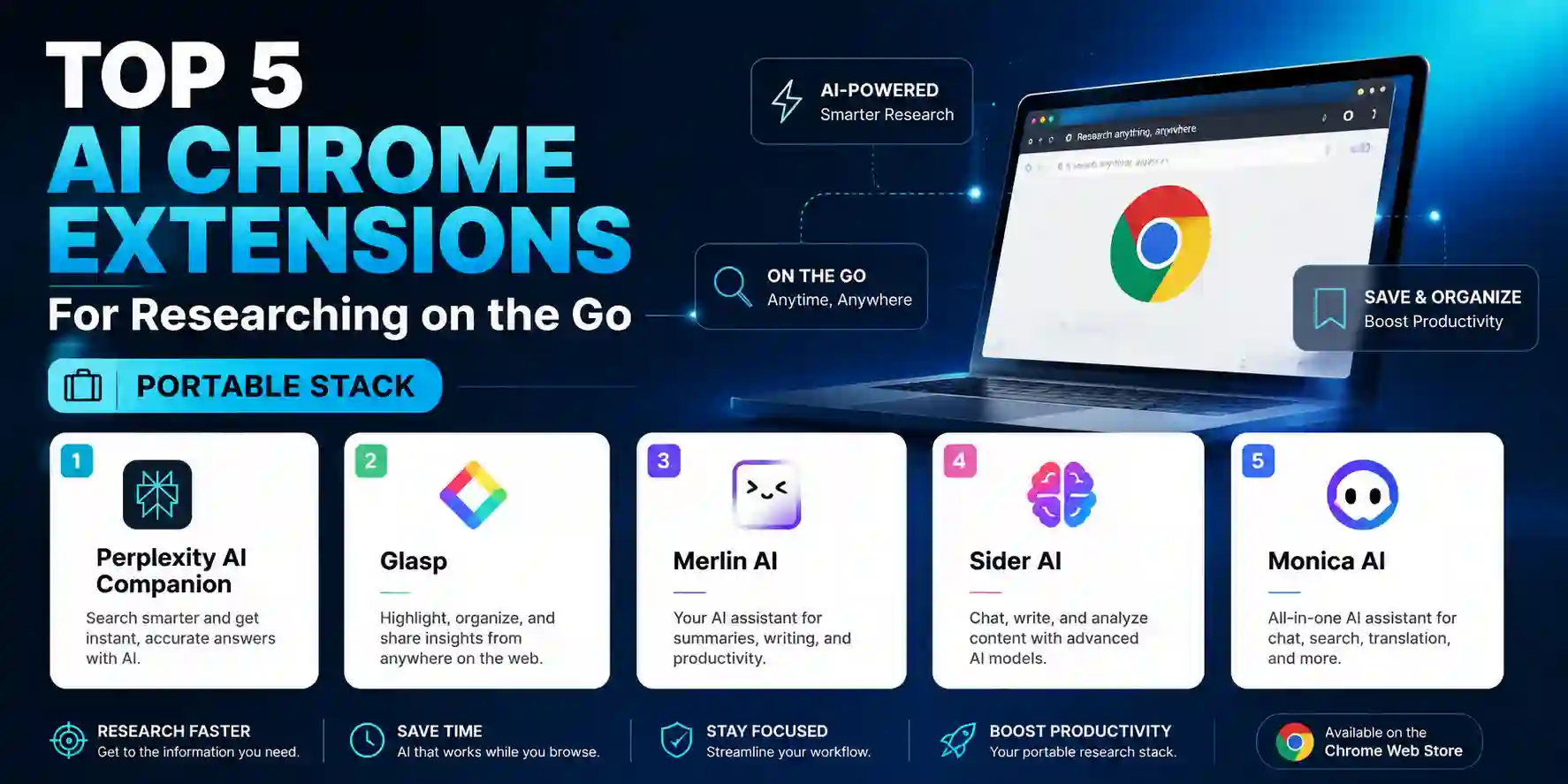
This article covers the five AI Chrome extensions that form the best portable research stack in 2026 — tested against real research workflows across academic reading, technical documentation, and content synthesis. These are extensions that add genuine value without browser slowdown, permission overreach, or the feature-bloat that makes some all-in-one extensions feel like installing a second operating system.
| Extension | Best For | Cited Answers | PDF Support | Free Tier | Price | Rating |
|---|---|---|---|---|---|---|
| Perplexity AI Companion | Source-cited research answers on any page | ✅ Passage-level | ✅ Yes | ✅ Generous | Free / $20 Pro | ⭐ 4.9/5 |
| TOP PICKGlasp | Highlighting, capture, and AI summarization | ⚠️ Article-level | ✅ Yes | ✅ Fully free | Free / Premium | ⭐ 4.7/5 |
| Merlin AI | Deep research + multi-model chat on any page | ✅ With citations | ✅ Yes | ⚠️ Daily limits | Free / $14 mo | ⭐ 4.7/5 |
| Sider AI | All-in-one sidebar with multi-model access | ✅ Yes | ✅ Yes | ⚠️ Credit-based | Free / $9 mo | ⭐ 4.6/5 |
| Monica AI | General assistant + YouTube Q&A + translation | ⚠️ Approximate | ✅ Yes | ⚠️ Credit-based | Free / $9 mo | ⭐ 4.5/5 |
Why Browser Extensions Are the Right Layer for Research AI
The instinct when AI tools became mainstream was to open a separate tab — navigate to Claude or ChatGPT, paste the content you were reading, ask a question, read the answer, switch back to the original page. This works, but every context switch costs attention. By the time you return to the original article, you have lost the reading thread.
Browser extensions solve this by placing AI assistance at the same layer as the content — a sidebar that opens alongside the page, a keyboard shortcut that surfaces a chat window over any content, a highlighting tool that captures insights to a permanent library without interrupting reading flow. The AI never asks you to leave what you are doing.
This is meaningfully different from how desktop AI tools work. NotebookLM requires uploading sources before asking questions. Claude requires pasting content into a chat window. Elicit requires entering a research question and waiting for results. All of these are the right tools for specific phases of research — but for the ambient, in-the-moment phase where you are browsing, encountering sources, and deciding what matters, browser extensions are the appropriate layer.
The five extensions in this stack cover three distinct research functions that none of the desktop tools address from inside the browser: real-time cited answers about what you are currently reading, persistent highlight capture that builds a knowledge base from your browsing, and on-demand AI assistance over any content without leaving the tab.
For the broader research workflow — systematic paper discovery, cross-document synthesis, and written synthesis — the tools in this extension stack connect naturally to the deeper workflows covered in our best AI tools for literature review guide and the top AI tools for summarizing research PDFs.
1. Perplexity AI Companion — Best for Source-Cited Research Answers
Install: Chrome Web Store → "Perplexity AI" | Price: Free / $20 Pro per month
The Perplexity AI Companion extension is the research-specific AI extension that no general-purpose assistant matches for one specific and important reason: every answer it provides is grounded in cited sources, and those citations are verifiable links you can click through and read. When you are in the middle of reading an article and want to know more about a claim it makes, Perplexity gives you an answer drawn from the live web with the sources listed — not a confident AI paraphrase you cannot verify.
How it works: Install the extension and a small Perplexity icon appears in your toolbar. Click it on any page and a sidebar opens alongside your current content. The sidebar has two modes: Page mode, which analyzes the specific page you are on and answers questions about it, and Search mode, which runs a Perplexity web search alongside your browsing session and returns cited answers from across the web.
The research workflow it enables: You are reading a blog post that references a study and you want to know whether the study actually supports the claim being made. Open the Perplexity sidebar, type the claim as a question, and Perplexity searches for the original study and adjacent sources in real time. The answer tells you what the study found, cites the original paper directly, and flags if the blog post's interpretation is accurate or an overstatement. This fact-checking workflow — which used to require opening multiple Google Scholar tabs and cross-referencing manually — takes thirty seconds with the extension active.
What makes it different from Perplexity.ai the website: The extension's Page mode reads the current tab's content as additional context. When you ask "does this article's argument hold up given recent counter-evidence?", the extension has access to both the article you are reading and the live web simultaneously. The website version does not have this dual-context capability without manually pasting the article text.
Best feature: The sidebar stays open while you navigate between pages. As you move from one source to the next, the Page mode updates to analyze your current page, building an AI-assisted reading session across multiple sources without resetting your context.
Pros
- Every answer cites verifiable sources — no AI confident paraphrase without grounding you can check
- Dual-context Page mode reads both the current article and the live web simultaneously for in-context answers
- Free tier is genuinely usable for daily research — not artificially crippled compared to the paid plan
- Lightweight footprint — does not noticeably affect browser performance even on mid-range hardware
Cons
- Research-focused by design — lacks the writing assistance, translation, and content generation that Sider and Merlin offer
- Page mode accuracy drops on dynamically loaded content and pages behind login walls
- Pro plan at $20/month mirrors the Perplexity.ai app price — value depends on how heavily you use the app already
- Does not build a permanent knowledge base from your research sessions — answers are ephemeral without export
The Perplexity Extension Setup
- 1
Go to the Chrome Web Store and search 'Perplexity AI'. Install the official extension published by Perplexity AI, Inc. — verify the publisher before installing to avoid impostors.
- 2
Click the Perplexity icon in your toolbar to open the sidebar. Sign in with your Perplexity account or create a free one — the free account gives you access to all core features including Page mode and web search.
- 3
On any article or research page, click the extension icon to open the sidebar. Select 'Ask about this page' mode. Type a focused question about what you are reading — 'what evidence does this article cite for its main claim?' or 'what are the known criticisms of this approach?'
- 4
For web-wide research alongside your reading, switch to Search mode in the sidebar. Type your research question and Perplexity runs a cited web search without you leaving the current tab. Sources appear as clickable chips below each answer.
- 5
For PDF research: open a PDF in Chrome (drag and drop or open via URL), then open the Perplexity sidebar. Page mode reads the PDF content and lets you ask questions about the document directly. For longer PDFs, it processes the visible portion — scroll through to ensure full coverage.
- 6
Optional: install the Perplexity companion alongside Glasp (extension #2 in this list) for a complete research session — Perplexity for cited answers, Glasp for capturing highlights from the pages you decide are worth keeping.
2. Glasp — Best for Highlighting, Capture, and Knowledge Building
Install: Chrome Web Store → "Glasp" | Price: Free for core features / Premium for advanced AI
Glasp approaches the research browser problem from a different angle than every other extension in this list. Where Perplexity, Merlin, and Sider are primarily question-answering tools, Glasp is a knowledge capture tool — it lets you highlight text on any web page or PDF, automatically saves those highlights to a persistent personal library, generates AI summaries of your highlights, and connects you to a community of other readers highlighting the same content.
The community dimension is unique. When you highlight a passage on a research paper or article, Glasp shows you what other users have highlighted on the same page — effectively surfacing the parts of the content that the community found most valuable. For papers where you are uncertain which sections deserve the most attention, this social signal is a meaningful research aid.
The research workflow it enables: You are doing a survey of articles on a topic across three or four browsing sessions spread across a week. With standard Chrome, those insights exist only in your memory, in separate note files, or in a chaotic set of bookmarks. With Glasp, every highlight you make across every session accumulates in your Glasp library, tagged by source URL and date, and searchable by keyword. At the end of the survey, your highlights are already organized into a research database you can review without returning to the original pages.
The AI layer: Glasp's AI summary feature generates a one-click summary of all your highlights from a given page or a given topic tag. This turns your accumulated highlights into a review document without additional effort. For students building a literature survey across many sources over weeks, this is the closest thing to an automatic progress log for your reading sessions.
YouTube integration: Glasp captures and timestamps YouTube video content as well as web articles. For research sessions that include watching lecture recordings, conference talks, or explanatory videos alongside reading articles, Glasp creates a unified highlight library across both content types. The AI summary for YouTube highlights includes the timestamp, making it easy to return to the exact moment you captured.
Pros
- Persistent highlight library builds automatically across every browsing session without manual note-taking
- Social highlighting shows what the community found most valuable on the same pages you are reading
- YouTube timestamp capture creates a unified library across articles and video content in one tool
- Completely free for core highlighting and AI summarization — no credit limits on basic use
Cons
- Not an AI question-answering tool — cannot answer questions about page content, only capture and summarize highlights
- Community features require sharing your highlights publicly — review privacy settings if your research is sensitive
- AI summaries are article-level, not passage-level — less precise than Perplexity's cited answers for fact verification
- Library organization requires manual tagging to be searchable; without consistent tagging it becomes a flat list
3. Merlin AI — Best for Deep Research and Multi-Model Chat on Any Page
Install: Chrome Web Store → "Merlin AI" | Price: Free (daily limits) / $14/month Pro
Merlin is the extension that comes closest to placing Claude, GPT-4o, and Gemini simultaneously into your browser toolbar. Press Cmd+M on Mac or Ctrl+M on Windows and a chat window appears over any page — any tab, any content, any moment — without opening a new tab or switching context. Ask a question, get an answer from your choice of AI model, and the window closes when you are done.
The model selection is the headline feature: Merlin supports GPT-4o, Claude 3.7, Gemini 2.5 Pro, and Llama 3.1, switchable per conversation. For research workflows, this means you can use Claude for nuanced analytical questions about a paper's methodology, switch to Perplexity-style web search for real-time fact verification, and use Gemini for quick factual lookups — all from the same extension keyboard shortcut.
The deep research feature is where Merlin distinguishes itself from lighter extensions. Rather than answering a single question, Deep Research mode sends Merlin across multiple web sources simultaneously, compiles a structured report with inline citations, and returns a synthesis document rather than a single answer. For developers trying to understand a new library, researchers looking for the current state of a debate, or students preparing a literature snapshot on a topic, this automated multi-source research is a substantial time saver.
The "Ask on Page" feature — highlight any text on any website and press the Merlin keyboard shortcut — surfaces AI context about the highlighted passage without leaving the page. For dense technical documentation, research papers with unfamiliar terminology, or articles making claims you want to interrogate, the select-and-ask interaction is the fastest AI research gesture available in any extension.
For students and developers who are already using Claude or ChatGPT via the AI coding and research workflows covered in our best AI coding tools guide, Merlin is effectively a browser-native version of those workflows — the same AI models, accessible via keyboard shortcut from any browser tab without opening claude.ai or chatgpt.com in a separate window.
Pros
- Multi-model access — switch between GPT-4o, Claude 3.7, Gemini 2.5 Pro, and Llama 3.1 per conversation
- Deep Research mode compiles multi-source reports with citations — automated literature snapshot in minutes
- Keyboard shortcut on any page, any selection — the fastest AI research gesture in the browser
- PDF chat and web page Q&A both supported — one extension for document reading and general browsing
Cons
- Free tier has daily message limits that reset — heavy users hit the limit during intensive research sessions
- Deep Research quality varies by topic — well-documented subjects produce strong reports, niche topics thinner ones
- Credit-based pricing on advanced models means Claude and GPT-4o consume credits faster than lighter models
- Keyboard shortcut conflicts with some web apps that use Cmd+M — requires remapping in settings
4. Sider AI — Best All-in-One Sidebar for Multi-Model Research
Install: Chrome Web Store → "Sider AI" | Price: Free (credit-based) / $9/month Pro
Sider AI is the extension that consistently ranks as the best all-in-one Chrome AI tool in 2026, and the reason is its persistent sidebar design. Where Merlin appears on demand via keyboard shortcut and disappears when you dismiss it, Sider's sidebar stays open alongside any page permanently — a persistent AI panel that is always visible as you browse, always available without a shortcut, and always in context with whatever you are reading.
The sidebar approach changes the research dynamic. With Merlin or Perplexity, you invoke the AI when you have a question. With Sider, the AI presence is ambient — you can glance at the sidebar summary while reading an article, toggle between the current page analysis and a web search without switching modes, and maintain a running conversation about a research topic across multiple pages without resetting the session.
Multi-model access in the sidebar: Like Merlin, Sider gives you access to multiple AI models — GPT-4, Claude, and Gemini — switchable per message. The practical workflow for research: start with Claude for analytical questions about a paper's argument, switch to the search-backed model for real-time citation verification, and use GPT-4 for generating a first-draft summary. All within the same sidebar session, all without leaving the page you are reading.
The reading mode and translation features add practical value for researchers working across languages. Sider's reading mode strips a web page to clean, readable text — removing ads, sidebars, and navigation clutter — and the translation feature renders any selected text or full page into your target language alongside the original. For students reading papers from non-English research groups or accessing international sources, these features make Sider a functional research environment rather than just an AI chatbot.
Pros
- Persistent always-visible sidebar — AI context is ambient rather than invoked, fitting naturally into browsing flow
- Multi-model switching within a single session — Claude, GPT-4, and Gemini accessible from the same panel
- Reading mode and translation built in — functional across non-English sources without a separate extension
- Works on Chrome and Edge — broader compatibility than some extensions limited to Chromium builds
Cons
- Persistent sidebar takes up screen real estate on smaller laptop displays — consider toggling off when not researching
- Credit-based free plan runs out quickly with heavy multi-model use — actual free usage is limited for power users
- Feature breadth creates complexity — the sidebar has more modes and options than most casual researchers need
- Privacy: broad page-read permissions send page content to Sider's servers — review policy before use on sensitive pages
5. Monica AI — Best for YouTube Research and General Browsing Assistance
Install: Chrome Web Store → "Monica AI" | Price: Free (credit-based) / $9/month Pro
Monica completes the portable research stack with a specific capability that the other extensions in this list do not prioritize: YouTube Q&A. For researchers and students who use YouTube as a research source — conference keynotes, tutorial series, academic lecture recordings, explanatory videos — Monica's YouTube integration allows you to ask questions about a video's content, get a timestamped transcript summary, and extract key points without watching the full video.
The YouTube use case is genuinely distinct from other AI video tools. When you open a YouTube video, Monica's sidebar reads the video transcript automatically and lets you type questions in natural language: "what is the main argument in this talk?", "what does the speaker say about X?", "give me the five key takeaways from this lecture." The answers include timestamps that link back to the specific moment in the video, so you can jump directly to the relevant section rather than scrubbing through the full recording.
Beyond YouTube: Monica functions as a general-purpose AI sidebar for web browsing — page summarization, email drafting assistance, translation, and text rewriting all within the sidebar. Among the multi-model extensions in this list, Monica edges ahead of Sider for text, image, and video generation capability — it supports image generation via DALL-E and Midjourney-compatible models alongside text AI, which is useful for researchers who need quick concept visualizations alongside written research.
The honest positioning: Monica is not the strongest tool in this list for pure academic research — Perplexity's cited answers are more reliable, Glasp's highlight capture is more systematic, and Merlin's Deep Research is more comprehensive. Monica earns its place in the portable research stack specifically for YouTube-heavy research sessions and for researchers who want a general browsing assistant that handles the content types the other extensions do not — video transcripts, image generation, and social media content.
Pros
- YouTube Q&A with timestamped answers — the strongest video research feature in any extension in this list
- Text, image, and video generation in one extension — the broadest creative AI capability of any tool here
- General browsing assistant covers page summarization, email drafting, and translation without switching tools
- Active development — Monica receives regular feature updates and tends to incorporate new AI models quickly
Cons
- Citation grounding is approximate rather than passage-level — less reliable than Perplexity for fact verification
- Credit-based free plan limits are restrictive with heavy use across multiple AI features simultaneously
- Feature breadth means some capabilities are shallower than dedicated tools — YouTube Q&A is strong, everything else is adequate
- Privacy: Monica requests broad page access permissions — review the privacy policy before use on portals with sensitive data
The Portable Research Stack: How the Five Extensions Work Together
The value of this specific combination of extensions is that each covers a distinct function without significant overlap — you are not installing five tools that all do page summarization slightly differently:
Perplexity AI Companion handles the moment when you need a cited answer about something you are currently reading — the fact-check, the background context, the verification that a claim holds up. It is your real-time research oracle with accountability built in.
Glasp handles the capture layer — every insight worth keeping gets highlighted as you read, accumulates in a searchable library, and generates AI summaries automatically. It is your passive research memory that builds without effort.
Merlin AI handles the deep research mode — when you need a multi-source synthesis on a topic rather than a single-page answer, Deep Research mode gives you a cited report in minutes. It is also your fastest AI gesture for any page via the keyboard shortcut.
Sider AI handles ambient, persistent AI context — for research sessions where you want the AI available throughout browsing without invoking it each time, and for multi-language sources where translation and reading mode earn their place.
Monica AI handles video content and general browsing assistance — YouTube research sessions, lecture recordings, and conference talks become searchable and summarizable without watching in full.
The practical installation advice: do not install all five and run them simultaneously. Start with Perplexity and Glasp — they are complementary (citation grounding + highlight capture) and together cover the core research loop. Add Merlin when you need deep multi-source synthesis on a topic. Enable Sider or Monica for the specific sessions where their unique capabilities matter — a translation-heavy research day, a YouTube lecture series, a writing-heavy session.
The Privacy Reality: What These Extensions See
Every AI Chrome extension on this list reads your browser's page content to function. That content is sent to external AI servers for processing. This is not a reason to avoid them — it is a reason to be deliberate about when you use them.
Safe to use with any of these extensions: public web articles, Wikipedia, arXiv papers, open-access research databases, YouTube videos, documentation sites, and any publicly accessible content.
Review the privacy policy before using on: university login portals, academic databases accessed via institutional credentials, medical information portals, legal document systems, financial dashboards, and any page containing personally identifiable information about others.
The general rule: if you would not paste the page's content into a public AI chat window, do not use a broad-permission extension on that page. Most extensions allow you to pause or disable them on specific domains — use this feature for sensitive domains rather than disabling the extension entirely.
Glasp is the most privacy-considerate extension in this list for research content — its core function is local highlight capture with optional AI features. The highlights themselves are stored in Glasp's servers but your browsing content is not continuously sent for processing the way it is with sidebar AI tools.
For researchers working with sensitive, unpublished, or proprietary content — the same concern we raised in the NotebookLM for students guide about what to upload — browser extensions deserve the same scrutiny. Public research content is generally safe; institutional login-required content warrants caution.
Practical Workflows: The Extension Stack in Action
The Rapid Article Triage Workflow
Scenario: You have twenty potentially relevant articles to triage for a literature review and three hours to do it.
The workflow: Open articles in Chrome tabs. On each article, open the Perplexity sidebar and ask: "What is the main research question, methodology, and key finding of this article?" If the Perplexity summary indicates the article is relevant, switch to Glasp and highlight the key passages you want to retain. If irrelevant, close the tab. The Glasp library at the end of the session contains only the highlights from relevant articles — an automatically curated reading log.
This triage workflow pairs with the broader systematic review approach covered in our literature review guide. The extension stack handles the in-browser triage phase; the desktop tools handle the cross-document synthesis phase.
The Technical Documentation Research Workflow
Scenario: You are evaluating a new framework, library, or tool and need to understand its architecture, compare it to alternatives, and find known issues before committing to using it.
The workflow: Open the official documentation. Activate Merlin with Cmd+M and use Deep Research mode: "Research [library name] — its core architecture, how it compares to [alternative], and what known issues or limitations developers report." Merlin compiles a multi-source report from documentation, GitHub issues, developer blog posts, and community discussions. While reviewing the report, open the library's GitHub README in another tab and use Perplexity Page mode to ask specific follow-up questions about sections you want to interrogate further. This two-extension combination for technical documentation research is faster than three to four hours of manual browsing through docs, issues, and community posts.
The YouTube Lecture Research Workflow
Scenario: You have a playlist of five conference talks on a topic you are studying, totaling four hours of video, and you need to extract the key insights without watching all four hours.
The workflow: Open the first video with Monica active in the sidebar. Ask Monica: "Summarize this talk in five key points with timestamps for each." Review the five points and click through to any timestamp where the talk addresses your specific research question in depth — watch those segments, skip the rest. Repeat across all five videos. A four-hour playlist becomes a forty-minute research session. Capture the key insights in Glasp after each video.
The Cross-Language Research Workflow
Scenario: You find a highly relevant paper or article published in French, German, or another language you read slowly.
The workflow: Open the article. Use Sider's translation feature to render the full article in English alongside the original. Use the Sider sidebar to ask questions about the translated content — "what is the author's argument in section three?" — and use Perplexity to verify any specific claims against English-language sources for accuracy. The translation-plus-citation-check workflow makes non-English research sources fully usable in a language you read confidently.
What to Avoid: Common Mistakes With AI Research Extensions
Installing all five and running them simultaneously. Each extension that runs on a page adds memory overhead. Four AI sidebar tools active at once causes cumulative browser slowdown that is noticeable on any machine with under 16GB RAM. Keep one or two active at any time and enable others only for specific sessions.
Using cited-answer tools without clicking the citations. Perplexity provides citations for every answer — they exist to be verified, not decorated. If a cited answer becomes part of your research or writing, click through to the source and read the relevant section before using it. An AI summary of a source is not the same as reading the source, and the difference matters for academic accuracy.
Treating Deep Research reports as final outputs. Merlin's Deep Research mode produces impressive-looking structured reports. They are first drafts, not finished research. The AI synthesis misses nuance, occasionally misrepresents source positions on contested topics, and cannot evaluate study quality or research credibility. Use Deep Research outputs as a starting map, then verify the important claims against the primary sources the report cites.
Ignoring the privacy permission scope on installation. Every extension in this list requests "read and change all your data on all websites" or a close equivalent. This permission is functionally necessary for page analysis — but it means a compromised extension could read every page you visit. Install only from verified developers with active review histories, check the Chrome Web Store review count and rating before installing, and remove extensions you have not used in thirty days.
The Portable Research Stack That Fits Every Workflow
Start with two extensions: Perplexity AI Companion for cited, real-time answers about any page you are reading (free, lightweight, research-specific), and Glasp for automatic highlight capture that builds your research library passively across every browsing session (fully free). Add Merlin AI when you need Deep Research mode for multi-source synthesis on a topic — its keyboard shortcut on any page is the fastest AI research gesture in the browser. Enable Sider AI for translation-heavy or multi-language research sessions and for persistent sidebar context on long browsing days. Enable Monica AI specifically for YouTube-heavy research sessions and lecture recording triage. This five-extension stack installed selectively — never all five running simultaneously — covers every research context from quick fact-checking to systematic multi-source synthesis without slowing down your browser or creating feature overlap that confuses rather than helps.
Final Thoughts
The forty-three-tab browser problem is not solved by having better tabs. It is solved by having better tools for doing something useful with what is already in those tabs — answered questions, captured insights, organized highlights, and synthesized understanding — without adding more friction to an already fragmented research session.
The five extensions in this portable stack each remove a specific bottleneck that research browsers face daily. Perplexity removes the verification gap. Glasp removes the capture friction. Merlin removes the multi-source synthesis effort. Sider removes the language barrier. Monica removes the video content opacity.
None of them replaces the deeper research workflows that desktop tools like NotebookLM, Elicit, and Claude enable for systematic, multi-document work. The browser extension layer is for the ambient, in-the-moment research that happens during active browsing — and for that specific phase of research, these five tools are the best available stack in 2026.
Install Perplexity and Glasp today. Build the triage and capture habit across a week of your normal browsing. Add Merlin when you have a topic that needs a multi-source deep dive. The research quality improvement compounds from the first session.