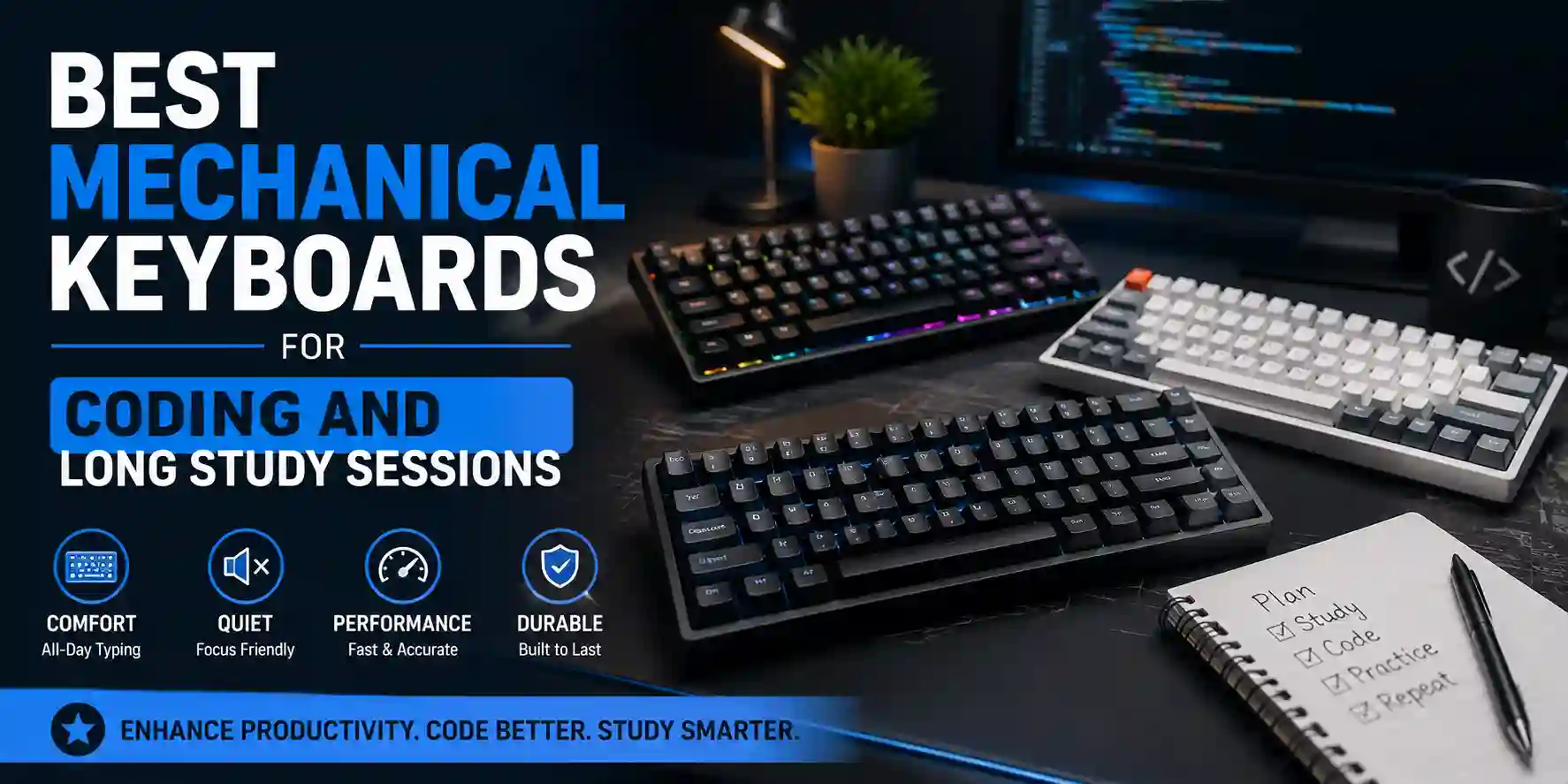
The Keyboard Nobody Thinks About Until Their Wrists Do
By the end of my second year, I had typed somewhere between five and ten million keystrokes on the ₹499 membrane keyboard that came with my desktop setup. I had written two semesters of assignments, two capstone project reports, thousands of lines of code, and enough WhatsApp messages to fill a novel. My wrists ached after long sessions. The keys had started to feel mushy and inconsistent. Spacebar occasionally missed.
I switched to a mechanical keyboard — a secondhand Royal Kludge with Brown switches — mostly out of curiosity. The difference was immediate and embarrassing. Every keystroke had a clear, consistent feel. My typing speed increased because I could type lighter and faster without bottoming out every key. The tactile feedback reduced errors. After two weeks, the membrane keyboard felt unrecognizable.
The point is not that mechanical keyboards are expensive tools for enthusiasts. The point is that a keyboard is the interface through which every assignment, every line of code, and every late-night debugging session passes — and the quality of that interface matters for eight-plus hours of daily use in a way that compounds over four years.
This guide covers the best mechanical keyboards for coders and students in 2026 across every meaningful budget tier, with honest India pricing, real switch guidance, and the layouts that actually work for developer workflows rather than the ones that photograph well in RGB setups.
| Keyboard | Layout | Switch Options | Wireless | Hot-Swap | Price (India) | Rating |
|---|---|---|---|---|---|---|
| Royal Kludge RK84 | 75% (84 keys) | Red / Brown / Blue | ✅ Tri-mode (BT + 2.4G + USB-C) | ✅ Yes | ₹5,000–₹6,500 | ⭐ 4.8/5 |
| TOP PICKRedragon K673 Pro | 75% (82 keys) | Red / Brown | ✅ Tri-mode (BT + 2.4G + USB-C) | ✅ Yes | ₹3,000–₹4,500 | ⭐ 4.6/5 |
| Keychron K2 V2 | 75% (84 keys) | Gateron Red/Brown/Blue | ✅ Bluetooth 5.1 | ✅ Yes (hot-swap version) | ₹7,000–₹9,500 | ⭐ 4.7/5 |
| Redragon K552 Kumara | TKL (87 keys) | Outemu Red/Brown/Blue | ❌ Wired only | ❌ No | ₹2,000–₹2,500 | ⭐ 4.4/5 |
| Aula F75 | 75% (82 keys) | Various linear/tactile | ✅ Tri-mode | ✅ Yes | ₹4,500–₹6,000 | ⭐ 4.5/5 |
| Keychron K6 Pro | 65% (68 keys) | Gateron/Keychron switches | ✅ Bluetooth 5.1 | ✅ Yes | ₹9,000–₹11,000 | ⭐ 4.6/5 |
| Cosmic Byte CB-GK-26 Pandora | Full-size (104 keys) | Outemu Red | ❌ Wired only | ✅ Yes | ₹2,500–₹3,500 | ⭐ 4.2/5 |
The Switch Decision: Red, Brown, or Blue for Coding
Before the keyboard reviews, the switch choice deserves its own section — because buying the right keyboard with the wrong switch is only marginally better than buying the wrong keyboard.
Red switches (Linear): Smooth keystrokes with no tactile bump, consistent resistance from top to bottom, quiet actuation. Preferred by fast typists who want low fatigue on long sessions and gamers who want rapid keypresses. The best choice if you type quickly and lightly, or if you share a room or study in spaces where any keyboard noise is problematic. Linear switches feel initially strange to typists used to membrane boards — there is no feedback bump to confirm each keypress, which causes more misfires initially but becomes natural within a week.
Brown switches (Tactile, non-clicky): A small tactile bump at the actuation point — you feel each keypress register without hearing a loud click. The most popular choice for coding and typing because the bump provides confirmation without noise. Actuation force is slightly higher than Red but lower than Blue. The tactile feedback improves accuracy on long coding sessions and reduces the subconscious uncertainty that leads to bottoming out every key. For most students and developers who want a clear upgrade from membrane without bothering roommates, Brown is the right starting switch.
Blue switches (Tactile + Clicky): A pronounced tactile bump accompanied by an audible click. Deeply satisfying to type on in isolation — the click provides strong per-keystroke feedback that many typists love. Genuinely inappropriate for shared spaces: a library, a shared bedroom, any office environment. The click is loud enough to be heard from several meters away and is considered inconsiderate in most shared settings. For dedicated home offices or solo setups where no one else can hear you, Blue switches are excellent. For most student environments, they are impractical.
The practical guidance: Start with Brown if you are unsure. If you find the tactile bump distracting and prefer smooth keystrokes, you want Red. If you already know you love the clicking sound and will only use the keyboard in a private space, go Blue. For keyboards with hot-swap support, start with Brown and swap later once you have developed a preference.
The switch brand also matters but less so at this budget. Gateron switches (used in Keychron) have a smoother keystroke than Outemu switches (used in Redragon and budget boards), but the difference is significant only to experienced typists. For a first mechanical keyboard, Outemu Red or Brown is entirely adequate.
The Layout Decision: 60%, 65%, 75%, TKL, or Full-Size
The layout is the second most important decision after switches — and the one where most first-time buyers make mistakes they later regret.
Full-size (100%, 104 keys): Includes numpad, function row, navigation cluster, and arrow keys. The right choice only if you use the numpad regularly — data entry, accounting, numerical coding. For most CS students and developers, the numpad is dead space that pushes your mouse further from the keyboard, increasing mouse travel distance and creating shoulder strain over long sessions. Avoid unless the numpad is a genuine workflow requirement.
TKL (Tenkeyless, 87 keys): Removes the numpad, keeping everything else. A solid choice that gives you the full function row and arrow keys without numpad bulk. The most comfortable ergonomic improvement over full-size for desk setups where the mouse position matters. The constraint is size — TKL is still relatively large and does not fit as easily in a backpack or on a small desk.
75% layout (82–84 keys): The sweet spot for developers. Removes the numpad and the navigation cluster (Insert, Delete, Home, End, Page Up/Down), keeps the function row and dedicated arrow keys. The function row is essential for IDE shortcuts — F5 for debug run in VS Code, F2 for rename, F10 for step over. Dedicated arrow keys are essential for code navigation — Vim users aside, most developers use arrow keys constantly. At 75%, the keyboard is compact enough to fit in a bag, leave space on the desk, and position the mouse closer, while retaining every key that matters for coding.
65% layout (68 keys): Removes the function row, keeps arrow keys. A meaningful constraint for developers who rely on F-key shortcuts in their IDE or terminal. If your workflow is heavily Vim or keyboard-shortcut-remapped to avoid function keys, 65% is workable. For most developers using VS Code, JetBrains IDEs, or any standard development environment, the missing function row is a daily frustration.
60% layout (61 keys): Removes the function row and arrow keys. Beloved by gamers for maximum mouse space. For coding: avoid. The arrow keys and function row are behind Fn layers that interrupt typing flow in ways that compound into genuine productivity loss across a day of development.
The recommendation for most developers and students: 75% layout. If you must choose between 65% and TKL, choose TKL for the function row retention.
#1 — Royal Kludge RK84: Best Overall for Students and Developers
Price: ₹5,000–₹6,500 on Amazon India and Flipkart
The Royal Kludge RK84 is the keyboard most frequently recommended in Indian developer communities for one reason: it delivers a feature set that was premium-tier two years ago at a price point that is accessible to students today. Tri-mode connectivity (Bluetooth 5.0 + 2.4GHz wireless dongle + USB-C wired), hot-swappable switches in Red, Brown, or Blue, a 3,750mAh battery rated for 200-plus hours without backlighting, and a dedicated USB passthrough port that acts as a mini hub for connecting your mouse or USB drive — all at ₹5,000–₹6,500.
The 75% layout with 84 keys retains the function row and dedicated arrow keys that developers need daily. The hot-swap sockets accept both 3-pin and 5-pin switches with broad compatibility — you can swap to Cherry MX, Gateron, Kailh, or most standard switches later. The 2.4GHz wireless dongle, which the Keychron K2 does not include, provides a low-latency wireless connection that is preferable to Bluetooth for extended typing sessions.
The USB passthrough port deserves specific mention for desk setup convenience. Plugging a USB drive directly into the keyboard rather than reaching to the back of a desktop or the side of a laptop is a small quality-of-life improvement that becomes appreciated within the first week.
Build quality uses primarily ABS plastic — not as premium as the Keychron K2's chassis, and noticeably so on close handling. The RK84 at 800g is slightly heavier than the K2's 670g, which some users find more stable on the desk and others find less portable. The software (available for Windows) allows RGB customization and macro programming; the keyboard works fully without software installed, which is important for macOS and Linux users.
Pros
- Tri-mode connectivity — Bluetooth, 2.4GHz dongle, and USB-C wired in one keyboard at this price
- Hot-swappable switches with broad 3-pin and 5-pin compatibility for future switch experimentation
- USB passthrough port lets you connect a mouse or USB drive directly to the keyboard
- 200+ hours battery without backlighting — weeks of use before a charge is needed
Cons
- ABS plastic chassis feels less premium than Keychron's build at a similar price bracket
- Bluetooth latency is slightly variable on some units — use 2.4GHz dongle for consistent wireless performance
- Software only available for Windows — macOS and Linux users get full functionality without RGB customization
- Legends on keycaps can be hard to read on darker colourways under low lighting
Who should buy this: Students and developers who want the best all-round mechanical keyboard under ₹6,500 with wireless flexibility and hot-swap capability. The 2.4GHz dongle and USB passthrough give it a practical edge over the Keychron K2 V2 at a lower price. Buy with Brown switches for coding and study sessions.
#2 — Redragon K673 Pro: Best Value Under ₹4,500 With Gasket Mount
Price: ₹3,000–₹4,500 on Amazon India (frequently discounted)
The Redragon K673 Pro is the keyboard that reads like a spec sheet from a premium board that someone accidentally priced at ₹3,500. Gasket-mount construction — where the mounting plate is suspended on silicone or rubber pads rather than screwed directly to the chassis — at this price point was genuinely remarkable when it launched, and it remains the most feature-dense keyboard under ₹4,500 in India in 2026.
Gasket mounting produces a softer, less hollow keystroke sound and a slightly bouncier typing feel that reduces finger fatigue on long sessions. It is a construction detail that appears in keyboards two to three times the K673 Pro's price and makes a perceptible difference compared to the plate-mounted construction of the Redragon K552 and most budget boards.
Add tri-mode wireless (Bluetooth + 2.4GHz + USB-C), hot-swappable switches, sound-absorbing foam layers between the PCB and the case bottom, and a volume knob, and the K673 Pro is a technical achievement at ₹3,500. The 75% layout with dedicated arrow keys and function row is correct for developer use.
The honest caveat: quality control is the K673 Pro's documented weakness. Reviews from Amazon India and international sources consistently show approximately 77% of units perform excellently long-term, while a noticeable minority (roughly 23%) experience issues ranging from wireless connectivity inconsistency to battery variance to key registration problems. The recommendation is to buy through Amazon India for the 30-day return window, test every feature immediately — wireless on all three modes, every key, battery charging — and return if any issue appears. Most buyers who receive a good unit are highly satisfied.
Pros
- Gasket-mount construction at ₹3,500 — a premium typing feel feature usually found on ₹8,000+ boards
- Tri-mode wireless, hot-swap, foam dampening, and volume knob at the lowest price in this list
- Sound-absorbing pad layers inside the case reduce hollow 'clack' to a more pleasing, muted tone
- 75% layout with F-keys and arrow keys — correct layout for developer workflows
Cons
- Quality control variability — approximately 23% of units have reported issues; test within return window
- ABS plastic housing and keycaps — less durable and more prone to shine over time than PBT
- Wireless latency measured at ~24ms on some units — perceptible in fast-action gaming, fine for typing
- Software is limited compared to competitors — basic macro support without a polished interface
Who should buy this: Students on a tight budget who want the best typing experience under ₹4,000. The gasket mount genuinely improves long study sessions, and the tri-mode wireless at this price is exceptional value. Buy through Amazon India, test thoroughly in the first week, and return immediately if any issue appears.
#3 — Keychron K2 V2: Best Build Quality and Mac Compatibility
Price: ₹7,000–₹9,500 on Amazon India (Bluetooth version) | Hot-swap version slightly higher
The Keychron K2 V2 is the keyboard most commonly found on the desks of professional developers in India and globally — not because it is the best value (the RK84 edges it on features per rupee), but because it is the most reliable, polished, and Mac-friendly keyboard at its price point.
Keychron's build quality is immediately apparent on handling: the aluminum frame variant feels substantially more premium than the plastic-dominant RK84, and the Gateron switches included in the hot-swap version are noticeably smoother than the budget Outemu or RK-branded switches in competing boards. For typists who notice switch feel after extended experience with different boards, Gateron's smoothness is a real quality improvement.
The Mac layout and compatibility is a practical consideration for the significant portion of Indian CS students and developers who use MacBooks. The K2 V2 ships with both Mac and Windows keycap sets included in the box, has dedicated Mac modifier keys, and pairs via Bluetooth 5.1 without driver installation. The function key row defaults to macOS functions (brightness, Mission Control, media controls) with an easy toggle for the standard F-key row that developers need for IDE shortcuts.
The K2 V2's primary limitation versus the RK84 is connectivity: it supports Bluetooth 5.1 and USB-C wired but lacks the 2.4GHz wireless dongle that gives the RK84 lower, more consistent wireless latency. For typing, this is rarely perceptible. For the very latency-sensitive (competitive gaming), the RK84's 2.4GHz dongle is preferable.
Pros
- Gateron switches are noticeably smoother than Outemu alternatives — a genuine typing quality improvement
- Excellent Mac compatibility — both Mac and Windows keycap sets included, macOS-first Bluetooth pairing
- Aluminum frame version offers premium build quality that justifies the price over plastic alternatives
- QMK/VIA programmable in some variants — full key remapping for power users who customize layouts
Cons
- No 2.4GHz wireless dongle — Bluetooth only for wireless use, with slightly higher latency than RK84's dongle
- USB-C port positioned on the left side of the keyboard — cable routing is awkward for right-side desktop setups
- ₹7,000–₹9,500 is meaningfully more expensive than the RK84 for a modest practical feature difference
- No USB passthrough port — the RK84's built-in USB hub is a convenience advantage at lower cost
Who should buy this: Developers and students using macOS primarily, those who prioritize build quality and switch feel over feature count, and buyers who want a keyboard they will use for five-plus years without replacement. The premium is justified for long-term use; if budget is a constraint, the RK84 is the smarter value choice.
#4 — Redragon K552 Kumara: Best Wired Entry-Level Pick Under ₹2,500
Price: ₹2,000–₹2,500 on Amazon India
The Redragon K552 Kumara has earned its reputation as India's most recommended first mechanical keyboard for one reason: it is the most reliable, well-built mechanical keyboard under ₹2,500 in the Indian market, with no wireless features or hot-swap to fail, and a TKL layout that retains the function row and arrow keys that matter for coding.
The TKL (Tenkeyless) layout with 87 keys removes the numpad, keeps everything else. The construction is plate-mounted metal — heavier and more rigid than the plastic alternatives, which gives it an unusually solid feel at this price. The Outemu switches in Red, Brown, or Blue are not Gateron-smooth, but are consistent and rated for 50 million keypresses per switch — adequate for years of daily use.
The key limitation versus wireless alternatives is the obvious one: it is USB wired only. Cable management on a student desk is a minor friction; for minimalist setups or desk configurations where wires are visible, the cable is a visual consideration. The other limitation for students who want future flexibility: the switches are not hot-swappable, so the switch type you buy is the switch type you keep unless you desolder.
For a student or developer who is uncertain whether mechanical keyboards are for them and wants to find out without spending ₹5,000–₹6,000, the K552 Kumara at ₹2,000–₹2,500 is the correct entry point. It is durable enough to serve as a backup keyboard indefinitely if you later upgrade to a wireless hot-swap board.
Pros
- Sub-₹2,500 price makes it the most accessible genuine mechanical keyboard in the Indian market
- Metal plate construction at this price point gives it a solid, premium-feeling build that outlasts plastic alternatives
- TKL layout retains function row and arrow keys — the correct layout for daily coding and study use
- Consistently recommended by Indian buyer communities over several years — a proven, reliable choice
Cons
- Wired only — no wireless option, fixed to your desk with a USB cable
- Non-hot-swappable — the switch type you buy cannot be changed without soldering
- Outemu switches are adequate but noticeably less smooth than Gateron alternatives in higher-priced boards
- No backlighting adjustment modes — single-colour backlight without RGB on most variants
Who should buy this: First-time mechanical keyboard buyers who want to experience mechanical switches before committing to a ₹5,000+ board, students on a very tight budget, and anyone who needs a reliable wired keyboard for a desktop setup where wireless is not a priority.
#5 — Aula F75: Best Mid-Range with Gasket Mount and Tri-Mode Wireless
Price: ₹4,500–₹6,000 on Amazon India
The Aula F75 sits between the Redragon K673 Pro and the Royal Kludge RK84 — offering better build consistency and switch feel than the K673 Pro, at a price slightly below the RK84, with tri-mode wireless and hot-swap as standard. The F75 has accumulated a strong reputation among budget keyboard enthusiasts for quality control consistency that the K673 Pro cannot match, and for a gasket-adjacent mounting structure that produces better acoustics than standard plate-mounted boards.
For students who were attracted to the K673 Pro's specs but deterred by its quality control variability, the Aula F75 is the more reliable alternative at a modest price increase. The switch options include several linear and tactile variants, and the hot-swap sockets accept standard switches for future customization.
Pros
- Better quality control consistency than Redragon K673 Pro — fewer reported unit-variance issues
- Gasket-adjacent mounting improves typing acoustics over standard plate-mount boards in this price range
- Tri-mode wireless (BT + 2.4GHz + wired) with hot-swap at ₹4,500–₹6,000 is strong value
- Well-regarded in the budget enthusiast community for reliable out-of-box experience
Cons
- Less widely available in India than Redragon or Royal Kludge — fewer retail options and slower shipping
- Switch selection more limited than RK84 — fewer colour and feel variants available at this price
- Build material is primarily ABS plastic — similar to competitors, not PBT keycaps as standard
- Software support is less mature than RK84's ecosystem for RGB and macro customization
#6 — Keychron K6 Pro: Best 65% for Minimalist Desks
Price: ₹9,000–₹11,000 on Amazon India
The Keychron K6 Pro is the right keyboard for developers who have definitively moved to a Vim or heavily remapped workflow that eliminates function key reliance, and who want a premium 65% keyboard with QMK/VIA programmability. At 68 keys, the K6 Pro removes the function row — a constraint for standard IDE use — but delivers Keychron's best build quality, Bluetooth 5.1, hot-swappable Keychron or Gateron switches, and full QMK/VIA support for complete key remapping.
QMK/VIA programmability deserves explanation: it allows you to remap any key on the keyboard to any function, create layers, assign macros, and save configurations directly to the keyboard's firmware rather than relying on software. For developers who want complete control over their keyboard layout — custom key positions, layers for symbols, or remapped F-key functions to a different physical position — QMK/VIA on the K6 Pro is the power-user feature the RK84 and K673 Pro do not offer.
The 65% layout is a considered choice for experienced keyboard users, not a beginner recommendation. Start with 75% and move to 65% if you find yourself genuinely not missing the function row.
Pros
- QMK/VIA programmable — complete key remapping and layer creation saved to firmware, not software-dependent
- Keychron's best-in-class build quality and Gateron switch options in a premium compact form factor
- Excellent macOS compatibility with dedicated Mac modifier keys and Bluetooth 5.1
- 65% form factor maximizes desk space and mouse proximity — the most compact daily-driver layout with arrow keys
Cons
- No function row — requires either remapping or Fn-layer use for IDE shortcuts on VS Code, JetBrains, etc.
- ₹9,000–₹11,000 is the most expensive keyboard in this list — premium over the K2 V2 for a smaller layout
- Only Bluetooth wireless — no 2.4GHz dongle for lower-latency wireless connectivity
- 65% layout requires adjustment period for developers accustomed to function row access
The Desk Setup Context: What Pairs With a Mechanical Keyboard
A mechanical keyboard improves typing experience significantly. The broader desk setup determines how much of that improvement translates into daily comfort over four years of CS:
A desk mat or keyboard mat: A cloth or leather desk mat under the keyboard reduces resonance from the typing sound, provides a soft surface that protects keycaps, and improves wrist comfort on hard desks. At ₹400–₹800, a large desk mat is the highest-return accessory for a keyboard setup. Extended gaming/desk mats (800mm × 400mm) cover both the keyboard and mouse in one surface.
Wrist rest: A wrist rest positions your wrists at a neutral angle during typing, reducing the wrist extension that causes strain on long sessions. Foam or memory foam wrist rests at ₹600–₹1,200 are worth considering for anyone doing more than four hours of daily typing.
Keycap upgrade: The stock keycaps on budget boards use ABS plastic that develops a shiny, worn look within six to twelve months of heavy use. PBT keycaps — thicker, more textured, resistant to shine — are a noticeable quality upgrade at ₹800–₹2,000 for a decent PBT set. Compatible with hot-swappable keyboards that use standard Cherry MX-style switches.
Switch lubricant (for hot-swap boards): Factory switches at budget price points are unlubed or minimally lubed, resulting in a scratchy or inconsistent keystroke feel compared to professionally lubed switches. Krytox 205g0 or Tribosys 3204 applied to linear switches makes a substantial difference in switch smoothness. A small syringe of switch lubricant costs ₹400–₹800 and improves every switch on the board. This is a weekend project that the mechanical keyboard community covers extensively on YouTube.
The full desk accessory setup — desk mat, wrist rest, PBT keycaps on a hot-swap board — adds approximately ₹2,000–₹3,000 to a keyboard investment and meaningfully improves the daily experience for a developer spending eight-plus hours at the desk. The AI productivity stack covered in our best AI coding tools guide and Cursor vs Copilot comparison multiplies what you produce per hour; a good keyboard setup determines how comfortable those hours feel.
Practical Buying Guide: Budget-Based Recommendations
Under ₹2,500 — Redragon K552 Kumara (TKL, Wired): The best entry-level mechanical keyboard in India. Buy with Brown switches. Wired, non-hot-swap, but reliable and well-built.
₹3,000–₹4,500 — Redragon K673 Pro (75%, Tri-mode Wireless, Hot-swap): Exceptional features for the price with a notable quality control caveat. Buy through Amazon, test every feature in the first week, return immediately if any issue appears. If you receive a good unit, it punches well above its price.
₹4,500–₹6,000 — Aula F75 (75%, Tri-mode Wireless, Hot-swap): Better quality consistency than the K673 Pro at a modest premium. The reliable choice in this price range for buyers who want wireless and hot-swap without the return-window anxiety.
₹5,000–₹6,500 — Royal Kludge RK84 (75%, Tri-mode Wireless, Hot-swap): The best overall value for most students and developers. 2.4GHz dongle, USB passthrough, hot-swap, 200+ hour battery. Buy with Brown switches for coding and study.
₹7,000–₹9,500 — Keychron K2 V2 (75%, Bluetooth + Wired, Hot-swap): Best build quality, best Mac compatibility, best switch feel (Gateron). Buy if you use macOS or if long-term build quality matters more than feature count.
₹9,000–₹11,000 — Keychron K6 Pro (65%, Bluetooth, QMK/VIA): Buy only if you have a defined minimal layout preference and want complete key programmability. Not recommended as a first mechanical keyboard.
What to Avoid: Common Mistakes When Buying Your First Mechanical Keyboard
Buying Blue switches for a shared space. The click is loud enough to be audible from the next room. Library staff will politely ask you to leave. Roommates will stop being polite. Start with Brown if you want tactile feedback without noise. You can always buy a clicky board for your own private setup later.
Buying a 60% layout for coding. The missing function row and arrow keys look minimal and clean in setup photos. They feel restrictive every day in VS Code, JetBrains, and terminal use. Every time you need F5 to run, F2 to rename, or arrow keys to navigate code, you interrupt your typing flow with Fn-layer gymnastics. Start with 75%.
Buying an 8GB RAM laptop and a fancy keyboard. The keyboard investment is real, but it comes after the core setup is right. If your laptop needs 16GB and a better SSD, that investment comes first. A great keyboard on a bottlenecked machine is the wrong order of priorities. Get the core hardware right — as covered in our best laptops for CS students guide — then invest in the peripheral layer.
Not testing switch type before buying a non-hot-swap board. If possible, visit a store that has keyboard testers, or buy a switch tester (₹300–₹500 online with small samples of multiple switch types) before committing to a non-hot-swap board. Discovering you hate the tactile bump of Brown switches after buying a non-hot-swap keyboard with them means living with it or buying again.
The Developer's Keyboard Recommendation for Every Budget
For most CS students and developers in India in 2026: buy the Royal Kludge RK84 at ₹5,000–₹6,500 with Brown switches. The tri-mode wireless, hot-swap sockets, 2.4GHz dongle, and USB passthrough make it the most complete keyboard for the price. If you are on a strict budget under ₹3,500, the Redragon K673 Pro with its gasket mount and tri-mode wireless is remarkable value — buy through Amazon for return protection. If you primarily use macOS and want the best out-of-box experience without return-window anxiety, spend the extra ₹1,500–₹3,000 for the Keychron K2 V2. All three recommendations: 75% layout, Brown switches, and pair with a ₹500–₹800 desk mat that reduces sound resonance and improves wrist comfort on long sessions.
Final Thoughts
The mechanical keyboard is the peripheral most developers underinvest in relative to the return it provides. A laptop upgrade from M2 to M3 saves you seconds per Xcode build. A membrane-to-mechanical keyboard upgrade changes how every hour of typing feels for the next four years.
The investment threshold is not high. At ₹2,000–₹6,500, the range covered in this guide, the right keyboard is accessible to any student budget. The K552 Kumara at ₹2,000 is a genuine mechanical keyboard that will last as long as you use it. The RK84 at ₹6,000 is a wireless hot-swap board that would have cost ₹12,000 three years ago.
Start with Brown switches. Start with a 75% layout. Add a desk mat. Build from there as your preferences develop. The switch type you think you want before using mechanical keyboards and the switch type you actually prefer after three months of daily use are often different — which is why hot-swap support is worth prioritizing. The keyboard you buy today should be the starting point of a setup you refine over time, not a fixed decision you live with regardless of whether it suits how you actually type.