The Notes Folder That Became a Graveyard
By the time I reached my third semester, I had accumulated 340 notes scattered throughout four apps. Fourty-two Google Docs from the previous year's courses, a Notion database which began neatly categorized but degenerated into an incomprehensible hierarchy of notes from last year, a OneNote notebook I abandoned mid-term after Discrete Math class, and a folder filled with text files where I dumped whatever half-thought-out ideas came to mind ever since the first week of college.
None of it connected to anything else. None of it was accessible or searchable in any meaningful manner. If I were to look up any information I had stored away about Data Structures during my Databases class, I was aware that it would be within one of those sources – I just did not know how to access it without flipping through pages of the book again.
This issue is addressed by the second brain philosophy made famous by Tiago Forte. The purpose of a second brain is not only a place to organize notes but a method of doing so that maximizes their utility while minimizing clutter over time.
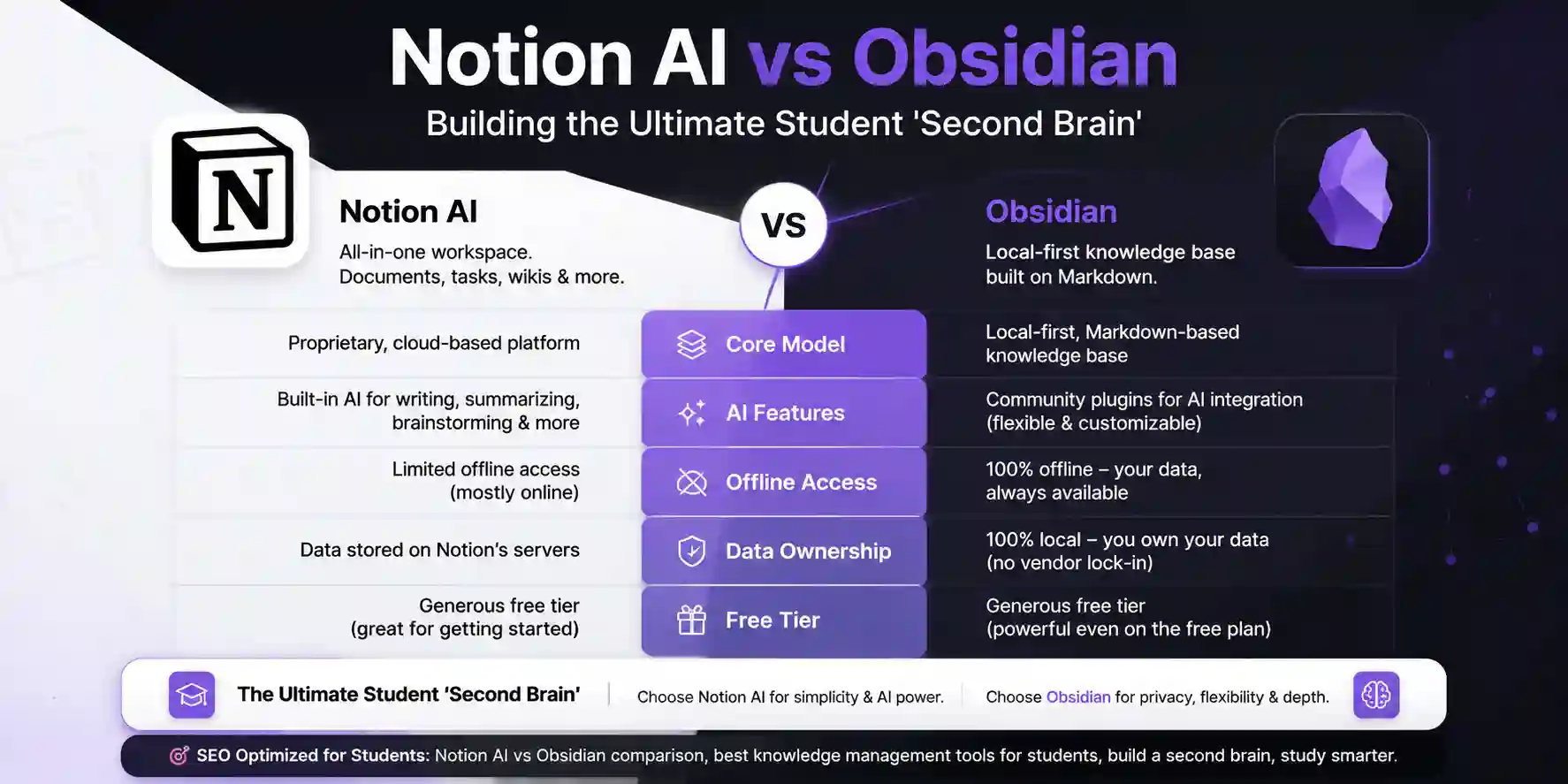
There are two tools that dominate this field for students in 2026: Notion AI and Obsidian. These are two tools that come from fundamentally opposing approaches to structuring knowledge. Notion is an approach based on a database, collaboration, structuring, and growing use of AI technologies. Obsidian, on the other hand, is based on the philosophy of building links between pieces of information and using plugins and extensibility.
Neither tool is superior to another in any way. It all depends on your preferences and the purpose of the note-taking process. This article serves as a guide to make sure that you pick the tool that suits you best, instead of spending three semesters doing everything wrong.
| Feature | Notion AI | Obsidian |
|---|---|---|
| Core model | Database + pages + AI | Local markdown + links + plugins |
| TOP PICKAI features | ✅ Built-in (Notion AI, $10/mo add-on) | ⚠️ Via plugins (Smart Connections, etc.) |
| Bidirectional linking | ⚠️ Basic (mentions, not graph) | ✅ Native + graph view |
| Knowledge graph | ❌ No | ✅ Visual graph built-in |
| Offline access | ⚠️ Limited (cached pages only) | ✅ Fully offline, all data local |
| Collaboration | ✅ Excellent (built for teams) | ⚠️ Limited (Obsidian Publish only) |
| Mobile experience | ✅ Strong native apps | ⚠️ Functional but limited |
| Data ownership | ⚠️ Cloud-hosted (Notion's servers) | ✅ Local files, you own everything |
| Plugin ecosystem | ⚠️ Limited integrations | ✅ 1000+ community plugins |
| Learning curve | Low — intuitive UI | Medium — setup investment required |
| Free tier | ✅ Yes (AI costs extra) | ✅ Yes — fully free for personal use |
| Best for | Projects, databases, collaboration | Personal knowledge, thinking, research |
What a Student Second Brain Actually Needs to Do
It is important to define what a second brain has to achieve for a student before making comparisons since a second brain for a developer, a writer, or a businessman is required to perform differently from that of a student.
A student second brain needs to do five things well:
Capture fast without friction. During class, during lab sessions, or even when going through an article, the capture system should be able to get the input without distracting you from what you are doing. A system that takes three clicks just to access and then thirty seconds to locate where you need to place your input cannot be trusted. Only consistency matters in a notes-taking system; a bad but consistent system is better than a good inconsistent one.
Surface connections between courses. Learning is best when done where two disciplines intersect. Discrete Math and graph theory can be linked to the design of algorithms through DSA, which links further to databases and query optimization. When a second brain stores information for both courses separately, without any links, it loses out on the most important aspect – that of making connections you may miss otherwise.
Scale across semesters without becoming a mess. A method which functions during semester one with forty notes should also function during semester six with eight hundred notes. Any solution which uses manual arrangement will thus be eliminated from consideration as it is not scalable. Similarly, solutions without good searching capability will also be ignored.
Work alongside your research and reading workflows. Class lecture notes are one of those, while papers, books, articles, project documentation are others. All that must be received by the second brain, and all connections must be made between these sources, not just between lectures.
Support exam preparation and synthesis. The notes made throughout the term should be such that they can be utilized when preparing for the examination; in other words, they should be organized in a manner that allows for easy referencing based on topics.
With these requirements in mind, the comparison between Notion and Obsidian becomes much clearer. They are strong in different areas of this list.
Notion AI: The Structured, Collaborative Knowledge Base
Notion is a work environment – Pages, Databases, Tables, Kanban Boards, Calendars, and Documents, all residing in a customizable hierarchy created by you. The addition of the AI component in 2023 and its extensive development since has transformed this work environment to one that can summarize, synthesize, create, and answer queries on your data.
What Notion does exceptionally well for students:
Structured databases for project and assignment tracking. The ability to have a database in which each row is a page with unique content within Notion is really fantastic when it comes to handling the logistics that come with being a student. Such as a database of tasks with rows dedicated to the class name, due date, task status, and even notes associated with it. Or a database of readings with tags to mark whether it is read, unread, and relevant to your studies. As well as a project database for your capstone with linked sub-tasks and teammates involved.
Collaboration with teammates and study groups. For any type of group assignment where you will be creating something like a lab report or a study guide together with your friends, Notion's ability to collaborate in real time is top-notch, similar to Google Docs in that it allows co-edits but has additional features like databases and links between pages.
Notion AI for summarization and drafting. For example, the AI capabilities available in Notion – such as summarizing a lengthy page, generating actionable items based on notes taken during a meeting, expanding a bullet point to form a paragraph, and posing questions about a database – function beautifully when applied to structured material. When you add the messy notes taken from a lecture to a Notion page, AI within Notion is able to generate a clean summary of the page, create flashcard-like questions, and provide more information on certain sections of the page.
Templates for instant structure. Notion's template library contains thousands of templates tailored for students like semesters planners, Cornell notes template, task trackers, reading journals, habit trackers. All that is needed to start something new in Notion takes only thirty seconds as opposed to Obsidian that requires setting everything up.
Pros
- A database-first design is unparalleled for managing assignments, reading materials, and projects
- Collaboration in real time makes it clear-cut to use when working on projects in groups
- Notion AI creates summaries, generates material, and answers any queries based on your information
- Easy to set up – with templates and intuitive user interface as well as mobile apps
Cons
- AIs are priced at $10/month regardless of the plan you choose – that’s definitely an expense for a cash-strapped student
- Linking between pages is very basic – it’s not designed for interconnected thinking
- The storage is hosted by Notion – you don’t actually own your notes like you would in local storage
- Can easily turn into a mess without any organization – the flexibility is both a blessing and a curse
Obsidian: The Linked Thinking Environment
Obsidian follows a different ideology. Notes are simple Markdown files that are locally saved on your computer. Links to other notes are first class citizens and work with the syntax [[Note Name]], creating a bi-directional link that shows up in both the notes as well as in the graph view. Graph view is where Obsidian shows the entire knowledge base in visual form as a network of interconnected nodes.
The ecosystem of plugins from the community – over 1,000 of them – enables Obsidian to become a universal tool. Anything is possible in Obsidian from creating flashcards for spaced repetition, journaling, task management, annotations in PDFs, views of calendars and Kanban boards, and searching your notes with an AI-enabled semantic engine.
What Obsidian does exceptionally well for students:
Networked thinking and concept linking. As you learn about scheduling algorithms while studying OSs and then come across the same idea again while taking distributed systems, Obsidian provides an easy way to make this association. Adding [[OS Scheduling]] to your distributed systems note automatically generates a relationship that will show up in both notes and in the graph. By the end of the semester, your graph will be a representation of how your knowledge of computer science connects together.
The graph view as a study diagnostic. View the graph view of your notes two weeks prior to your exams. Your notes that have more links are your key ideas because those are present throughout your entire knowledge base. The nodes that have not been linked to anything are the ones that need to be reviewed further. This particular method of preparation for an exam is specific to Obsidian and cannot be done in Notion or any other application.
Full data ownership and privacy. Each Note is simply a basic Markdown document stored within a folder on your computer. You can view your Notes using any text editing software and can back them up using any backup process you want; synchronize them using any method and view them without requiring the use of the Internet, which means even if the Notion service were to go down, your Notes would not be affected.
Long-term compounding value. The vault that you open at the start of Semester 1 becomes increasingly valuable through your studies and after you have graduated. By Semester 6, your Obsidian vault will be an entire map of all your technical studies, tailored to your way of understanding things. This is how a consistent linked note system builds on itself – the longer you use it, the more valuable it becomes, unlike a Notion vault divided into courses and semesters.
Pros
- Linking both ways and graphs let you explore connections among ideas
- Totally free for private use — without subscription, without AI module fee, without limitations
- No fancy formats, just markdown documents that are yours forever, viewable in any text editor
- With 1000+ plugins from the community, it can be used for spaced repetition, PDF annotations, AI searches, and much more
Cons
- Setup requires considerable investment — intimidating to start from scratch without any framework
- Mobile performance is adequate but lags behind Notion's built-in mobile applications for iOS and Android
- Real-time collaboration is absent — inherently a single-person tool
- AI capabilities rely on third-party extensions, not in-house functionality
The AI Layer: Notion AI vs Obsidian Smart Connections
The AI capability gap between the two tools is real but narrowing, and the nature of each tool's AI reflects its underlying philosophy.
Notion AI It is first-party, well-integrated, and built for structure. It lives within the editor – pressing the space bar or typing /ai, and you can have AI to assist you in summarizing the current page, generating from prompts, correcting grammar, translating, or asking questions in relation to the page you’re currently working on. This feature set makes sense especially for students that rely heavily on Notion for their studies. The cost is an additional $10 per month on top of your current subscription, costing $120 annually.
Notion AI’s Q&A function, where users can query their workspace for information, is the most analogous to the NotebookLM experience. If one asks, “What have I written on the CAP theorem?” the AI queries the workspace and produces answers. While the accuracy of the results is acceptable for factual querying purposes, it is inferior to that of NotebookLM when it comes to synthesizing answers across multiple documents.
Obsidian Smart Connections is the best AI plugin for Obsidian. It allows you to embed your notes semantically and search for conceptually similar notes regardless of whether they contain common terms – a note on “eventual consistency” pops up in connection with the note on “CAP theorem” as they are semantically close, but they may not be connected directly in any way. Moreover, it features an AI chat with access to all your notes.
Either an API key paid for (OpenAI or similar) or an installed model using Ollama will be required for Smart Connections, which translates into a cost of setting up and ongoing costs (API) or hardware needs (local inference). Technologically competent students can enjoy entirely free, private AI over all their vaults when choosing the latter.
For users interested in minimal setup and maximum convenience, Notion AI would be preferable. However, for those desiring a locally operating, privacy-focused tool and with contextual awareness of vaults that have been developed over several years, Smart Connections along with a locally operating AI would be better – albeit with additional effort in setup.
The Setup Guide: Starting Each System as a Student
- 1
Notion — Create your student workspace: Sign up at notion.so with your college email and apply for the free education plan, which gives you the Plus plan at no cost. Create a top-level page called 'University' and inside it create four sub-pages: 'Courses' (one database per active semester), 'Projects' (capstone, research, internships), 'Reading List' (papers and books with read/unread status), and 'Inbox' (fast capture for anything that does not have a home yet). The Inbox is critical — every second brain needs a frictionless capture point that you process weekly.
- 2
Notion — Set up your course database: Inside 'Courses', create a database with properties: Course Name, Semester, Professor, Exam Date, Status (Active/Completed), and a relation to your Reading List database. Each row in the database is a course page containing all your notes for that course. This structure scales cleanly — at the end of the semester, mark the course as Completed and it filters out of your active view.
- 3
Notion — Enable Notion AI (if budget allows): Go to Settings → Plans and add the Notion AI add-on. Once enabled, open any note page and use the AI button to generate a summary after each lecture upload. Set up a template for new course notes that includes an AI summary block at the top — so every time you create a new lecture note, the summary is auto-generated from the content below.
- 4
Obsidian — Download and create your vault: Download Obsidian from obsidian.md (free, no account required). Create a new vault in a folder that is synced with iCloud, Google Drive, or Dropbox — this handles sync across devices without paying for Obsidian Sync. Name the vault 'University Vault' or your preferred name.
- 5
Obsidian — Install the essential student plugins: Go to Settings → Community Plugins → Browse. Install: Templater (for note templates), Calendar (for daily notes), Dataview (for querying your notes like a database), and Smart Connections (for AI-powered semantic search). Each plugin has a settings page — configure Templater with a default note template that includes the note title, date, course tag, and a section for linked concepts.
- 6
Obsidian — Set up your folder structure and daily note habit: Create three folders: '00 Inbox' (fast capture), '10 Courses' (one subfolder per course), '20 Concepts' (atomic concept notes that link across courses), and '30 Projects'. The Concepts folder is the most important — when a concept appears in multiple courses, it gets one note in Concepts linked from every course note that references it. This is where the graph builds. Enable Daily Notes and open one every day — your daily note is your capture point and your review anchor.
The Note-Taking Workflows That Actually Work
The Cornell Method in Notion
The Cornell Note approach where main notes appear on the right-hand side, cues/questions appear on the left-hand side and summary appears at the bottom is easily replicable within the structure of a Notion page. Create a template with two columns wherein the left-hand side will consist of important questions/cues while the right-hand side will have all your notes. Finally, a space for summary would be created below the two columns.
Notion AI's contribution to the process – Once you are done making the main notes along with the questions, select the main notes column and ask Notion AI to "create five questions for an examination based on the notes". Add them to the cues column to make your notetaking more active through one simple AI use.
The Atomic Note Method in Obsidian
Each concept gets its own note. Instead of naming your notes "OS Lecture 7 Notes," you create notes like [[Process Scheduling]], [[Banker's Algorithm]], and [[Deadlock Detection]], which are linked from your lecture notes but exist on their own. Your lecture notes become an index for those concepts and any other concepts that might be mentioned in a lecture.
Creating a separate note for every concept may seem like extra work — after all, writing down one big lecture summary seems faster than writing down many different notes. However, this extra work will pay off once the exams arrive: instead of reviewing one big note on "OS Lecture 7 Notes," you review [[Process Scheduling]], and all the lectures, all the readings, and even all the projects notes that ever referenced it appear right before your eyes.
This atomic approach works exceptionally well alongside the cross-paper synthesis strategy described in our literature review guide. You put all the readings and research papers into the same concept note as the lectures.
The Weekly Review in Obsidian
Every Sunday, go through the Obsidian daily note of that week’s Monday to see what you’ve put in the inbox. In each inbox note, consider whether it needs to be turned into a concept note in the concepts folder. See if it connects to any other concept note. Should it go into any course folder?
Inbox processing requires 20 to 30 minutes per week, and it is what keeps the vault manageable by not turning it into a dump. The graphs generated after a week of reviewing the vault are a visual confirmation that you have built up a lot of connections over time.
The Pre-Exam Graph Review in Obsidian
Two weeks prior to the final exams, access the graph view sorted by your current course’s tag. Nodes with dense connections indicate concepts you already know thoroughly enough and those which remain disconnected, indicating concepts which require more study. Nodes with fewer connections represent topics or concepts which are known to you but have not yet been connected, indicating concepts which must be reviewed.
This examination of the student’s progress through the use of a graph is unprecedented among other educational tools for students. The visualization of the information allows for analysis of what the student knows, rather than identifying knowledge gaps at exam time.
Honest Assessment: Who Should Use Which Tool
Choose Notion AI if:
You are essentially more of a project manager and task manager than someone who takes notes. You deal with group projects and documentation quite frequently. You would like AI tools that you can use right away without having to set them up. You have a preference for a templated system as compared to an open system of linking notes. You are prepared to spend $10 per month for the same. Your main pain point is organizing tasks/projects/deadlines.
Choose Obsidian if:
You are committed to accumulating a body of knowledge that will compound its value over decades, not just semesters. You read many papers and books and make extensive notes, which you would like to relate back to coursework. You respect intellectual property rights and prefer not to have your educational knowledge base hosted by an organization. You are technically proficient enough to set up and tweak plugins. Your main annoyance is that the things you learn are not well connected to one another, but instead remain disparate facts.
Use both if:
You need Notion for the organizing side of things, the logistics of studying — for project management, task management, document management, reading lists — and Obsidian for the more personalized side of things, the note-taking side of things where you can think and build your knowledge, with concepts notes, research summaries, linked thinking, and graphing views. It’s more work, but that’s what you get by combining the best of both without trying to force either into a use case they weren’t intended for.
And that is the logic behind all good AI tool stacks — that’s why I make the exact same point in my guide on the best AI coding tools for 2026.
The Second Brain Principles That Apply Regardless of Tool
Capture everything, organize later. The most damaging habit of your second brain involves spending time trying to decide where a particular note belongs when you should be taking notes. Fortunately, both Notion and Obsidian have built-in features such as an Inbox or scratch pad for quick, unstructured note-taking. Use this feature all the time. Clean it up once a week.
Linking is more valuable than filing. The piece of information stored in the incorrect folder and connected with the correct concepts is easier to locate than the one saved in the correct folder but unconnected. The process of connecting is more efficient than organizing. This is what makes the philosophy behind Obsidian more effective in the long term.
Review compounds value. The other brain you will never visit again is a write-only brain. Reviewing weekly what's in your inbox, reviewing monthly what you have in your active note list, and pre-exam review of your concept map, these are what make your collected data into knowledge. Reviewing is actually more difficult to develop than collecting – but that is where the value lies.
Write in your own words. Plagiarizing information into your notes is not really taking notes; it is organizing documents. It is in the process of rewriting something that fits with your knowledge base that you understand it. While there is no doubt that AI programs that help you summarize articles are useful as guides, the notes that go into your second brain must be your own summary, not an automated one. This is the same idea behind PDF summarizers that work well beyond ChatPDF.
Consistency beats perfection. An incomplete second brain made every day is infinitely more useful than an impeccably organized system you only update when you find the time to do so. Be laxer with the organization of your notes but strict about the practice of taking and revisiting them. You don’t need to plan out the system before building it through use.
The Plugins That Make Obsidian Worth the Setup Investment
If you’re planning to use Obsidian, it’s the plugins that make a simple markdown editor into a full-fledged student suite. Here are the five that bring maximum bang for your buck with minimum setup:
Templater replaces the native Templates plugin with an advanced one that allows dynamic fields such as the current date, the title of the note, and the drop-down list for the selection of courses. It is necessary to create a separate template for lectures, concepts, and reading papers. Every newly created note will have the correct format depending on its category.
Calendar + Periodic Notes brings a calendar view into the sidebar and sets up daily, weekly, and monthly notes by default. Your daily notes are where you capture all your work. You should open them each morning and throw everything that happens throughout the day into them; you will then organize them during your weekly review sessions.
Dataview Dataview is the most powerful plugin within the ecosystem — it allows you to search for information within your notes using a simple language. The query "TABLE course, exam-date FROM #active-course SORT exam-date ASC" builds an automatically updated table listing your active courses by exam date, extracted from the metadata of your notes on each course. Use Dataview queries instead of creating manual lists.
Excalidraw includes a complete whiteboard within the Obsidian notes themselves. If you’re someone that needs to create a system diagram, mind map, or even work through an algorithm step by step, having Excalidraw embedded in your note is an effective way to complement your textual thinking with your visual thinking. It fits perfectly into the process outlined in our previous guide on diagramming using Mermaid.js and flowcharts.
Smart Connections Also, you get semantic AI search and AI chat across all your vault. Once you have around a few hundred notes in your vault, the semantic search uncovers connections that you could not have imagined otherwise. You can also ask AI chat any question pertaining to your notes like "What do I know about Byzantine fault tolerance?".
The Student Second Brain Decision Framework
Starting university or a new semester and looking for a second brain that starts working instantly? Notion it is. The educational template is free, comes with ready-to-use templates, and Notion AI is available without configuring plugins. Focus on developing the habit of capturing and reviewing information first, rather than the tool itself. In the second and third year of studying, and looking for a tool that will grow in value for you throughout your academic journey and future career? Consider either switching to Obsidian or using them both simultaneously. The payoff from setting up Obsidian will pay off over months and years, not days and weeks. Students graduating with the most valuable second brains will be those who started developing their second brain in Obsidian from the very first day of their studies and have been actively adding to it ever since.
Making the Migration: Moving From Notion to Obsidian
Many users enter through Notion due to its low-friction nature and then decide to leave to join Obsidian for its linking and ownership features. The process is actually more straightforward than you think:
Pages in Notion can be exported to markdown files – Settings > Export > Markdown & CSV. You'll notice that these files will load straight into Obsidian. The directory structure of Notion will become your initial Obsidian directory structure. The conversion process of Notion internal links is not always smooth; therefore, it's safe to expect an hour of fixing broken links when moving around your critical notes.
It would be smarter to not make an entire migration – start new in Obsidian using new content while leaving older structured data in Notion. Also, the migration of Notion databases (assignment trackers, reading lists, project boards) is not really a natural process for the file-based system of Obsidian anyway.
Final Thoughts
In the end, the second brain debate between Notion and Obsidian comes down to two competing approaches to knowledge structure. One approach, championed by Notion, is hierarchical and database-oriented. Another approach, championed by Obsidian, is based on a network of ideas.
Of course, both approaches have their place in different scenarios. If the student’s main task is to keep his or her academic life organized, to know where each assignment, project, or collaboration is located, Notion will be the better tool to choose. On the other hand, if what is important to the student is developing a compounding and interdisciplinary understanding of the field, Obsidian would be more suitable.
And the key insight about all of this is that these applications, Notion and Obsidian, are simply not meant to compete in the same arena. These are not even close rivals to one another. This means that choosing both is not an example of indecisiveness. In fact, it is quite logical because the tools, each optimized for a certain approach to knowledge management, cannot perform equally well at tasks corresponding to a different approach.
With only one. Focus on the practice of capturing and reflecting, rather than the tool itself, until the point where it matters more what's the theoretically best tool. The second brain that will serve you best isn't the perfect system you have set up but never touched again since it became more trouble than it was worth to maintain.
The notes you take in the first semester must serve their purpose in your first job after college. This is how you should go about building the system.