The Problem With Reading Papers at Scale
Academic paper overload was something I encountered for the first time when writing up the literature review for my minor project. I was provided with an initial list of eight essential papers regarding distributed computing and told to dig deeper. In two weeks' time, I ended up with 41 papers saved into the folder titled "papers_FINAL_v3" which I am definitely not proud of.
Reading them did not pose any problems to begin with; however, trying to make sense out of them was quite difficult since all of them seemed to have their own structure, language, limitations hidden somewhere in the seventh paragraph out of nine and numerous other papers cited as references that I had not read yet.
ChatPDF was the first step I took toward addressing this problem. ChatPDF worked. The ability to instantly respond to “what is the dataset they used?” proved very helpful indeed. However, the problems with ChatPDF’s responses were many. They were shallow, hardly ever included citations for where they got their information, and broke down entirely if I asked questions related to multiple papers.
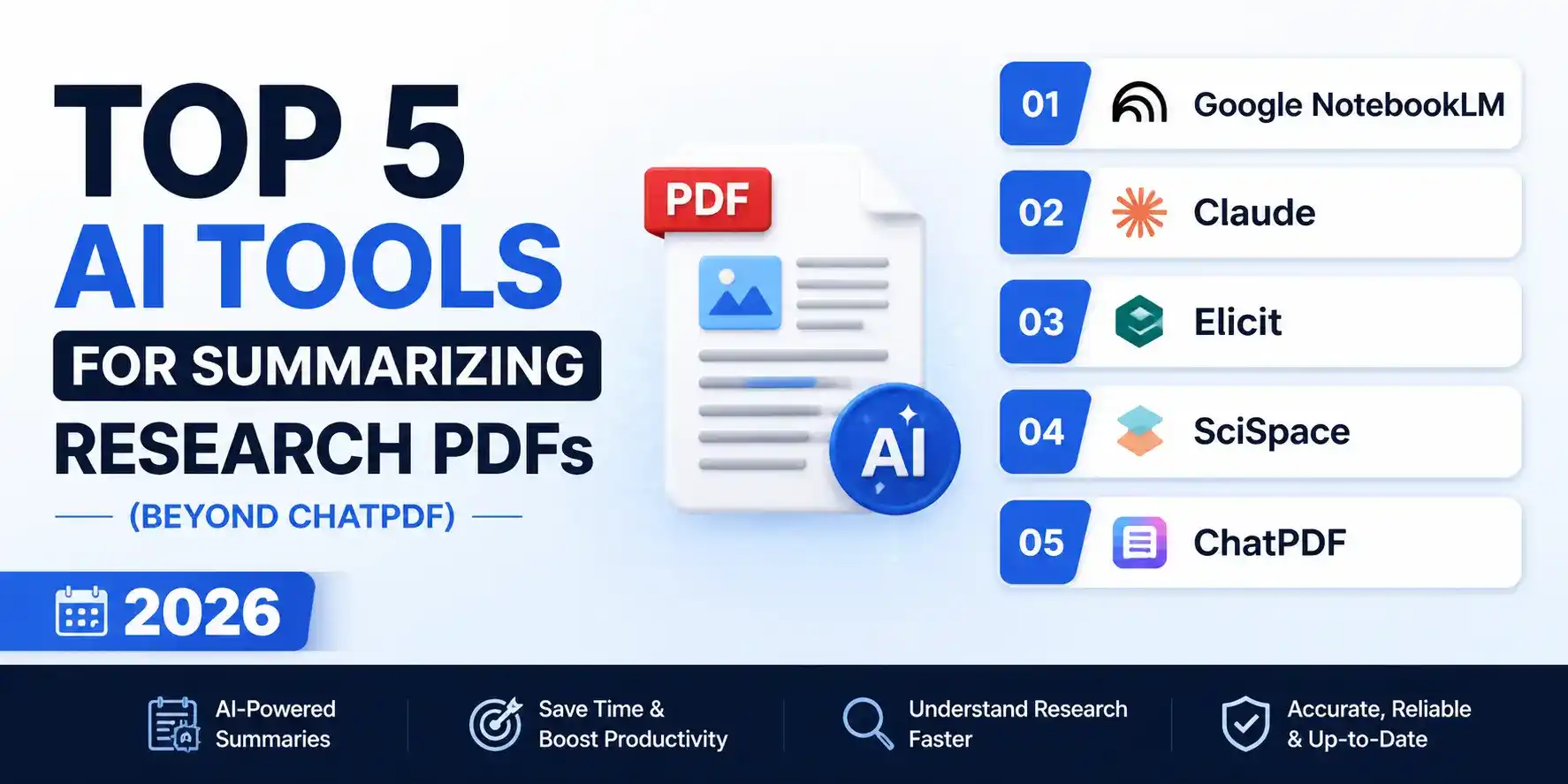
The tools discovered after ChatPDF were much more powerful. Here is everything you need to know about the five best ones in 2026.
| Tool | Best For | Multi-PDF | Citation Grounding | Price | Rating |
|---|---|---|---|---|---|
| Google NotebookLM | Cross-paper Q&A with passage citations | ✅ Yes | ✅ Passage-level | Free | ⭐ 4.9/5 |
| TOP PICKClaude | Dense technical papers + deep reasoning | ⚠️ Paste-based | ⚠️ Approximate | Free / $20 Pro | ⭐ 4.8/5 |
| Elicit | Structured extraction across paper sets | ✅ Yes | ✅ Claim-level | Free / $12 mo | ⭐ 4.7/5 |
| SciSpace (Typeset) | In-paper Q&A with concept explanations | ⚠️ Limited | ✅ Inline highlights | Free / $12 mo | ⭐ 4.5/5 |
| ChatPDF | Quick single-paper Q&A, zero setup | ❌ No | ⚠️ Approximate | Free / $5 mo | ⭐ 4.1/5 |
Why Most PDF Summarizers Fall Short
Before we delve into what works, we should be clear on what most AI PDF solutions actually do – and how this approach fails in the context of real research.
Most solutions, including ChatPDF, operate by breaking up your PDF into sections, storing those sections in a vector database, then retrieving the most semantically relevant sections based on your query. An answer is then generated using retrieved sections and processed via a language model. While this approach works well enough for factual queries ("what method did they use?", "what was the sample size?"), it falls apart in three critical ways:
It struggles with reasoning across the whole paper. The question, "What is the essential conflict between their suggested approach and their evaluation framework?" must be answered by drawing on all the three parts at once. Retrieval based on chunks will likely retrieve only one of these three sections and thus provide an incomplete answer.
It rarely cites the right passage. In this instance, where the tool says “According to the paper, X,” one is often not able to pinpoint precisely where in the paper such a statement can be found. In scholarly work, this would make the citation meaningless.
It cannot reason across multiple papers. Research does not happen in a vacuum. The most critical questions raised during a literature review are those that span across multiple papers. These include areas of agreement among the papers, areas of disagreement, and any remaining gaps left unexplored by the body of work as a whole.
These are the tools that have solutions for at least two of the above three challenges. In case you are looking to create a more comprehensive research process—discovery, triaging, and synthesis—the following tools will go hand-in-hand with the overall methodology discussed in our post on best AI tools for literature review.
1. Google NotebookLM — The Best Free Research PDF Tool
What made my paper-intensive research task easier is NotebookLM. This is due to its straightforward concept of uploading any source material (PDFs, Google Docs, URLS, or even text snippets) and then asking questions which will be answered by NotebookLM through just your provided sources, with each statement referenced accordingly.
Why it's the best for research PDFs: This citation grounding sets NotebookLM apart from all of its competitors. Where NotebookLM responds to your query regarding your document, it will give you the exact source for each sentence in the answer. This means that if the answer given by NotebookLM contains ten sentences, then all those sentences will have direct citations. Academic papers are supposed to have all information traceable, and hence this is a basic need rather than an added advantage.
The ability to handle multiple documents is equally crucial. Put five articles in one notebook, then pose a question like “What evaluation metrics do these articles use, and how do they compare?” The system will generate a response based on all five articles, identifying any points of agreement and disagreement while referencing the appropriate sections of each article.
Best Feature: This is the "Notebook Guide," an automatically generated briefing paper that highlights your entire collection of uploaded sources in an organized outline format, complete with key topic sections, controversial statements, and areas for future research. When you upload a series of documents, this tool will provide you with an overview of the terrain you are about to explore.
Limitations: The NotebookLM function relies strictly on what is uploaded into it. It will not look for more related papers or recommend further readings nor will it draw from any information other than the ones contained within the uploads. This is the nature of its operation and it helps avoid hallucinations, although this makes NotebookLM only a synthesizer and not a discovery engine. You will still have to discover the papers on your own.
Pros
- Citation grounding for each passage in every answer – all claims are verifiable from the source
- Reasoning across documents using multiple PDFs at once
- Automatically generated notebook provides you with a summary of your uploaded literature
- Entirely free if you have a Google account – no spending limits on Q&A
Cons
- Closed corpus only – will not find or suggest papers outside your uploaded documents
- Upload limit per notebook poses a problem for large-scale reviews
- Scanned PDF files that don’t have embedded text aren’t indexed properly
- Exporting references to citation managers such as Zotero and Mendeley is not possible
The NotebookLM Workflow for a Single Paper
- 1
Visit notebooklm.google.com and log in using your Google account. Press ‘New Notebook’ and name it after your research subject.
- 2
Press ‘Add Source’ and upload your PDF. The system analyzes the document; it will take less than 30 seconds for a typical 10-15 pages paper. If you have a longer paper or book, expect up to two minutes processing time.
- 3
After analysis, press the ‘Notebook Guide’ at the top-right corner of the screen. The website will provide a well-organized guide on key topics, major points, methodological approach, and any remarkable statements made in the paper.
- 4
Ask specific questions through the chat window on the right. Begin by asking: 'What is the main research question, and how do the authors say it has not been answered yet?' Then ask questions about methodology, dataset, and results.
- 5
After each response, click on the citation button shown on-screen. It will highlight the part of the source document on the left. If what is highlighted proves the statement made, then it is accurate. If not, ask a different question.
- 6
To get more documents added, click on the 'Add Source' button once more. After adding several PDF files, ask cross-document questions like 'In which papers do authors differ in their methodology?' and 'Which papers use the same test set?'
2. Claude — The Best Tool for Dense Technical Papers
Claude's role in PDF summarization is different from NotebookLM's. Where NotebookLM is built around a structured source-and-citation interface, Claude is a conversational reasoning engine that you bring your paper content to. The interaction is less structured — but for very dense, technically complex papers, the reasoning depth Claude brings to an unstructured conversation is often superior.
Why it's essential for research PDFs: Claude's 200,000-token context window means you can paste the full text of a long research paper and have a conversation that spans the entire document simultaneously — not just the chunks that happen to match your query. For papers where the important argument requires holding the introduction, methodology, and conclusion in tension simultaneously, this full-document reasoning is what chunk-based tools cannot replicate.
For technically complex content — papers heavy with mathematical notation, algorithm descriptions, or domain-specific terminology — Claude's ability to reason about the content (rather than just retrieve it) produces significantly better answers than retrieval-based tools. Asking "explain the intuition behind this optimization objective and why the authors chose it over the standard approach" gets a substantive answer from Claude, not a retrieved sentence that happens to mention the objective function.
This pairs well with the broader research synthesis workflow we covered in our best AI tools for literature review guide — Claude is best used in the synthesis and writing phase, after you have found and triaged your papers using discovery tools.
Best Feature: The ability to ask interpretive, evaluative questions — not just factual ones. "What is the weakest part of their experimental design?" or "Does their conclusion actually follow from their results, or are they overclaiming?" are questions that require judgment, not retrieval. Claude handles these with a nuance that no other tool on this list matches.
Limitations: Claude does not natively accept PDF uploads on the free tier — you need to either paste the paper text directly or use the Pro tier for file uploads. This adds a friction step. Claude also does not provide passage-level citations in the same verifiable way NotebookLM does — its answers are grounded in the document, but confirming exactly which sentence supports a claim requires asking a follow-up.
Pros
- Full-document reasoning – considers the whole document in context, not only selected excerpts
- Interprets highly dense mathematical and technical concepts in an authentic manner
- Evaluates the quality of the paper – recognizes faulty methodologies, overstated conclusions, and flaws
- Supports input of more than one paper placed consecutively for comparative purposes
Cons
- Free version demands pasting paper text – PDF upload necessitates Claude Pro at $20 per month
- No citation links for each sentence – confirmation requires following up with further questions
- Manually copying and pasting for multiple papers is tiresome
- No output for structured data extraction – the answer is conversational in nature
3. Elicit — The Structured Extraction Engine
Elicit uses a completely different method for analyzing PDFs compared to other similar tools mentioned above. While most tools provide you with a chat window where you can ask your own questions, Elicit enables you to describe what information you want to extract from the PDFs you select, including information on the population studied, methods used, dataset used, metric, and finding.
Why it's essential for research PDFs: When you’re performing systematic reviews and meta-analyses, free-form question-and-answer isn’t what you’re looking for. What you want are consistent data points that can be easily compared between all of the papers within your collection. With Elicit’s column extraction feature, you create your extraction criteria one time and apply it to fifty different papers, resulting in a comparative matrix rather than fifty transcripts.
In terms of effectiveness of the two tools when used together, the best free-of-charge duo is Elicit and NotebookLM. The first tool will help you understand the contents of your papers in a comparable manner, while the latter allows asking interpretation questions across all selected papers.
Best Feature: Discovery of papers based on research questions. No prior access to the papers is required since the Elicit software finds the papers for you. Simply type out your research question in plain language, and the software searches its database for pertinent articles before doing a column extraction on the articles obtained.
Limitations: The accuracy of column extraction in Elicit tends to be lower when dealing with old articles that have peculiar formatting, math-heavy papers, and preprints with an unconventional format. The basic version has a restriction on the number of papers that can be column-extracted during one session. Another aspect that requires consideration is database coverage in case of humanities.
Pros
- Column structure enables papers to be converted to comparable and exportable datasets
- Automatic paper finding from research questions written in natural language
- Sentence-level citation grounding reveals where each extracted value is cited from
- Export of data in CSV format allows integration with Notion, Zotero, and spreadsheets
Cons
- Limited effectiveness on papers with extensive mathematics or unconventional preprint formatting
- Volume extraction restrictions on free tier necessitate prudent usage among paper collections
- Inferior database support for humanities, non-English research, and contemporary preprints
- Limited applicability to deep interpretive Q&A; ideally complemented by NotebookLM for such inquiries
4. SciSpace (Typeset) — The In-Paper Reading Assistant
The UX design of SciSpace is unique compared to all other tools in this list. Instead of having you move the text from your paper into the chat box interface, SciSpace offers you a reading experience – the document is displayed in a PDF reader within the app, allowing you to highlight any part of the text and pose a question to the AI directly there.
Why it's essential for research PDFs: The key differentiator for SciSpace is the reading-native approach. While you’re in the middle of reading the paper, and you come across a certain methodology part you don’t entirely comprehend, you don’t want to jump to an external platform, copy the line, and ask your question. What you want to do is highlight it and ask your question right then and there. This is what SciSpace does.
The concept description tool would be especially helpful to researchers who conduct research in fields other than those related directly to their field of specialization. Try highlighting "heteroskedasticity-robust standard errors," click on the AI button, and find a straightforward description of the concept with sufficient background information on its application.
Best Feature: Literature Explorer – once you upload/download a document on SciSpace, related papers are pulled from their database along with AI-generated abstracts for each of them. Now one does not have to open just a paper and then separately search for more papers, but is automatically guided through the exploration process.
Limitations: The cross-document inference provided by SciSpace is less effective than NotebookLM’s. SciSpace operates better when used to read one paper at a time as opposed to synthesizing information across several papers. The number of queries you can ask using the AI assistant is limited each day for free accounts, which might be frustrating when you are deeply involved in understanding a lengthy paper. If you are looking for a tool to assist you in comprehending research papers, then SciSpace is superb.
Pros
- Text-native AI — just highlight any part of the text and ask questions right from there
- Correct and context-appropriate definition of terms and concepts
- Literature discovery finds relevant publications while reading — discovery made part of the process itself
- Works with 270+ million papers natively — no need to upload indexed open-access papers
Cons
- AI daily usage cap for the free tier hampers extended paper-reading sessions
- Cross-document reasoning capabilities are notably inferior to NotebookLM's for synthesis across multiple papers
- Ineffective in dealing with scanned PDF files and papers having elaborate visual content layouts
- $12 monthly subscription fee accumulates rapidly for sporadic use among students
5. ChatPDF — The Zero-Setup Quick Read
How did ChatPDF earn its position on the list? It is certainly not because ChatPDF is the best platform for doing academic research. It simply isn’t. The reason ChatPDF gets to be listed is because it is still the fastest platform for what it does well: quickly uploading one PDF and asking some basic facts about it without any hassle. No accounts necessary on the free level, no configuration, no time needed to get used to it.
Why it's still worth knowing about: But not all PDF interactions qualify as SLRs. At times, you may have a document, require three exact details from it, and need them immediately. In this case, where the objective is to assess whether the article warrants reading in its entirety, the speed and ease of use offered by ChatPDF are genuine strengths compared to the more complex options listed above.
Best Feature: URL-to-chat processing pipeline. Just copy-paste the URL of the paper from arXiv or journal websites to ChatPDF, which then automatically downloads, processes, and uploads the file for you. There is no need for downloading or uploading or file management. If you often check papers on arXiv but are looking for something fast, this is the fastest way to do that.
Limitations: The responses from ChatPDF are superficial in comparison to the applications mentioned above. It cannot offer dependable citation per passage, lacks cross-paper functionality, and fails to understand complex passages that require logical deduction rather than information retrieval. The basic version of ChatPDF offers limited PDFs and inquiries per day. If you need more, then every other application mentioned here should be considered a superior option.
Pros
- Zero configuration — no account needed to get started; functional within 30 seconds
- Supports URL-to-chat pipeline that allows direct input of PDF URLs like arXiv without downloading
- Intuitive and user-friendly interface without any learning curve for new AI-based PDF tool users
- Good enough for quick fact-checking — sample size, data set, and main findings
Cons
- No citation grounding for passages – responses cannot be verified in the text
- Limited to a single document – not capable of analyzing more than one PDF
- Lack of depth in reasoning when presented with difficult text material – resorts to paraphrasing
- Restrictions on PDF and question count daily for free version
Practical Workflows: Real PDF Tasks, AI-Assisted
Quickly Deciding Whether a Paper Is Worth Reading in Full
The tool: ChatPDF or SciSpace for speed, NotebookLM for reliability.
The workflow: Upload the document and pose these four questions in order: "What is the primary research question?", "What methodology does the paper employ?", "What are the major findings?", and "What are the primary weaknesses that the authors have pointed out?". The responses will be provided in one minute and will tell you whether or not the paper falls within the scope of your literature review. If you have twenty papers to analyze, this would take twenty minutes rather than four hours.
Extracting Methodology Details Across Multiple Papers
The tool: Elicit.
The workflow: Create a column schema that describes what matters to you: experimental design, sample size, performance measure, data set, baseline to compare against, and main result. Apply it to your collection of papers. You have now created your methodology comparison matrix, which will serve as the basis for your methodology chapter within your literature review. Save to CSV and import into Notion or your spreadsheet application of choice.
Understanding a Paper You Are Struggling With
The tool: Claude for technical depth, SciSpace for inline reading assistance.
The workflow for Claude: Copy the abstract, introduction, and methods sections and pose the following questions: "What is the key idea in this article? How does this paper solve a certain problem, what is the underlying theory, and how is it novel?" Claude reflects on the subject matter rather than recalling information from memory, and this is the critical distinction when dealing with technical subjects.
The workflow for SciSpace: Open the document using the reader in SciSpace. Read it like any other article. If at any point you come across something that does not make sense to you, just mark it and press the button for AI.
Building the Related Work Section of Your Own Paper
The tool: NotebookLM.
The workflow: Input your core papers on your topic, ranging from eight to twelve in number, into one notebook. Question yourself: "In what two or three research areas do these papers mainly focus?" And then: "How many papers are there that hold completely different views regarding [a specific question]?" And finally: "What is still missing from all these papers that needs to be answered by my research?" You get your analytical tools in answering these questions, backed up by concrete evidence from the papers themselves.
Reviewing a Paper for a Journal Club or Seminar
The tool: Claude.
The workflow: Copy the paper text and have Claude write a scaffolded critical review consisting of the major contribution, the strengths of the methodology, weaknesses in the methodology, validity of conclusions in light of the findings, and two discussion questions. It will take you about ninety seconds to do this and will yield an analysis that is much more robust than reading the abstract and guessing.
The Prompts That Get the Best Answers From AI PDF Tools
The effectiveness of results from any AI PDF software is directly dependent on the quality of questions asked. The better the question, the better the answer generated by such a software application.
For understanding the contribution: "What specific problem does this paper address, and what existing approach does it improve upon? What is the core insight behind their method?"
For evaluating methodology: "Describe the experimental setup. What is the dataset, sample size, and evaluation metric? Are there any obvious limitations in how they evaluate their claims?"
For identifying what is contested: "Are there any claims in this paper that seem to go beyond what the results directly support? Where does the paper acknowledge uncertainty or limitations?"
For cross-paper synthesis (NotebookLM): "Across all the uploaded papers, what is the most common methodological approach? Are there any papers that take a fundamentally different approach, and if so, which?"
For building your own argument: "Based on these papers, what appears to be the most significant open question in this area that none of them fully address?"
What to Avoid: Common Mistakes With AI PDF Summarizers
The biggest mistake one could make is to assume that an AI-based summarization is a way of avoiding reading the cited papers. The purpose of an AI-based summary is to help you understand what a paper says, to determine if it is relevant to your research, and to find whether there are gaps. Reading the entire paper is still important when you are checking the validity of the conclusions based on results described in it and the authors' positioning among other studies.
A lesser known mistake is failing to verify your references. When NotebookLM or SciSpace summarizes a piece of research saying "the authors found X," make sure to check out the passage being cited. From time to time, AI-based tools cite passages adjacent to those used to formulate a certain conclusion which do not fully support this conclusion. In case of doubt, always verify the passage.
Last but not least, avoid using these tools on scanned PDFs without first ensuring that the content is readable by computers. The PDF of a document that is merely a scan of a hard copy, typical for older documents and dissertations, does not contain any computer-readable text but is made up of images of text. The AI PDF tools analyze the text layers of a PDF but not its visual layers. Any scanned PDF will produce nonsense results when run through all of the above-mentioned tools. Use OCR software (Adobe Acrobat, Smallpdf, etc.) on the document first to get a readable PDF file.
For larger datasets and a complete workflow around academic research, we have a guide to the best AI tools for literature review.
The Research PDF Stack That Actually Works
For the majority of researchers and students, there are three key tools to be used in combination: ChatPDF or SciSpace for initial screening of individual articles to know which ones are worthy of being read, NotebookLM for multi-article Q&A and synthesis after acquiring your set, and Claude for complex reasoning about technically challenging articles. You should use Elicit if you need to conduct a systematic review and perform data extraction from multiple articles. All of these tools together cost next to nothing but will produce better results than just using one of them.
Final Thoughts
The divide between simply having forty PDF files in a folder and being able to comprehend what the literature is really saying has long been a barrier in research work. AI PDF software in 2026 has almost bridged this divide by offering ways to orient, sort, compare, and synthesize that are too fast to be done without such technology.
It is important for a tool to be transparent about what it is doing for you in order for it to be useful in an academic context. NotebookLM references its sources so you can check its claims. Elicit shows you which sentence in the source file a claim comes from. Claude uses reasoning when working with the content, rather than trying to pass retrieval off as comprehension.
First, consider NotebookLM — it is free, no configuration needed except a Google account, and it does an incredible job for 80% of research PDF use cases compared to any other product in its class. Second, if you need more reasoning power, bring in Claude. Third, if your task becomes larger, consider Elicit. Fourth, get rid of ChatPDF once you need more than triaging a single paper.
You will still need to read the papers. You will still need to do the thinking yourself. But the mechanical work of orientation, comparison, and synthesis is a tool issue, not a time issue.