The Honest Reason This Comparison Matters
Six months ago, my friend showed me his Cursor setup when we attended a hackathon together. He chose three files and just entered a single command in the chat box, saying, "Refactor this auth middleware to use the new JWT library and update all the call sites," and saw Cursor editing all the three files in unison, giving him an option to accept or decline each change separately via its diff mode.
Up until then, I had been working with GitHub Copilot for more than a year and had liked it very much. However, that experience opened my eyes to the limitations of Copilot; namely, its inability to think of a process that involves multiple files altogether.
With all that said, however, I still make use of Copilot. Not because it’s “catching up,” it is far from it when it comes to reasoning about codebases, but rather simply because it’s built into VS Code, it is free under my student license, and most importantly, in most of the cases that I deal with (autocompletion, generation of functions, test templates), it is just seamless. If you haven't yet built your foundational toolkit, make sure to check out my full breakdown of the best AI tools for CS students in 2026, which places these editors in the context of your entire university workflow.
The comparison is not black and white; there isn’t an obvious answer here.
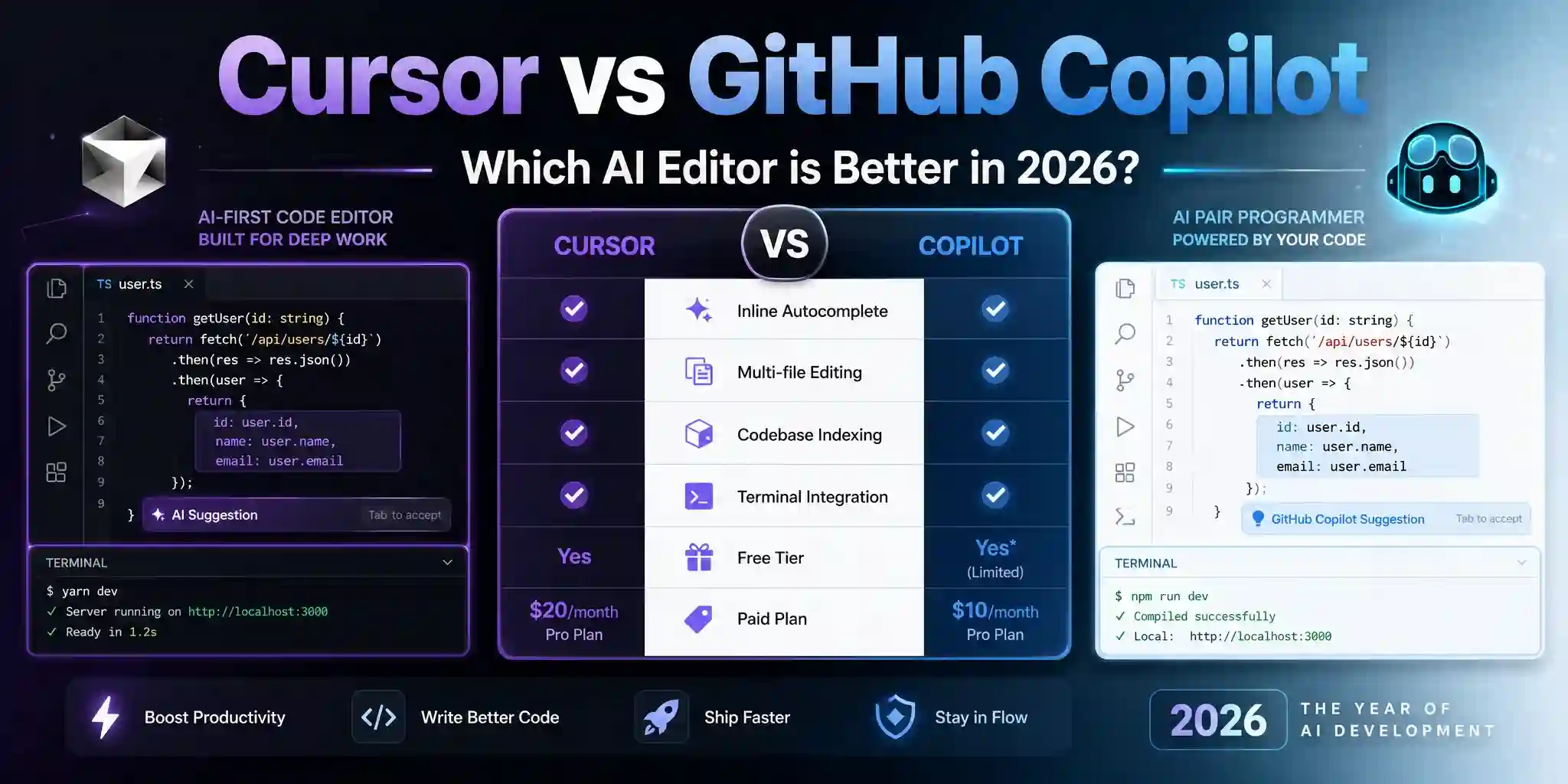
| Feature | Cursor | GitHub Copilot |
|---|---|---|
| Editor | Standalone (VS Code fork) | Plugin for VS Code, JetBrains, Neovim, etc. |
| TOP PICKInline Autocomplete | ✅ Excellent | ✅ Excellent |
| Multi-file Editing | ✅ Native (Composer) | ⚠️ Limited (Edits, beta) |
| Codebase Indexing | ✅ Full project (@codebase) | ⚠️ Open file + limited context |
| AI Models Available | Claude, GPT-4o, cursor-fast | GitHub models (OpenAI-based) |
| Terminal Integration | ✅ AI-powered terminal | ⚠️ Basic |
| Free Tier | ✅ Limited monthly credits | ✅ Free for students (Student Pack) |
| Paid Plan | $20/mo (Pro) | $10/mo (Individual) |
| Best For | Complex, codebase-wide tasks | Lightweight daily autocomplete |
| Overall Rating | ⭐ 4.8/5 | ⭐ 4.6/5 |
What Cursor Actually Is (And Why It's Different)
Most people’s first instinct would be to consider Cursor "just another Copilot plugin." It’s not. Cursor is a full fork of VS Code – that is, a totally independent software that you install, complete with its own set of settings, plugins, and AI integrated directly into the code editor instead of being a separate entity added on through a plugin. This is no minor difference; it makes what’s possible with Cursor entirely impossible with Copilot.
The primary Cursor functionality consists of three modes for developers:
Tab completion Copilot’s ghost text behaves in the same way, showing up within the text itself as you write, and accepting the suggestions by pressing the Tab key. The difference with Cursor is that its model isn’t limited to suggesting the next line; it can also make predictions based on the changes you’ve just made. If you modify a variable on line 12, Cursor’s Tab will show how to change the subsequent reference to that variable three lines further down.
Chat (Cmd+L) Initiates a sidebar chat with complete contextual awareness of your open document, along with any documents that you mention directly by @filename. This allows you to query information, seek help with rewriting, debug, etc., similar to ChatGPT, but with your code contextually available.
Composer (Cmd+I) That is what distinguishes Cursor. Composer receives a natural language command and applies the changes in concert to multiple files at once, presenting you with the combined diff of all changes made before you commit. This is the agency model, where you do more than suggest code; you perform on your code base.
Pros
- Composer creates multi-file codebase changes using a natural language prompt
- Complete codebase indexing using @codebase — inquire about code without opening it
- Flexibility in model usage — choose from Claude Sonnet, GPT-4o, or lightning fast cursor-based options
- AI-assisted terminal comprehends your project and can execute contextual suggestions and commands
Cons
- The need to change editors for the tool rather than just install a plug-in
- The limited free tier runs low on monthly credits with frequent use by a Composer
- Some instances of hallucinating the context when there are numerous interlinked modules in the project
- Lack of student discount program where the $20/month Pro plan can be expensive
What GitHub Copilot Actually Is (And Where It Still Wins)
Copilot is an AI coding companion that sits right in your existing code editor. This is not a small detail either. Rather than forcing you to uproot everything about how you write code and relocate into a new environment, Copilot works wherever your existing workflows exist – like VS Code, JetBrains, Neovim, Visual Studio.
And the 2026 Copilot experience extends well beyond its original inline autocomplete offering:
Ghost text autocomplete It is Copilot’s most used and for many developers most useful feature. It works quickly, understands the context in which you are currently typing, and can make predictions in more than 70 languages. As for routine work like boilerplating code, Copilot’s suggestion will help save a lot of typing.
Copilot Chat The other type of chatbot for developers is the sidebar conversation interface, which is supported by VS Code and JetBrains. The sidebar is capable of answering questions about single files, debugging, refactoring, and explanations. The limitation of this chatbot is that it does not have much context.
Copilot Edits (formerly Copilot Workspace, now more widely available) This is GitHub's response to Cursor's Composer. You tell it what you need in terms of multiple files, and it suggests changes in multiple files using a diff view. It is catching up fast, but is still not as mature as Cursor's Composer.
Copilot in the CLI will add AI to your terminal window for shell commands and git usage, which can be incredibly helpful for people who use the command line all day.
Pros
- Runs within your current editor — no interruption to your workflow or need to switch apps
- Free for students through the GitHub Student Developer Pack
- Lightning-fast inline autocompletion — suggestions pop up instantly
- Works with popular editors: VS Code, JetBrains, Neovim, Visual Studio, Xcode
Cons
- No project-wide indexing except for open files — no indexing like Cursor’s @codebase
- Copilot Edits (multi-file) is not yet as reliable as Cursor’s Composer
- One model for all tasks — you have fewer options compared to Cursor's Claude/GPT-4o/cursor-fast
- Security issue: Your code is uploaded to GitHub servers
Head-to-Head: The Tasks That Actually Matter
Inline Autocomplete
Winner: Tie, slight edge to Copilot for speed.
Both of them provide amazing code inline suggestions for most of your daily work. The predictions provided by Copilot are slightly faster and feel more natural within the context of VS Code as the tool integrates well into the editor and the ghost text shows up instantly. Cursor's Tab Completion is definitely smarter – it makes predictions on subsequent changes rather than on the next lines – but the difference will only be felt when doing refactoring.
This category is actually a draw as both tools give equal performance in terms of typing speeds. Therefore, Copilot wins in this particular category because it is free for college students. It is particularly effective for isolated coding tasks, such as when you need to explain and generate complex Regular Expressions on the fly.
Multi-File Editing and Refactoring
Winner: Cursor, decisively.
This is by far the most crucial category in terms of actual project development, and there's no contest. The Composer of Cursor takes an input such as "move the database connection code from server.js into a dedicated db.js file; modify all imports and include error handling" and generates a coherent multilayered diff to be reviewed and committed.
Whereas Copilot Edits excels at more straightforward tasks such as renaming across multiple files, or performing minor refactorings involving up to three or so files, it struggles to provide assistance on issues where one needs to understand the relationship between multiple files at once. This can be explained by the project-wide index in Cursor's case, which means it understands your entire codebase, whereas Copilot Edits does not.
For any kind of serious software development on a project basis, as opposed to solving random programming puzzles or scripting small applications, this category alone speaks volumes.
Understanding an Unfamiliar Codebase
Winner: Cursor.
The quickest way for a beginner developer to understand what they have been handed when joining a team or inheriting old code is to query information regarding the codebase. The Cursor's "@codebase" function enables just that, allowing you to ask "where is the login functionality defined?" or "how does the payment processing pipeline look from placing an order to confirming payment?" based on the reality of the code, not imagination.
Copilot Chat can respond to your queries based on the file currently open. However, Copilot Chat cannot respond to inquiries regarding the entire project unless you provide it with the relevant code copied from every file in the project. The code indexing of Cursor makes a huge difference to experienced developers joining an application.
Debugging a Complex Bug
Winner: Cursor for multi-file bugs; Copilot for single-file errors.
When the bug is limited to one file only — a logical error, an incorrect variable, or an unexpected edge case — Copilot Chat does an excellent job and doesn’t require leaving the comfort of VS Code. Copy the error message, explain what should happen instead, and Copilot will quickly analyze and suggest a solution.
When the problem occurs across multiple layers of abstraction — when the request comes into the API handler, goes through the middleware, invokes the service class, and then encounters an issue with the SQL query — the multi-file reasoning capabilities of Cursor make it superior as a debugger. Describe the issue, ask Cursor to walk through the code, and it will do that for you in all related files without your intervention. This is the exact level of depth I needed when building the distributed task queue for my NSUT Capstone Project review.
Writing Tests
Winner: Tie, with Cursor ahead for integration tests.
In both cases, they are great tools to write unit tests for functions and classes. Provide either one of these tools with a function and ask for a test case for the happy path, edge cases, and errors, and you will have something workable. The distinction arises when you want to perform integration testing that requires knowledge of the interaction between the different parts. Because Cursor has knowledge of its own code base, it works much better in this regard.
Speed and Latency
Winner: Copilot.
Autocompletion by Copilot is always faster, especially when considering the ghost completions as well. The cursor-fast feature by Cursor can match up well; however, Claude Sonnet and GPT-4o lag behind slightly due to the lag created while processing more advanced queries. If developers are aware of lag issues in suggestions, this feature of Copilot becomes very important.
Pricing: The Honest Breakdown for Students
| Plan | Cursor | GitHub Copilot |
|---|---|---|
| Free Tier | Limited premium model uses/month | Free for students (Student Pack) |
| Individual Paid | $20/mo (Pro) | $10/mo (Individual) |
| TOP PICKStudent Discount | None currently | 100% free via Student Pack |
| Team Plan | $40/user/mo (Business) | $19/user/mo (Business) |
| What Free Gets You | cursor-fast model, limited Claude/GPT-4o | Full Copilot autocomplete + Chat |
The difference in prices is very crucial to students because GitHub Copilot comes absolutely free under the Student Developer Pack offering. The free version of Cursor has some limitations to its functionality as the user can have access to the cursor-fast model freely while the Claude Sonnet or GPT-4o models for Composer tasks consume credits very quickly.
In terms of practical application, for example, if you lack financial resources, you should first try GitHub Copilot which comes free for students and complement this with Cursor's free version for multi-file code generation tasks that are beyond GitHub Copilot's capabilities.
The Verdict for Developers in 2026
If you have to code for real-world projects where your project spans more than one file and involves modular code that connects to each other – then Cursor is definitely the editor you want. Composer and @codebase in Cursor can solve issues with which Copilot will never be able to cope. If you are a student who cannot afford anything other than fast inline autocomplete from VS Code – then GitHub Copilot from the Student Pack is perfect, it’s free and doesn’t need any setting up.
Setting Up Each Tool From Scratch
- 1
Cursor: Click to download the installer at cursor.com; the application is available for use on macOS, Windows, and Linux operating systems. After installing, Cursor immediately recognizes the presence of Visual Studio Code on your computer and automatically imports your settings and preferences with a single click in just two minutes.
- 2
Cursor: Login via Google or GitHub to unlock your free account. Navigate to Settings > Models and choose your favorite AI model. The default cursor-fast doesn’t use any premium credits. Use Claude Sonnet if you need help with Composer.
- 3
Cursor: Open a project folder and then hit Cmd+Shift+P -> “Cursor: Index Codebase” to generate the complete index for the project. It will take one to five minutes based on the size of your project. You can now use @codebase commands in all your files.
- 4
GitHub Copilot: Sign up for the GitHub Student Developer Pack using your college/university email account at education.github.com. The process will take about 24-48 hours, after which you’ll gain access to Copilot and many other development tools for free.
- 5
GitHub Copilot: Once approved, head over to github.com/settings/copilot and turn Copilot on for your GitHub account. Launch VS code and navigate to Extensions. Type ‘GitHub Copilot’ into the search field.
- 6
GitHub Copilot: Sign in to GitHub via VS Code upon getting prompted. The Copilot icon will be visible in the status bar while it is working. Just open a code file and start typing. Suggestions will show up automatically after some time.
Real Workflows: When to Reach for Each Tool
Building a New Feature End-to-End
Use Cursor. In Composer, describe the task – "add a password reset flow: POST /auth/reset-request creates a token and sends an email, POST /auth/reset-confirm checks the token and sets a new password, code the routes and service implementation along with the email template". This type of task, which would take about twenty minutes to accomplish using Copilot, will be accomplished in five minutes with Cursor. Once the feature is built, you can then use specialized AI tools for technical documentation to ensure your code is readable by the rest of your team.
Writing Boilerplate During Active Coding
Use Copilot. While in flow mode and coding line by line, the Copilot ghost text is the better and more streamlined option. One does not want to switch to a chat window or issue an instruction to a Composer bot to finish the for loop and implement a generic error handling mechanism.
Onboarding to a New Codebase
Use Cursor. After indexing the project, query @codebase freely like this: "Where is the rate limit set?", "Which component processes file uploads?", "What occurs if the session token expires for a user?" You'll grasp the architecture within an hour, not a day.
Debugging a Stack Trace
Use Copilot Chat to handle errors in one file at a time by pasting the trace and then pasting the code within that file. Utilize Cursor Chat to solve errors spread across multiple files by pasting the trace and mentioning the filename using @filename.
Submitting a PR to an Open Source Project
Use Cursor. Before typing even one line of code, ask yourself what conventions the project follows by using @codebase: "What conventions are followed regarding error handling?", "How do API responses look like from existing endpoints?" Asking these questions rather than assuming makes coding to the project's standards much easier.
The Elephant in the Room: Privacy
Both of these tools will process your code on their remote servers. This should not be an issue when working on personal projects and class assignments. However, with proprietary code, including intern code, startup code, or NDA client code, you have to verify whether it is okay to use such a tool.
Copilot has an option to turn off the sending of code snippets, which would be beneficial: Settings → GitHub Copilot → Disable Suggestions Matching Public Code. Cursor has a Privacy Mode that would prevent your code from ever being saved to the server; however, the code would leave your computer during the inference process.
What to Avoid: Common Mistakes With Both Tools
What many software engineers do wrong with Cursor Composer is assume that Composer can be trusted with the no-review automation process. Always read through your diff. Composer is precise but sometimes fails to recognize an import, duplicates a utility function because a similar one was used before, or makes a small logical adjustment without you asking. Diffing should always be performed.
The biggest issue with Copilot is that you accept the generated suggestions without reviewing them first. Ghost text typing works very quickly and pressing Tab soon becomes a habit. Sometimes you need to take it slow and read what you are about to accept, especially if the code is complex, handles sensitive data, or deals with concurrency and state.
For both AI coding assistants: do not let their completion take the place of your understanding. You accumulate tech debt whenever you accept a function that you cannot explain in detail later.
Final Verdict
Choose Cursor if: When you are working on projects that involve multiple files, you require the highest level of codebase reasoning provided by any editor currently on the market, you do not mind spending $20 per month or sticking within the capabilities of the free version, and you are ready to change editors.
Choose GitHub Copilot if: if you are a student who requires full-scale AI coding assistance without any cost, if you do not wish to switch your current editor configuration, if fast inline autocompletion is your main requirement, or if you are using JetBrains, Neovim, or Xcode where Cursor does not work.
Use both if: you want the best of both worlds. Cursor for all things complex, Copilot for muscle memory in case you require maximum velocity. Neither application precludes use of the other, and you pay nothing for both if you are a recognized student.
The age when AI was merely a coding assistant that sat silently within your editor waiting for input is coming to an end. Cursor is ahead down that path. Copilot is playing catch-up. Regardless of which way we go, though, both products are a significant step above coding without AI in 2026, which is the only thing that loses.