The Script That Launched a Fear of Bash
The next year, one of the seniors in the lab issued a single command from the lab server and erased three weeks' worth of compiled binaries for another student in the lab. Nothing malicious intended; just made a mistake by copying a script from StackOverflow and misinterpreting what $DIR/* would expand into and ran it in the wrong directory. No flags were set for the rm -rf. The command interpreter executed exactly as instructed.
Bash is incredibly powerful, but if one does not know what he or she is running, it can be very dangerous. But, on the other hand, the power of Bash makes it indispensable for any software engineer, data engineer, or DevOps professional.
The problem has always been the learning curve. Bash syntax is dense and highly inconsistent. Flags are single characters without mnemonic names. Quoting is tricky and hard to remember. Variable expansions come in twenty flavors, and using the wrong one is invisible until your script fails in some way you didn’t think about. Most programmers know just enough to barely scrape by and will spend decades terrified of scripts written by someone else.
AI solves that problem in its entirety, not by making the learning unnecessary but by making the knowledge immediately available when needed. Cut and paste your code and get an English translation in thirty seconds. Tell the system what you need done, and you get a correct implementation ready to use instantly. The distance between knowing what you want the script to do and having a functional and secure script is reduced to a single request.
That’s what this article is all about: how to generate, explain, and debug Bash scripts using AI.
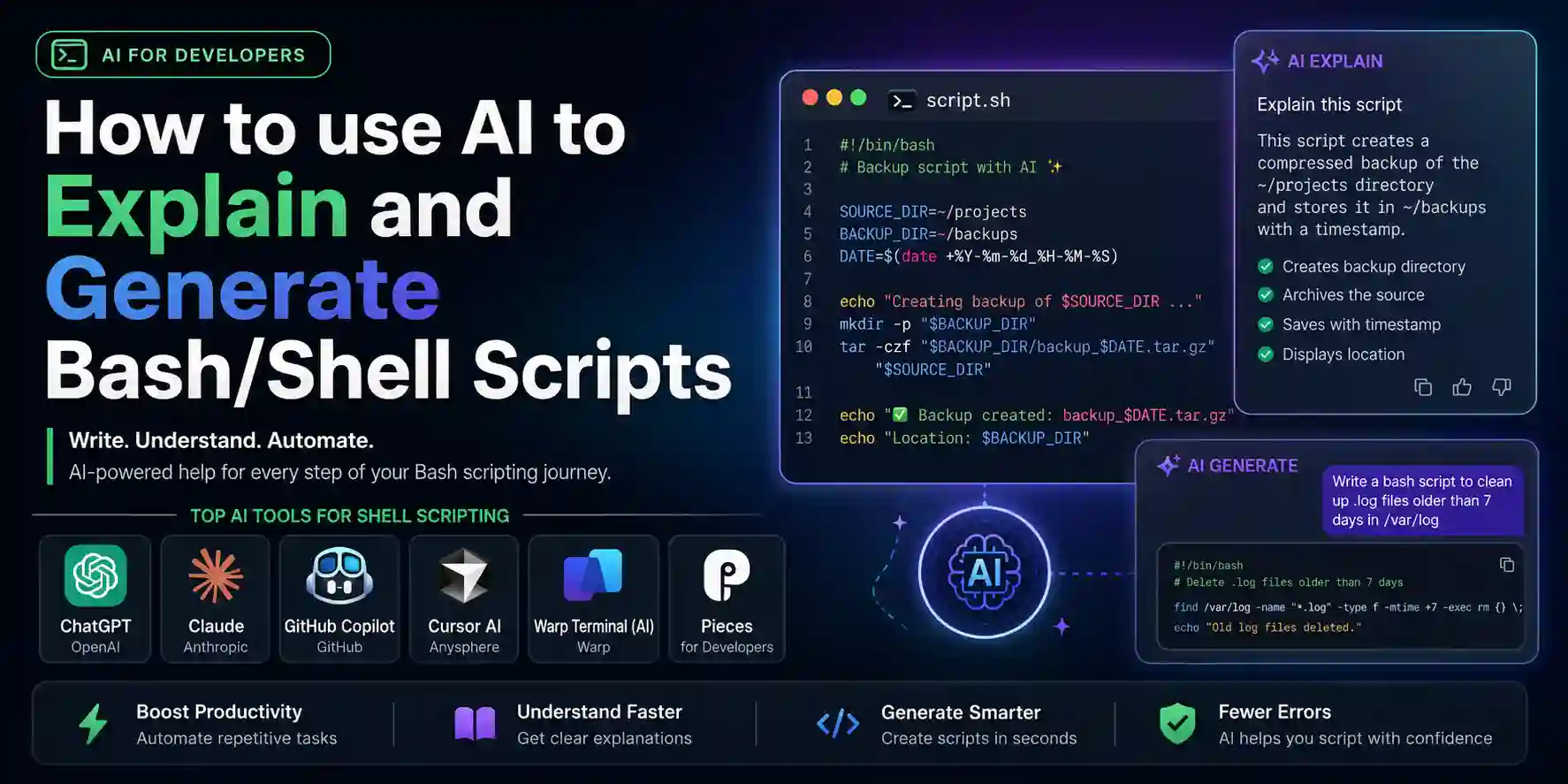
| Tool | Best For | Bash Accuracy | Safety Checks | Price | Rating |
|---|---|---|---|---|---|
| Claude | Explanation + safe, commented generation | ⭐⭐⭐⭐⭐ | ✅ Proactive | Free / $20 Pro | ⭐ 4.9/5 |
| TOP PICKChatGPT (GPT-4o) | Multi-turn debugging + script refinement | ⭐⭐⭐⭐ | ⚠️ On request | Free / $20 mo | ⭐ 4.7/5 |
| GitHub Copilot | Inline script generation in .sh files | ⭐⭐⭐⭐ | ⚠️ Limited | Free (Student Pack) | ⭐ 4.6/5 |
| Cursor AI | Multi-file scripts + codebase-aware generation | ⭐⭐⭐⭐ | ⚠️ On request | Free / $20 Pro | ⭐ 4.5/5 |
| Warp Terminal (AI) | AI assistance inside the terminal itself | ⭐⭐⭐ | ⚠️ Limited | Free / $15 mo | ⭐ 4.3/5 |
| Pieces for Developers | Saving + reusing your script snippet library | N/A (storage) | N/A | Free (local) | ⭐ 4.2/5 |
Why Bash Is Hard — And Why AI Removes the Bottleneck
The problem with Bash is not one of conception; the notion of "execute this command, get its output, filter it, then pipe it to another command" makes perfect sense. The problem lies with syntax and semantics; the chasm between how you think about things and what you must type to say so.
Here are three levels of Bash befuddlement that ensnare nearly all programmers:
Quoting rules. The difference between "$var", '$var', $var, and ${var} is not cosmetic. Each expands differently, handles spaces differently, and interacts with globbing differently. Using the wrong quoting in a file path with spaces silently corrupts the path. Using unquoted variables in comparisons causes scripts to break on empty values with cryptic errors.
Flags and their interactions. grep -rn --include="*.log" -l — what does each flag do, what does their combination do, and what happens if you change the order? The Bash ecosystem has hundreds of commands each with their own flag conventions, many inherited from 1970s Unix design decisions that were never intended to be learnable.
Silent failures. By default, Bash continues executing after a command fails. A script that is supposed to back up a directory, compress it, and upload it to S3 will silently skip the backup step if the source directory does not exist, compress nothing, and upload an empty archive — with exit code 0, indicating success. This is the category of Bash behavior that causes production incidents.
AI takes care of all three tiers at once — produces accurate quotes, explains flag combinations in simple English, and — provided that the request is properly formulated — includes error handling for any errors made invisible before. The main thing is to know how to formulate the question.
The same idea goes for other developer utilities — whether you need to generate regular expression patterns, which we discussed in our article about AI-based regex generators, or SQL queries, which we covered in our guide on the best AI SQL generators.
The Safety-First Prompt: Always Start Here
In the discussion about workflow-specific instructions, there is a common principle to keep in mind regarding the use of AI tools for creating scripts in Bash. The common rule is that you must explicitly request output that will be used in a production environment.
The baseline safety header every AI-generated script should include:
#!/usr/bin/env bash
set -euo pipefail
IFS=$'\n\t'
These three lines change how Bash behaves fundamentally:
set -e— exit immediately if any command fails, instead of continuing silentlyset -u— treat unset variables as errors instead of expanding them to empty stringset -o pipefail— make a pipeline fail if any command in it fails, not just the last oneIFS=$'\n\t'— prevent word splitting on spaces, which is the root cause of most file path bugs
Add this requirement to your prompts: "Create a Bash script that includes set -euo pipefail at the beginning of the code, explicit errors if something goes wrong, and explanations for all non-trivial sections."
Just adding this one requirement to your prompt format is the line between reviewing an AI-generated script and running the risk of having catastrophic failures when you do use the code.
Claude — The Best Bash Explainer and Generator
Claude is the best at performing both functions of the Bash AI process: writing scripts based on a natural language description that are safe, well-commented, and can be easily understood, as well as describing complicated or unknown scripts in English sufficiently for understanding.
Why Claude leads on Bash: Claude takes a step ahead by including safeguards in the generated scripts without even asking. If you instruct Claude to create a script that removes files based on a pattern, it will include a dry run flag, show you the files that it would delete before deleting them, and give you an opportunity to confirm its action — things you didn’t even request but which could have helped prevent the accident I mentioned earlier.
The explanation workflow: Paste any bash script, whether one passed down to you from a former colleague, one retrieved from an old Stack Overflow question from five years ago, or one from a Dockerfile that you want to comprehend, into Claude’s prompt and have him walk through each line for you. Claude walks through each line, breaking down every command and flag, as well as any pipes or redirections, and alerts you to anything in the script that could be hazardous.
The generation workflow: Write a clear explanation of what you expect from the AI in simple English, providing enough detail to limit the output: what the program is supposed to do, what it is not supposed to do, the environment in which it will be executed, and what happens in case of an error. Claude produces a full working version with comments and error handling.
Pros
- Proactively inserts safeguards like dry run indicators, prompts for confirmation, and error handling, without even being prompted
- Line-by-line analysis of pasted code, explaining the rationale behind how it is written
- Finds potentially harmful constructs such as lack of quoting, `rm -rf` with no safeguards, and lack of error checking
- Creates scripts complete with comments for the code generated to self-explain the results
Cons
- Not possible to run scripts or test them – needs actual shell environment
- Free plan quota restrictions may interfere with continuous scripting throughout the session
- Long or complicated scripts (more than 200 lines) sometimes suffer from inconsistent naming conventions for variables
- Lack of IDE support – copying code and pasting becomes difficult than with editor-integrated Copilot
The Prompt Templates That Produce Safe, Useful Output
For generating a new script:
Write a Bash script (bash, not sh) that [task description].

Requirements:
- Use set -euo pipefail at the top
- [specific requirement 1]
- [specific requirement 2]
- Handle the case where [failure case 1]
- Handle the case where [failure case 2]
- Add a --dry-run flag that shows what would happen without executing
- Add inline comments explaining non-obvious commands
- Print a usage message if called with --help or wrong arguments

Environment: [Ubuntu 22.04 / macOS / Alpine Linux / etc.]
For explaining an existing script:
Explain this Bash script line by line. For each line or logical block:
1. What does it do in plain English?
2. What does each flag or option mean?
3. Is there anything potentially dangerous or likely to fail silently?
4. Are there any better or safer alternatives for any section?

[paste script]
For debugging a script that is not working:
This Bash script is supposed to [intended behavior] but it [actual behavior / error].

Here is the script:
[paste script]

Here is the error output or wrong result:
[paste error or describe wrong output]

The environment is [OS and shell version].
Walk me through what is actually happening and fix the issue.
These three templates cover 90% of real Bash AI interactions. The specificity of the environment and the failure case descriptions is what separates accurate output from generic output.
ChatGPT — The Multi-Turn Script Debugger
The strength of ChatGPT for Bash scripting is similar to that for SQL and regular expressions: the iterative debugging process. Whenever your script goes wrong in a way you cannot comprehend, the ability to have a multi-round conversation allows you to paste your error message, explain your environment, get a solution, implement the fix, paste another error message, and repeat.
Why it's essential for Bash: Shell scripting issues may be dependent on the environment. A shell script working fine on macOS will not work on Linux as sed commands have different options on BSD vs. GNU environments. A shell script working fine in your local environment will not work in continuous integration due to differences in your $PATH variable.
The multi-turn debug workflow:
Turn 1: "This script is supposed to watch a directory and compress any new .log files that appear. Here's the script. Here's the error: inotifywait: command not found."
Turn 2: "I installed inotify-tools. Now the script runs but it's not detecting new files. The directory is /var/log/app/. Is there a race condition in the watch loop?"
Turn 3: "The detection works now, but gzip is running before the file is fully written and producing corrupt archives. How do I wait until the file write is complete before compressing?"
This kind of progressive diagnosis — where each fix reveals the next layer of the problem — is exactly what ChatGPT handles well. The alternative is restarting the conversation each time, re-explaining the full script, and losing the accumulated context of what has already been tried.
Pros
- Iterative debugging comes naturally to someone who can retain the multi-turn context
- Excels at solving problems specific to environments - FreeBSD vs. GNU, CI vs. Local system differences
- Can create different variations of the same script for macOS, Linux, and even Alpine
- Explains why each potential solution is made, explaining the reasoning behind the code changes
Cons
- Slightly less enthusiastic about safety precautions than Claude — may require more direct encouragement
- Throttle restrictions on the free plan can disrupt lengthy debugging on complicated scripts
- On occasion, offers solutions that are effective yet un-Bash-like — practical but difficult to support
- Unable to run scripts — testing still must be done in an actual shell environment
GitHub Copilot — Bash Inline in Your Editor
The greatest strength of Copilot for Bash comes in when you’re writing scripts as part of a larger project within your editor – be it deployment scripts, building automations, test runners, or setup scripts all residing in the same Git repo as the rest of your app code. The no-context-switch benefit that made Copilot great for code and regex is equally useful for Shell scripts.
The comment-driven generation workflow: Open a .sh file in VS Code. Write a comment describing the function you need:
#!/usr/bin/env bash
set -euo pipefail

# Function: check if a Docker container is running and restart it if not
# Arguments: container name
# Returns: 0 if running or restarted, 1 if restart failed
Copilot suggests the implementation inline. For common DevOps tasks — container management, file cleanup, log rotation, health checks — the suggestions are accurate enough to accept and review. For custom logic with specific business requirements, treat the suggestion as a skeleton.
Best use case: Copilot is best suited to help in writing repetitive scaffoldings for shell scripts like argument parsers using getopts, functions that print usages, logging utility functions, and typical error handling code. The reason being, there is consistency among such patterns, and so Copilot makes reliable recommendations. Also, by getting such boilerplates for free, one can focus only on the unique logic that has to be written. This is similar to how Copilot was helping previously with inline suggestions for other developer activities, which was analyzed in detail in the Comparison between Cursor and GitHub Copilot.
Pros
- No context switches - Bash written right into your .sh file while editing
- Great scaffolding for repetitive tasks - parsing arguments, logging code, exception handling code
- Free for students with the GitHub Student Developer Pack
- Context-aware - suggests environment variables based on .env files that are open
Cons
- Inferior reliability when it comes to complex reasoning skills — algorithms have to be carefully checked
- It does not put safety headers automatically — the command set -euo pipefail has to be specified
- Limited by context in open files — does not take into account the whole deployment context
- No explanation to the output — you get a ready-to-use code with no explanations
Warp Terminal — AI Assistance Inside the Shell Itself
Warp is an innovative terminal that integrates the functionality of AI-powered assistance right into the command line interface itself. Instead of navigating to a new browser tab and asking Claude for guidance on a specific command, the user hits a key combination from within Warp and specifies their task – and Warp provides the command or script snippet right there in the terminal itself.
Why it earns a place here: The context in which Warp operates is unique from any other browser-based AI tool. It understands the present working directory, command history, environment variables, and shell settings. In situations where users are asking questions like "how do I find all files larger than 100 MB in the last week?" the suggestion offered by Warp will be based on your present directory path and not on a general solution.
Best Feature: Explanation popup for command. Enter any command, then use the shortcut for an explanation — Warp will explain the function of the command, what its flags do, and the meaning of its output, all without exiting the terminal interface. This process of getting explanations in real time is much faster than sending commands to chat.
Limitations: The AI used by Warp works best when it comes to simple single-command assistance as well as some short script creation. When more complicated scripts need to be made, it will yield better results when using the Claude procedure. The right choice when one asks the question, "What is the command to do X?" is Warp.
The Bash Concepts AI Explains Best
Apart from generation, AI tools are also the quickest method for learning about Bash scripting techniques that programmers tend to shy away from due to their complex documentation and difficult syntax. Here are some of the concepts you should ask about – with the prompt included.
Parameter expansion with defaults and transformations:
The ${var:-default}, ${var:=default}, ${var%%pattern}, ${var//find/replace} family of expansions is where most Bash documentation loses people. Ask Claude: "Explain the difference between ${var:-default}, ${var:=default}, ${var:?error}, and ${var:+alternate} with a concrete example of when each is appropriate."
Process substitution:
diff <(sort file1.txt) <(sort file2.txt) — the <(command) syntax is powerful and confusing on first encounter. Ask: "Explain process substitution in Bash — what does <(command) do, how is it different from a pipe, and give me three practical examples of when it is the right tool."
Trap handlers for cleanup:
trap 'cleanup_function' EXIT INT TERM — handling script cleanup on exit, interrupt, or termination is essential for scripts that create temporary files or hold locks. Ask: "Show me how to use trap in Bash to clean up temporary files when a script exits normally, is interrupted with Ctrl+C, or is killed. Explain what signals to catch and why."
Arrays and associative arrays:
Bash arrays are not intuitive — especially the difference between ${arr[@]} and ${arr[*]}, and the associative array syntax that differs from indexed arrays. Ask: "Explain Bash indexed arrays and associative arrays — how to declare, populate, iterate, and use them, with the key gotchas around quoting and expansion."
Here-docs and here-strings:
cat << EOF and command <<< "string" — used in scripts to embed multi-line content or pass string input to commands that expect stdin. Ask: "Explain here-documents and here-strings in Bash. When would I use << EOF versus <<<, and what does the - in <<- EOF do?"
For each of these, the prompt pattern is the same: ask for an explanation of the concept, the syntax, a concrete use case, and the gotchas. AI gives you in two minutes what would take twenty minutes of man page reading to piece together.
Practical Workflows: Real Bash Tasks, AI-Assisted
Writing a Deployment Script From Scratch
The task: Deploy a Node.js application to a Linux server — pull latest code, install dependencies, run database migrations, restart the service, and verify it is healthy.
The prompt to Claude:
Write a Bash deployment script (set -euo pipefail) for a Node.js application on Ubuntu 22.04.

The script should:
1. Accept --env (staging/production) and --branch arguments
2. Pull the latest code from the specified git branch
3. Run npm ci to install dependencies
4. Run database migrations with npm run migrate
5. Restart the application using systemctl restart myapp
6. Wait up to 30 seconds for the health check endpoint (GET /health) to return 200
7. If the health check fails, rollback by checking out the previous commit and restarting
8. Log all actions with timestamps to /var/log/deploy.log

Include set -euo pipefail, a dry-run flag, and comments explaining non-obvious sections.
Claude creates a full deployment script which contains argument processing, rollback functionality, health checks loop, timestamps in logs, and dry-run execution. In forty-five minutes, one could have written the same deployment script from scratch but Claude completes it in just forty seconds.
Understanding a Legacy Script Before Modifying It
The task: You have inherited a 80-line backup script that runs as a cron job. You need to modify it to add a new backup target but do not understand what the existing script does.
The prompt to Claude:
Explain this Bash script line by line. I need to understand it well enough to safely add
a new backup target for /var/data/uploads/ alongside the existing backup logic.

For each section, explain:
- What it does
- What each flag means
- Any potential failure modes or dangerous patterns
- Whether there is anything I should fix before modifying it

[paste the 80-line script]
Claude walks through every section, flags any unquoted variables or missing error handlers, explains the rsync flags, and tells you exactly where in the script to add the new backup target — with the code to add.
Automating Log Analysis
The task: Parse Nginx access logs to find the top 10 IP addresses making requests, filter out your own monitoring IPs, and email a daily summary if any IP exceeds 1000 requests.
The prompt to ChatGPT:
Write a Bash script to analyze Nginx access logs at /var/log/nginx/access.log.

Requirements:
- Extract IP addresses from the standard Nginx log format
- Count requests per IP for the past 24 hours only (not the full log history)
- Filter out these monitoring IPs: 10.0.0.5, 10.0.0.6
- If any IP exceeds 1000 requests, send an email to admin@example.com with the subject
  "High traffic alert" and a body listing the offending IPs and their counts
- Use sendmail or mailx for the email, whichever is available
- Run safely with set -euo pipefail
- Add a --report-only flag that prints the top 10 IPs without sending email
Result: A complete log analysis script using awk for log parsing, date for the 24-hour filter, sort and head for ranking, and a conditional email send with the specified IPs filtered out.
Building a Safe File Cleanup Script
The task: Clean up files older than 30 days in a temp directory, but with enough guards to prevent accidental deletion of the wrong files.
The prompt to Claude:
Write a safe Bash cleanup script that deletes files older than 30 days from /tmp/myapp/.

Safety requirements:
- The target directory must be explicitly confirmed at the top of the script as a constant —
  never derive it from a variable that could be empty
- Add a --dry-run flag that lists what would be deleted without deleting anything
- Print the count and total size of files that will be deleted before executing
- Require --confirm flag to actually execute deletion (default is dry-run)
- Never use rm -rf — use find with -delete or rm on specific matched files
- Log deletions to /var/log/myapp-cleanup.log with timestamps
- Exit with an error if the target directory does not exist
The script created by Claude will not unintentionally remove the wrong directory as the target directory is a constant, execution is confirmed before running, and by default operates in dry-run mode while logging each removal. In essence, the Bash script was written like a senior engineer would.
Converting a Manual Process Into a Script
The task: You have a series of commands you run manually every time you set up a new development environment. You want to automate them into a single setup script.
The prompt:
I run these commands manually every time I set up a new dev environment.
Convert them into a well-structured Bash setup script with:
- A check at the start for required dependencies (git, node, docker)
- Idempotency — running the script twice should not break anything
- Progress messages so I know what step is running
- Error messages that explain what failed and how to fix it
- set -euo pipefail

Commands I run manually:
[paste your manual command sequence]
Idempotence, meaning that executing the script twice will have the same effect as if the script was executed once, is the most crucial feature of setup scripts and the one that is often overlooked by developers. Specifying idempotence as part of the problem statement guarantees that Claude will include all the necessary logic to safely re-execute the script ("if [ ! -d ".env" ]; then... fi").
The Bash Patterns AI Gets Right Every Time
Some Bash patterns are standard enough that AI generates them correctly without any special prompting. Knowing these means you can delegate them to AI confidently:
Argument parsing with getopt:
# Ask: "Add argument parsing to this script for --env, --branch, and --dry-run flags"
Claude generates a proper getopt or manual case loop with validation, a usage function, and help text.
Logging with timestamps:
# Ask: "Add a log function that writes to both stdout and /var/log/script.log with timestamps"
Generates a reusable log() function using tee and date.
Retry logic:
# Ask: "Add retry logic that tries a command up to 3 times with 5-second waits between attempts"
Generates a retry() function with configurable attempts and backoff.
Checking for required dependencies:
# Ask: "Add a preflight check that verifies git, curl, and jq are installed before the script runs"
Generates a clean dependency check loop with meaningful error messages.
Locking to prevent concurrent runs:
# Ask: "Add a lock mechanism using a lockfile so only one instance of this script can run at a time"
Generates a proper flock or lockfile pattern with cleanup on exit.
These five patterns appear in almost every production-quality Bash script. Delegating them to AI saves the time of looking them up and reduces the chance of implementing them incorrectly.
What to Avoid: Common Mistakes With AI-Generated Bash
Running scripts without reading them. And this is the golden rule. When it comes to an AI-created Bash script that you have not yet read, this means trusting an unknown script to do the right thing when it faces any scenario, whether expected or unforeseen by the AI. Always read your script line by line before running it. If something is unclear, ask the AI for clarification before running it.
Not testing in a staging environment first. The use cases involving the file system, networks, databases, or any other services must be verified in a test environment before deploying them into production. There is no amount of artificial intelligence review that will catch all the edge cases.
Skipping the set -euo pipefail header. This is the most prevalent omission when writing Bash manually or by AI. It is a must-have and should be requested in every generation request by the user. The absence of this line implies that the code keeps running even after encountering errors and does not catch any problems in pipelines.
Using AI-generated scripts that call external services without reviewing the API calls. Such scripts must be carefully analyzed since AI could possibly generate a properly formed API request but with the incorrect parameter or without authentication header. In case of using a script which interacts with external systems, you should check all API requests according to the official documentation.
Not parameterizing hardcoded values. In scripts created using AI, the path, username, and other such values tend to get hardcoded. Instead of using hardcoded values, one needs to add these values as variables in the beginning of the script.
The Bash Developer's AI Stack
The best way to do Bash coding includes using three distinct pieces of software, each doing a specific task. Claude should be used whenever there is a need for safe and explanatory coding, including developing scripts from scratch, understanding scripts created by others, and validating scripts for any unsafe elements. ChatGPT is best used when a number of turns have to be done in a debugging process. Lastly, GitHub Copilot, which can be accessed for free via the Student Pack, should be utilized whenever writing the same old patterns, such as argument parsing, logging, and dependency checks. All developed scripts must then be validated in the same manner – read it in full, add set -euo pipefail if it is not there, and validate it in the staging environment.
Building Your Bash Snippet Library
Any developer working with Bash builds up patterns — a function to retry operations, a script for logging that outputs nicely, a loop to verify dependencies that covers all corner cases. But there's a catch — such patterns are usually stored in outdated scripts stored in project folders that aren't searchable.
Pieces for Developers — an offline-first snippet manager with context-aware artificial intelligence — fits this use case like a glove. Every time you generate a functional Bash pattern, add it to Pieces with a relevant name tag. For example, "bash retry function", "bash argument parsing getopts", "bash lockfile avoid running concurrently". The AI-powered chat in Pieces can access your entire collection of snippets, meaning you could simply ask "do I have a snippet for verifying if a Docker container is running?"
That builds up over time. With six months worth of Bash coding behind you, you already have all the snippets you have ever needed, all tested, all labeled with information about when they were used. Scripting begins by searching your library instead of creating something new from scratch; the snippets from your library will be familiar because you have used them before.
It is the same concept of snippet management that holds true for any technical language – the same process we utilize in reusing snippets from SQL and regex and other languages covered throughout this blog series.
Final Thoughts
There is an interesting paradox about Bash scripting when it comes to a programmer’s expertise – it’s important enough to use frequently but difficult enough that almost nobody bothers to get really good at it. That means the IT industry ends up filled with programmers who write apps effortlessly, but are scared of working on a shell script.
This is where AI does not eliminate the need to comprehend Bash at all. It is crucial to be able to determine what a script does before executing it; otherwise, there is a risk of facing automation-related incidents. The only thing AI eliminates here is syntax difficulty – the problem of writing Bash code based on a concept of what needs to be done.
With an explanation first. The next time you come across a Bash script you didn't write — be it in a Makefile, a Dockerfile, a repository for deploying things — copy it into Claude and get a line-by-line explanation before you run it or even change anything about it. That one habit alone will give you more Bash literacy faster than any tutorial, since you're going over a real Bash script doing real work in a real system.
Then move onto scripting. Think of the next thing that you've been delaying writing a script for, "because that will take ages." Take out the prompt templates from the previous section of the article. Run the results. Remember set -euo pipefail. Test in a staging environment. Feel good deploying.
Those same scripts you used to write in an hour now become a dialogue. Have a good chat with them.